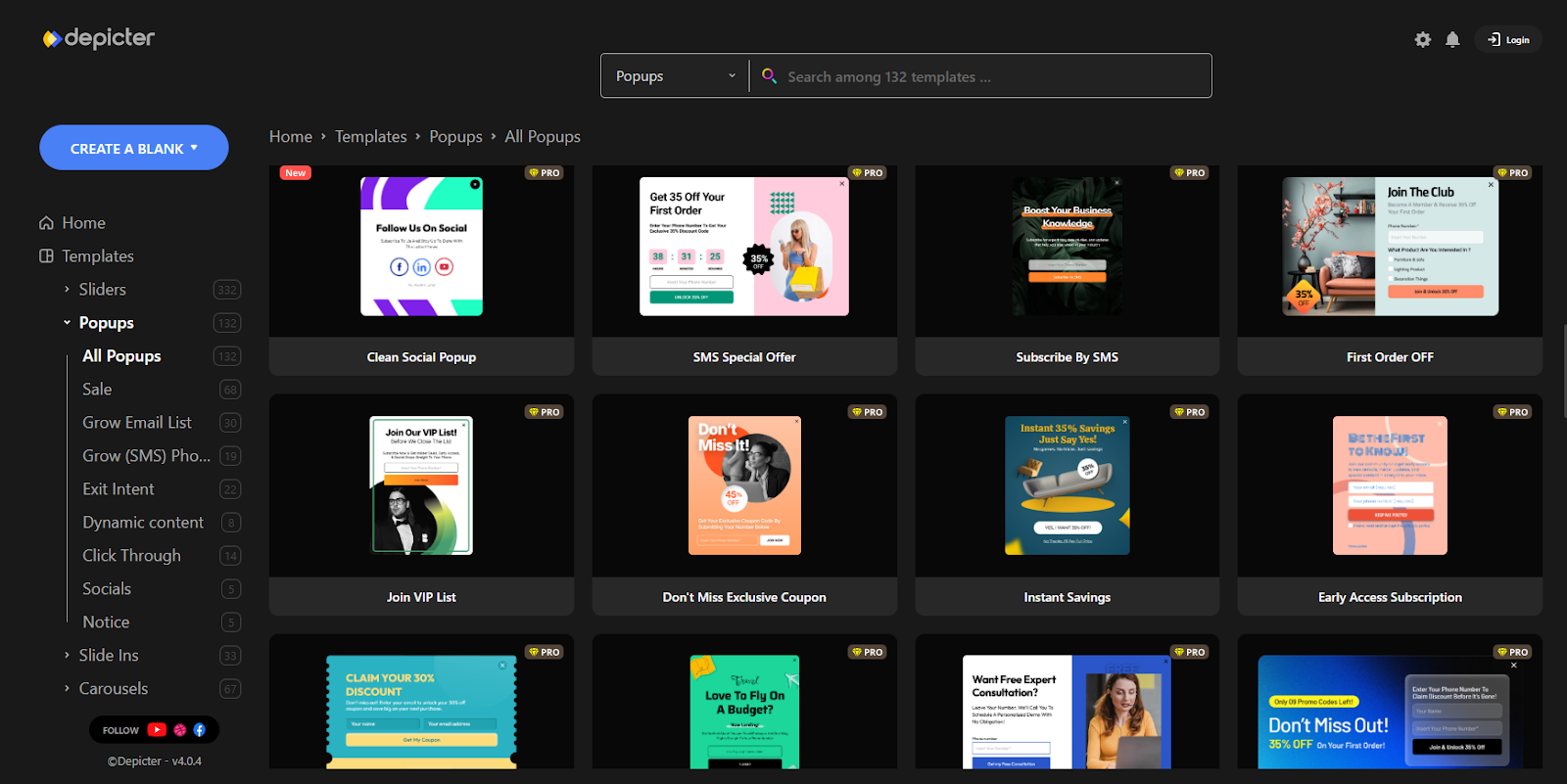
When it comes to building a WordPress site, it really comes down to personal preference. Many people love using Elementor because it’s powerful, feature-rich, and makes designing websites easier for a lot of users. Choosing Gutenberg doesn’t mean Elementor is bad or that you should avoid it—Elementor is still one of the best tools out there.
At the same time, some users simply prefer to work with Gutenberg, the default WordPress editor. With Gutenberg, you can keep things lighter, faster, and closer to the WordPress core. For those who like a simpler workflow, Gutenberg is often enough to create a flexible and professional-looking site.
In short, it’s not about which one is “better,” but about which one fits your style. If you prefer Gutenberg, there are plenty of plugins that can extend its features and give you many of the tools you need without installing a full page builder.
Plugins to Extend Gutenberg (without Elementor)
If you decide to build your site mainly with Gutenberg, you might notice that the default editor gives you a solid foundation, but sometimes you’ll want a bit more flexibility.
That’s where plugins come in. By adding the right plugins, you can unlock new blocks, design options, and layout tools—without needing a full page builder like Elementor.
Below are five plugins that can extend Gutenberg’s features and help you create a more dynamic and engaging WordPress site.
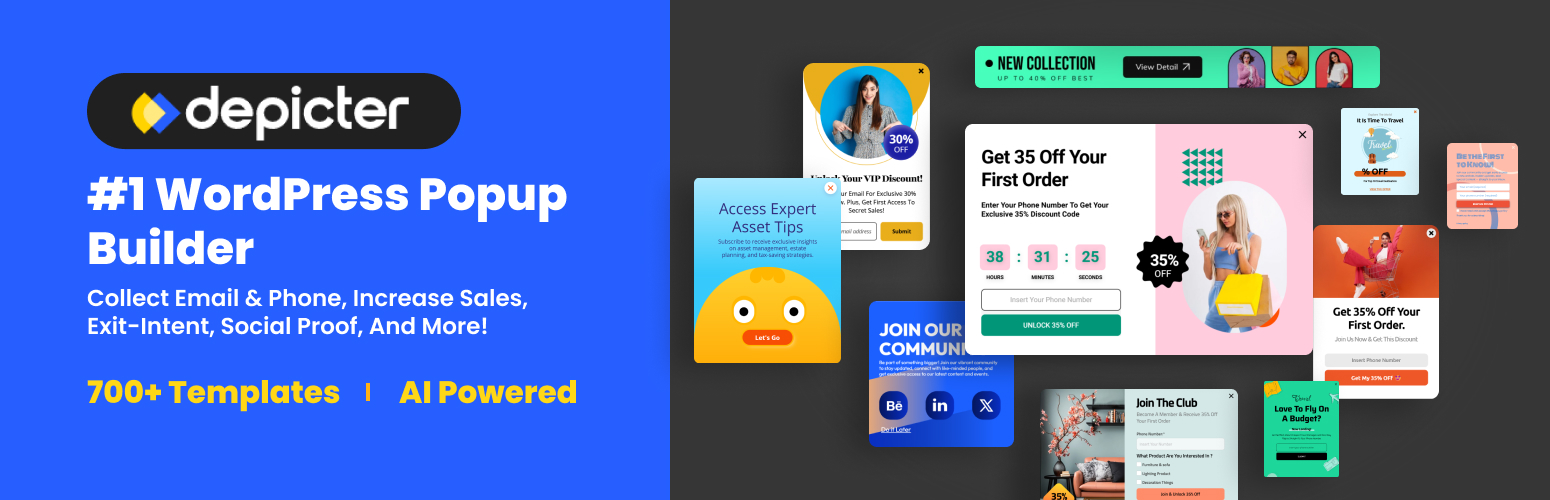
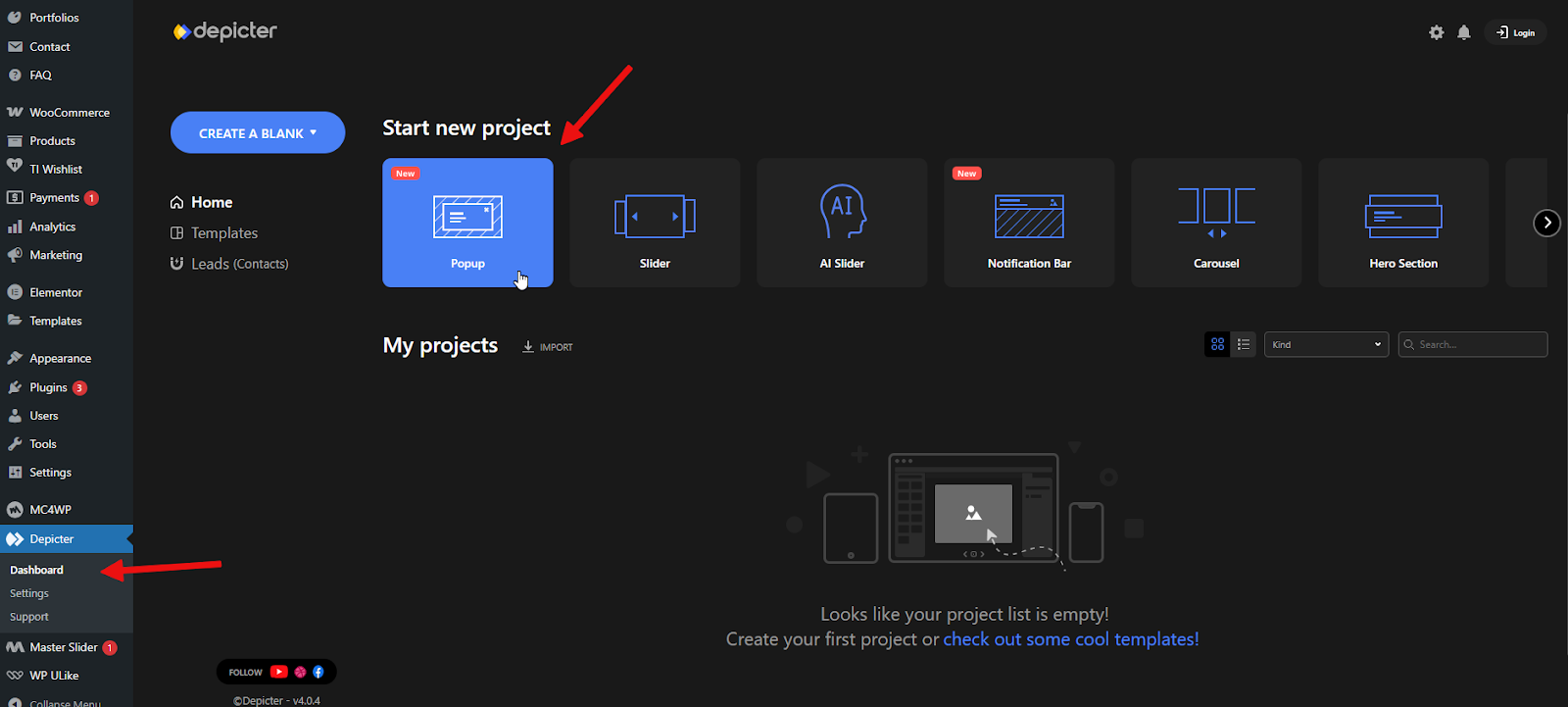
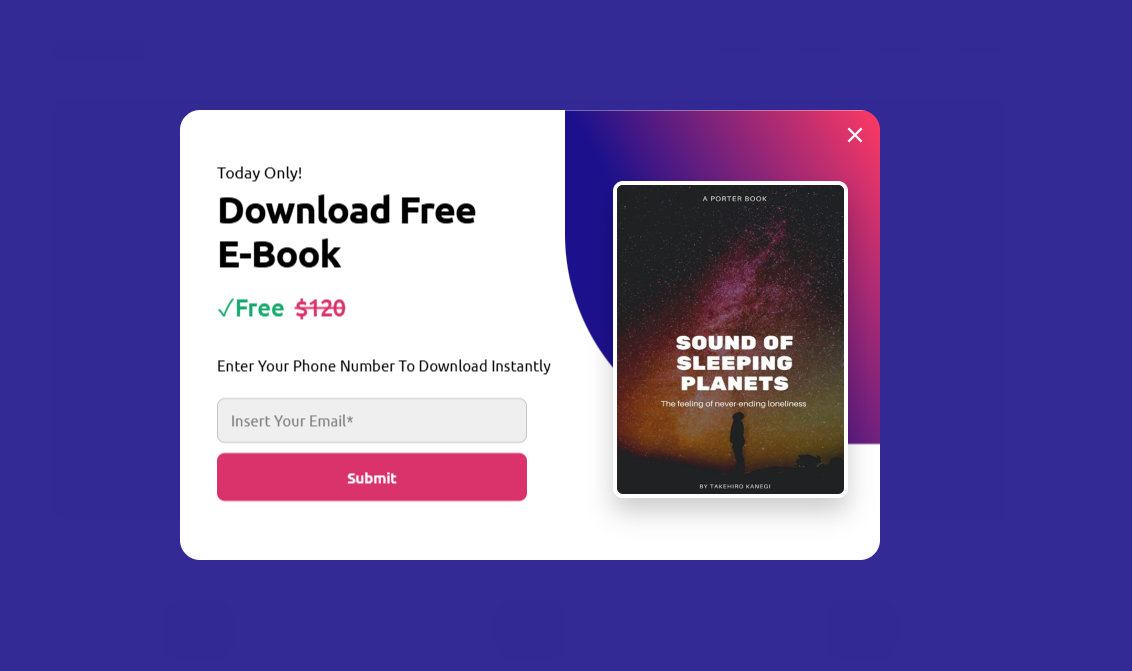
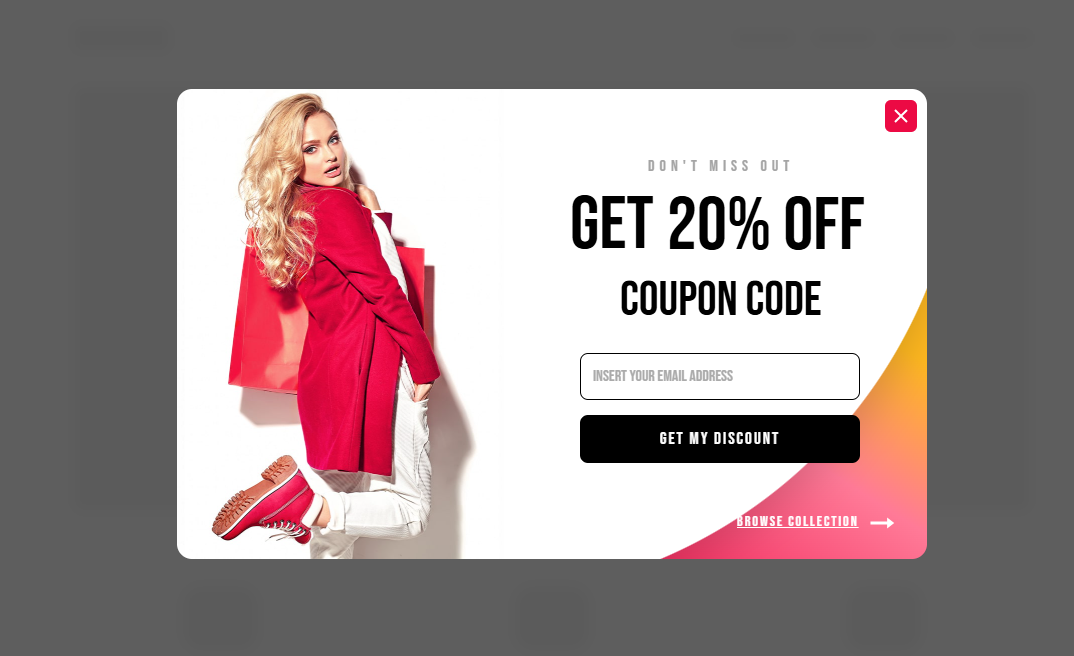
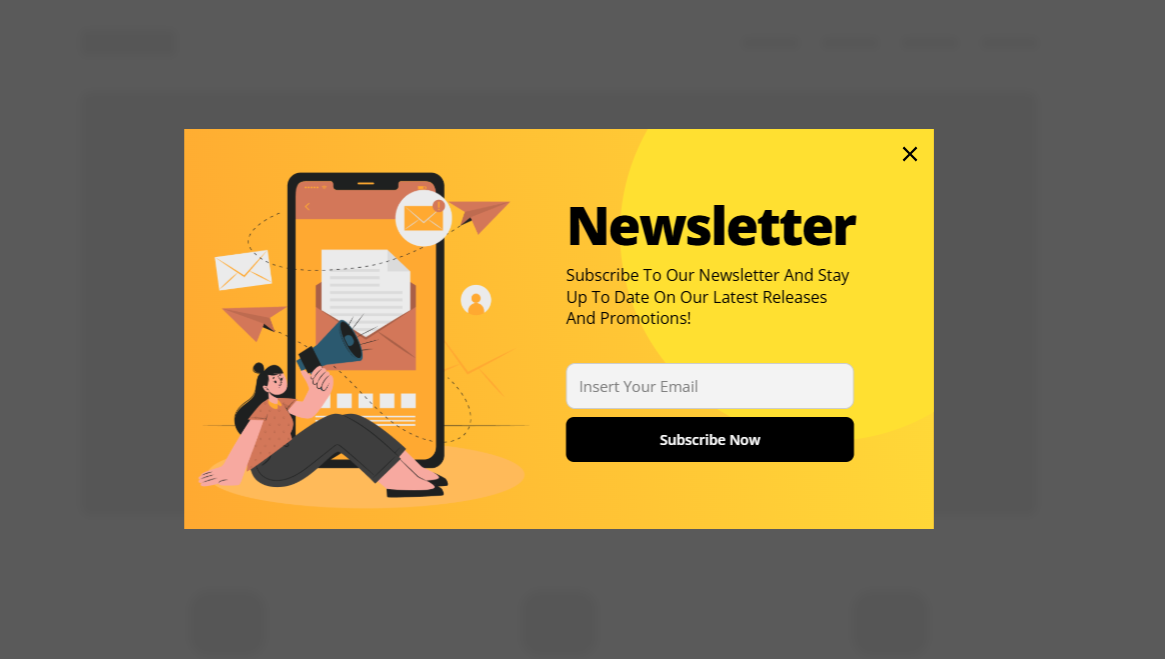
Depicter is a no-code, drag-and-drop tool that adds popups, sliders, carousels, hero sections, and notification bars to your site—all inside Gutenberg.
It offers AI-powered layouts, rich animation, responsive design, templates, and smart form elements for lead capture, growing your email list, and engagement—all without slowing your site down.
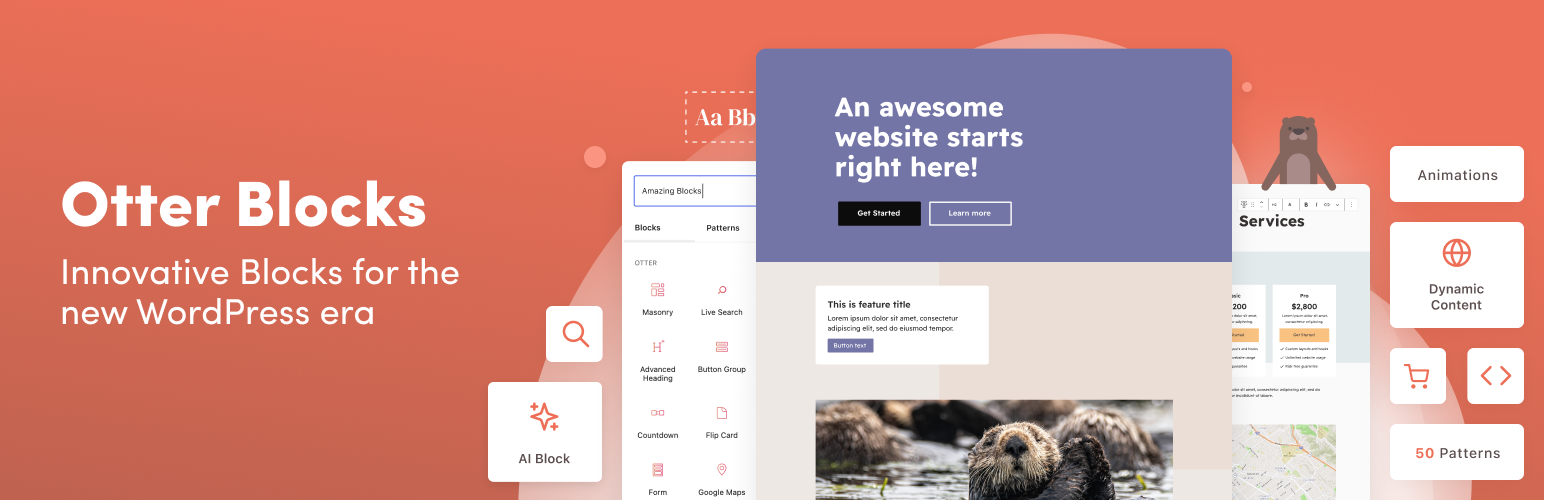
Otter adds 20-plus useful blocks, full-page templates, patterns, animations, visibility controls, dynamic content, and even a Custom CSS block—so you control when and how blocks appear.
Perfect for building more advanced layouts cleanly within Gutenberg.
Ultimate Blocks is a free WordPress plugin built with bloggers and content marketers in mind. Instead of being just another add-on, it works as a complete toolkit to enhance engagement and simplify the way you create content.
What makes it stand out is how it helps you craft interactive experiences rather than just adding extra features.
Whether it’s content filters that keep readers engaged, attention-grabbing call-to-action blocks, or effortless social sharing, every element is designed to make your site more dynamic and visually appealing.
At the end of the day, Ultimate Blocks is all about making content creation easier, boosting interaction, and ensuring every visit to your site leaves a lasting impact.
Tableberg is a relatively new table builder plugin, but it’s already showing a lot of potential for WordPress users. Built to enhance the default Table block in the Gutenberg editor, it takes table creation to a whole new level.
With Tableberg, you’re not limited to plain text cells—you can add all kinds of custom blocks inside your tables, like styled lists, ratings, buttons, ribbons, images, and more. The best part? Adding these elements feels just as simple as working with regular Gutenberg blocks.
Despite its powerful features, the plugin remains lightweight, so it won’t slow down your site. On top of that, it includes advanced options like cell merging, responsive controls, table styling, and even a handy template library.
Your web host is the very foundation of your website. A reliable host ensures your site loads fast, stays online (uptime), stays secure, and helps you grow without tech headaches.
For example, an e-commerce store with thousands of daily visitors needs impeccable uptime to avoid losing sales, while a rapidly growing blog benefits from scalable performance to manage surges in traffic. A solid host makes all that possible.
How Do I Choose a WordPress Host?
Here are 6 essential factors to consider:
Performance & Uptime
Fast loading speeds and consistent uptime keep visitors happy and search rankings high. Always check performance benchmarks and uptime guarantees.
Ease of Use & Setup
Look for automatic WordPress install, user-friendly dashboards, and tools like site builders—especially if you’re not a developer.
Support
24/7, knowledgeable customer service is a game-changer—look for hosting with live chat, phone, or fast ticketing responses.
Security & Backups
Regular automated backups, SSL certificates, malware protection, and DDoS defenses are must-haves to keep your site safe.
Scalability
Make sure the host supports easy upgrades or scalable infrastructure as your site grows—whether via VPS, cloud, or higher-tier plans.
Price & Value
Consider both the introductory rates and renewal costs. Match features to your needs—don’t overpay for unused services, but don’t compromise on critical ones either.
A premium choice known for enterprise-grade reliability, blazing fast speeds, and standout support. The Liquid Web platform offers cloud, VPS, and dedicated server hosting-unmanaged or fully managed, based on your unique needs.
Key features:
100% network uptime guarantee backed by SLA (Service Level Agreement)
Ultra-fast response times (~110 ms) and blazing page loads
24/7 live chat & phone support with under-1-minute response
Fully managed or unmanaged hosting (VPS, dedicated, cloud)
Excellent for growing businesses, enterprise, and regulated industries
A developer and agency-focused managed cloud platform that unifies the full WordPress workflow. InstaWP combines instant sandboxes, flexible pay-as-you-go pricing, and built-in site management so teams can build, test, launch, and maintain sites from a single dashboard.
Key features
Metered billing for compute, storage, and CDN bandwidth, so you pay only for actual usage. Daily or monthly rollups and line item statements make client billing and accounting easy.
Edge CDN and automated caching reduce bandwidth and improve load times. Built-in performance scans identify bottlenecks and show actionable fixes.
Integrated edge CDN and automated caching to improve page load times and lower bandwidth costs.
Built-in Shield security with a web application firewall, malware checks, and activity logs for fast incident response.
Real-time usage dashboard with alerts for worker hours, disk usage, and bandwidth to avoid surprise bills.
Bulk update manager and site versioning so you can update many sites at once and roll back with a snapshot if needed.
Agency-friendly controls such as auto-expiring demo sites, per-team billing, and exportable usage statements for client invoicing.
Officially recommended by WordPress.org and perfect for beginners. It offers an intuitive setup, free domain/email/SSL, and a clean WordPress interface.
Key features:
WordPress auto-installation and beginner-friendly dashboard
Integrated tools like the AI site builder, WonderBlocks
A premium managed host built specifically for WordPress and agencies. Offers developer tools, strong security, and high reliability, though at a higher price.
Best value host delivering affordability, simplicity, modern tools like AI, plus LiteSpeed-powered performance. Great for small to mid sites on a budget.
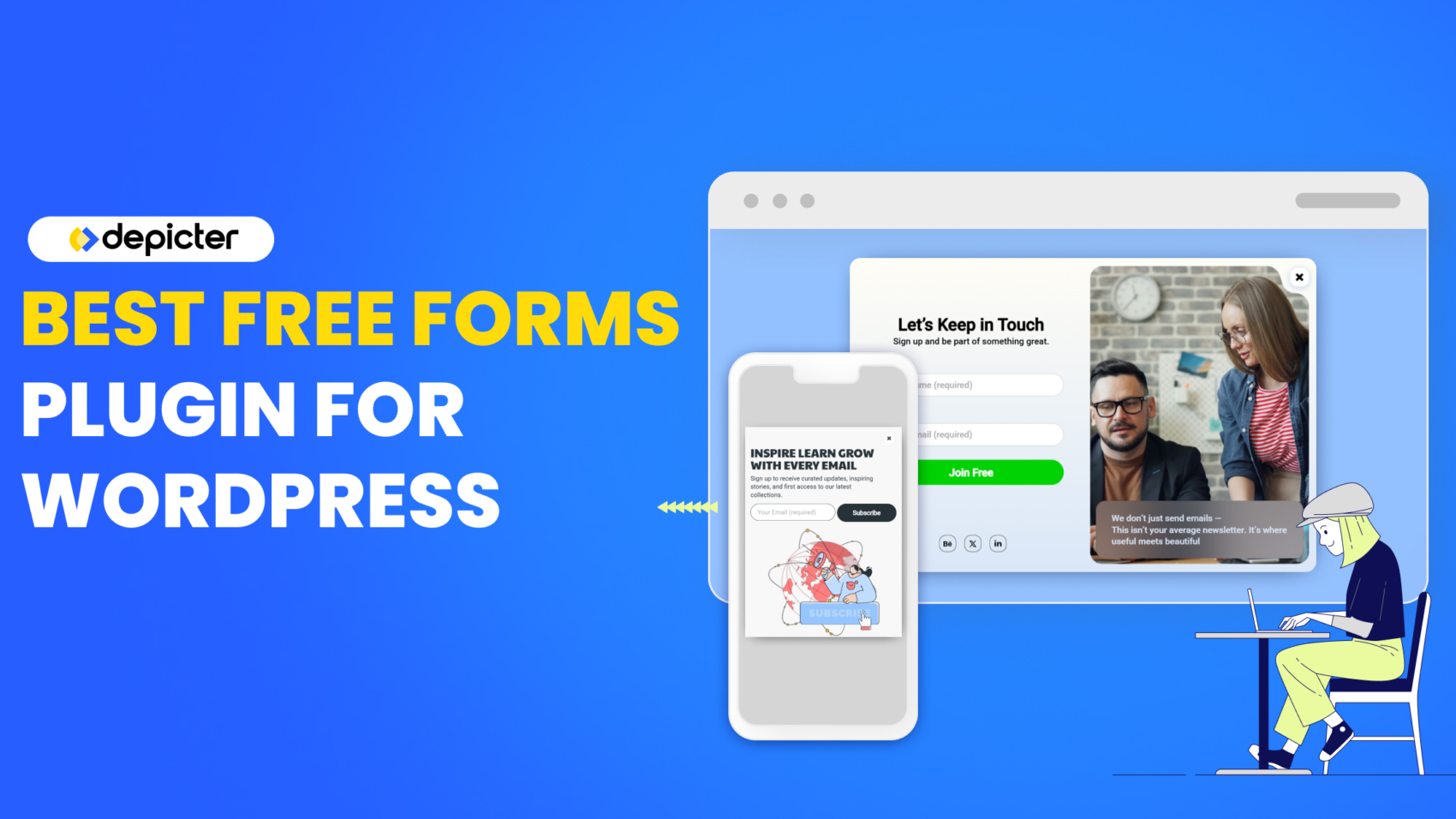
Creating forms on your WordPress website shouldn’t be complicated. Whether you need a simple contact form, a survey, or a registration form, the right plugin can save you time and help you design professional forms without writing a single line of code. Choosing the best free forms plugin for WordPress gives you the essential tools to build and manage forms easily, while still offering enough flexibility to fit your website’s style and needs.
Important features
Ease of use
A good forms plugin should have a simple interface that allows anyone—whether beginner or advanced—to create forms quickly. Drag-and-drop builders are especially helpful for this.
Templates
Pre-designed form templates save time and make it easier to set up common forms like contact, feedback, or newsletter sign-up forms.
Customization options
The ability to adjust fields, styles, and layouts ensures your forms match your brand and specific requirements.
Responsiveness
Forms must work seamlessly across devices. A responsive plugin ensures your forms look good and function well on desktops, tablets, and smartphones.
Spam protection
Built-in spam filters, reCAPTCHA, or honeypot options help you reduce unwanted submissions and keep your inbox clean.
Depicter: The Best Free Forms Plugin For WordPress
Depicter is a powerful yet easy-to-use WordPress form builder, Free Popup Builder, and more that helps you create professional forms and interactive content without touching code.
Designed for both beginners and advanced users, it combines a clean interface with rich features, making it one of the best free options for building forms on WordPress.
Before getting started, make sure the Depicter plugin is installed on your WordPress site.
To do this, go to the Plugins section in your WordPress dashboard, search for “Depicter,” and click Install—it only takes a minute.
If you need help, take a look at our step-by-step guide and video tutorial on how to install Depicter.
Ease of use
Depicter is designed with an intuitive interface that works equally well for beginners and advanced users. The menus, buttons, and option groups are neatly organized, so you can build and edit without confusion.
Its editor feels smooth and straightforward—everything is where you expect it to be, from adding elements to adjusting layouts.
Whether you’re dragging and dropping content, fine-tuning animations, or customizing styles, the workflow stays clear and simple.
From opening the Depicter dashboard to hitting Publish, creating your design takes only a few clicks.
Templates
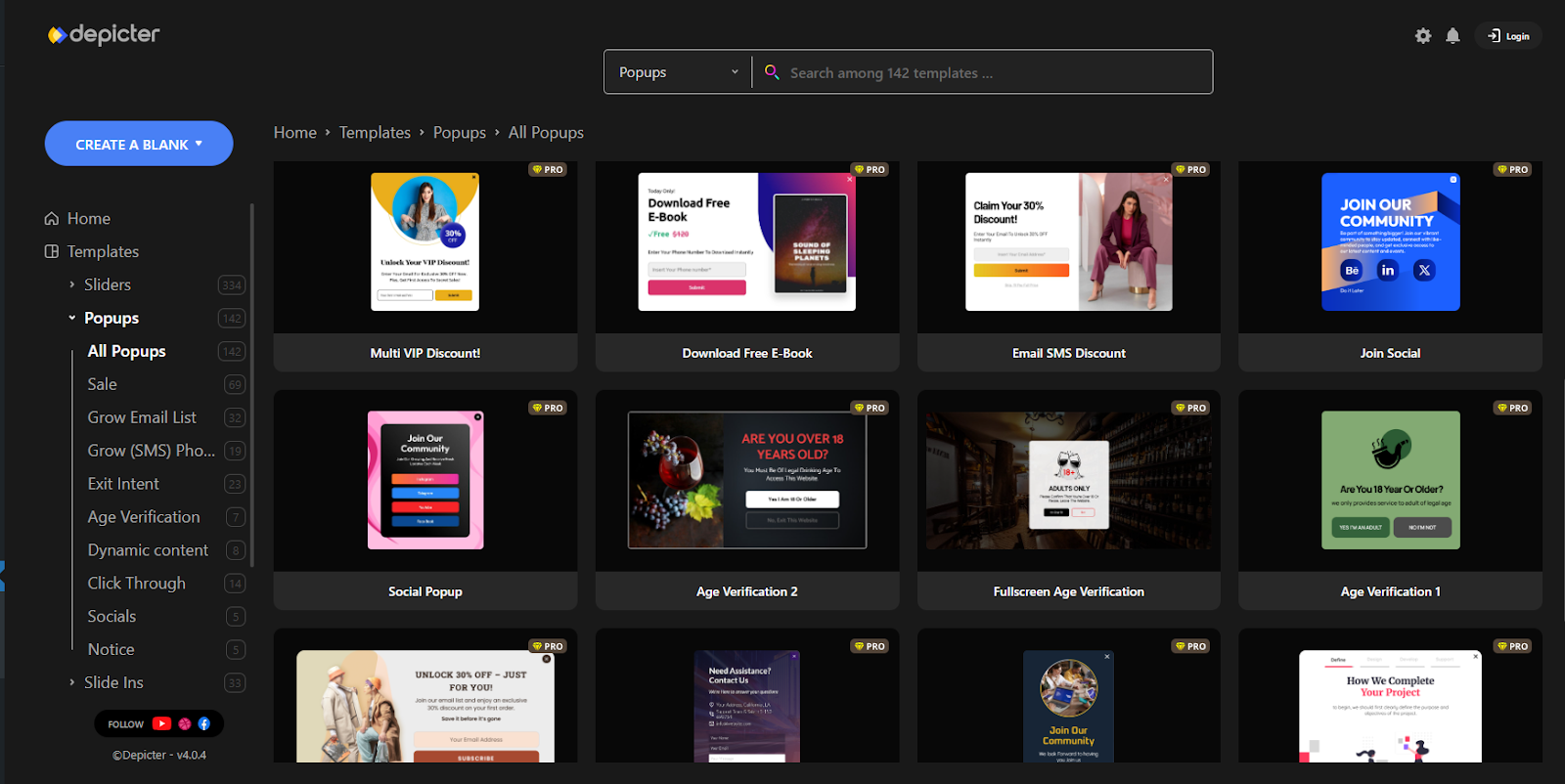
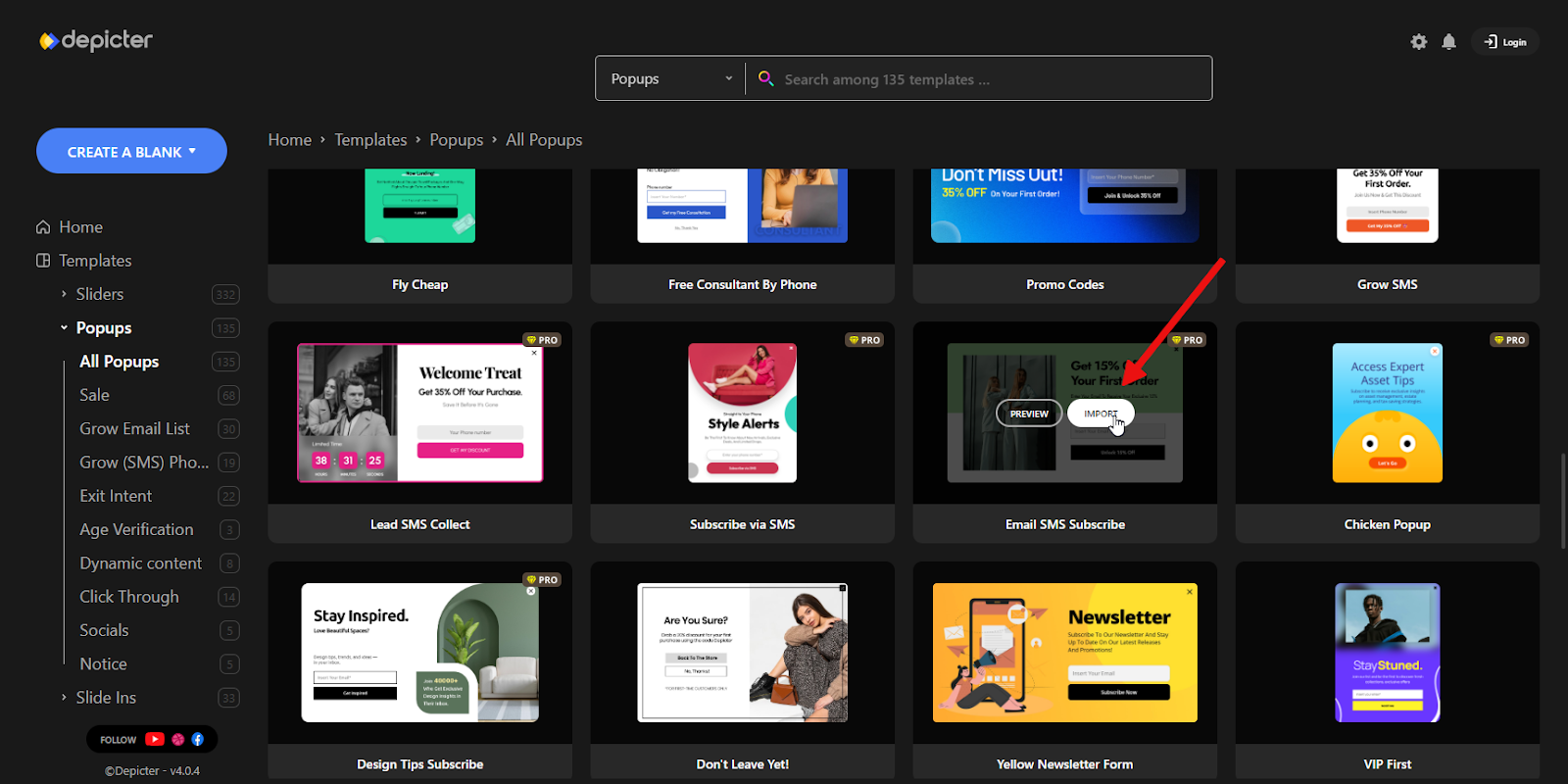
Depicter comes with a huge library of over 330+ ready-made templates, covering everything from sliders and hero sections to popups and interactive visuals. New templates are added every week, so you always have fresh designs to choose from. The collection includes plenty of free templates as well, making it easy to get started without extra cost.
Each template is fully customizable, so you can quickly pick one that fits your project and adjust it to match your style. Whether you want something minimal, bold, or highly animated, there’s a template ready to save you time and speed up your design process.
Customization options
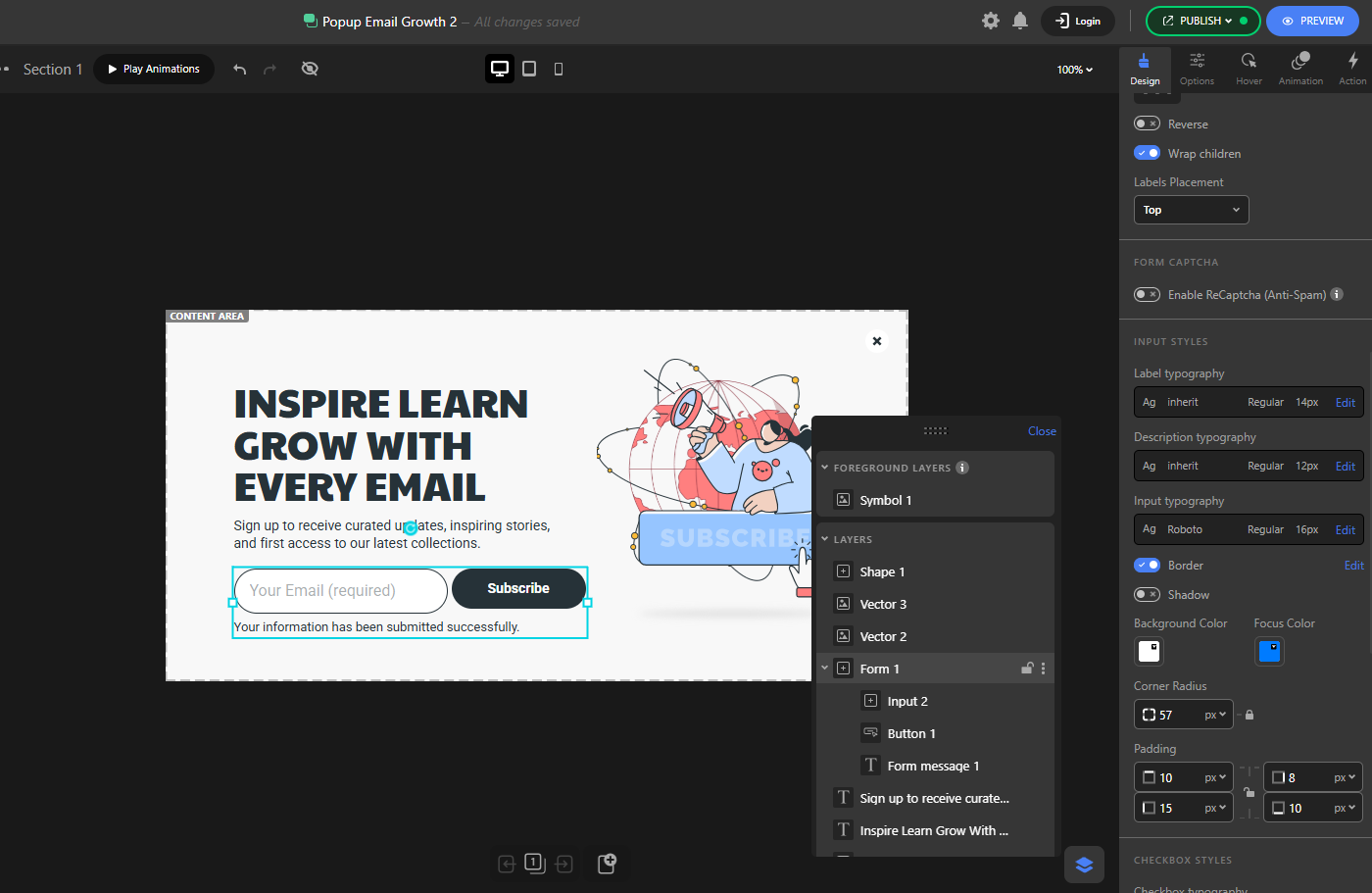
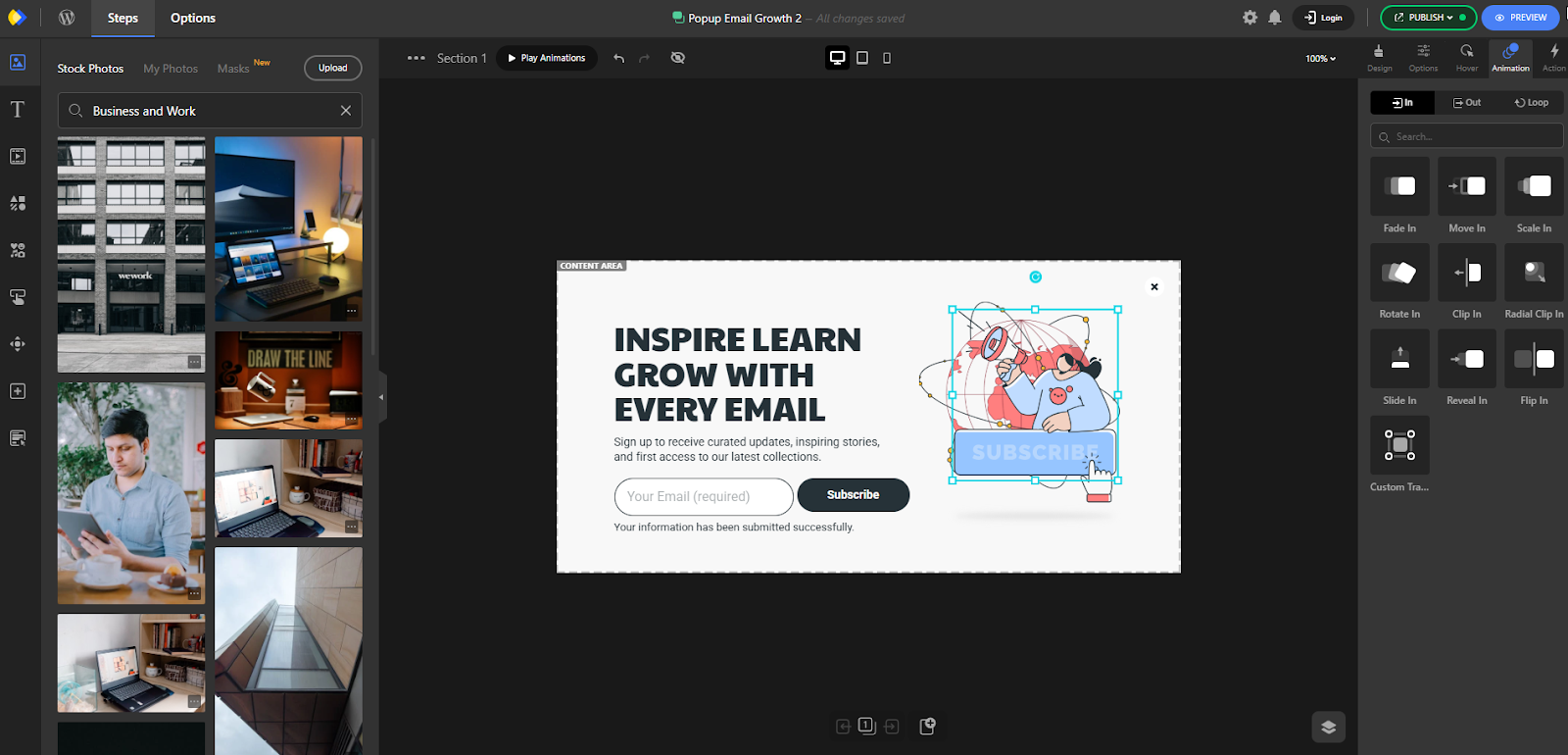
Depicter gives you full freedom to adjust both the look and the functionality of your designs. On the visual side, you can fine-tune every detail—colors, fonts, layouts, animations, and transitions—all directly in the editor without touching code.
You also have advanced controls like custom breakpoints, parallax effects, and scroll-based animations to create unique, dynamic experiences.
On the functional side, Depicter lets you add powerful CTAs such as buttons, links, or forms, and control exactly where and when they appear. With its flexible Display Rules, you can decide to show your design on specific pages, devices, or after certain triggers (like scroll percentage or exit intent). This means your content isn’t just beautiful—it’s also smart, targeted, and effective.
Responsiveness
Depicter is fully mobile-friendly, ensuring your forms and designs look great on any screen size. Almost every option can be adjusted separately for different devices—whether it’s the overall form size, fonts, image elements, or even background settings.
The ability to set a different background for mobile is especially useful, allowing you to display the correct dimensions of an image without unwanted cropping. With this level of control, you can be confident that your designs will always deliver a smooth and optimized experience on desktops, tablets, and smartphones.
Spam protection
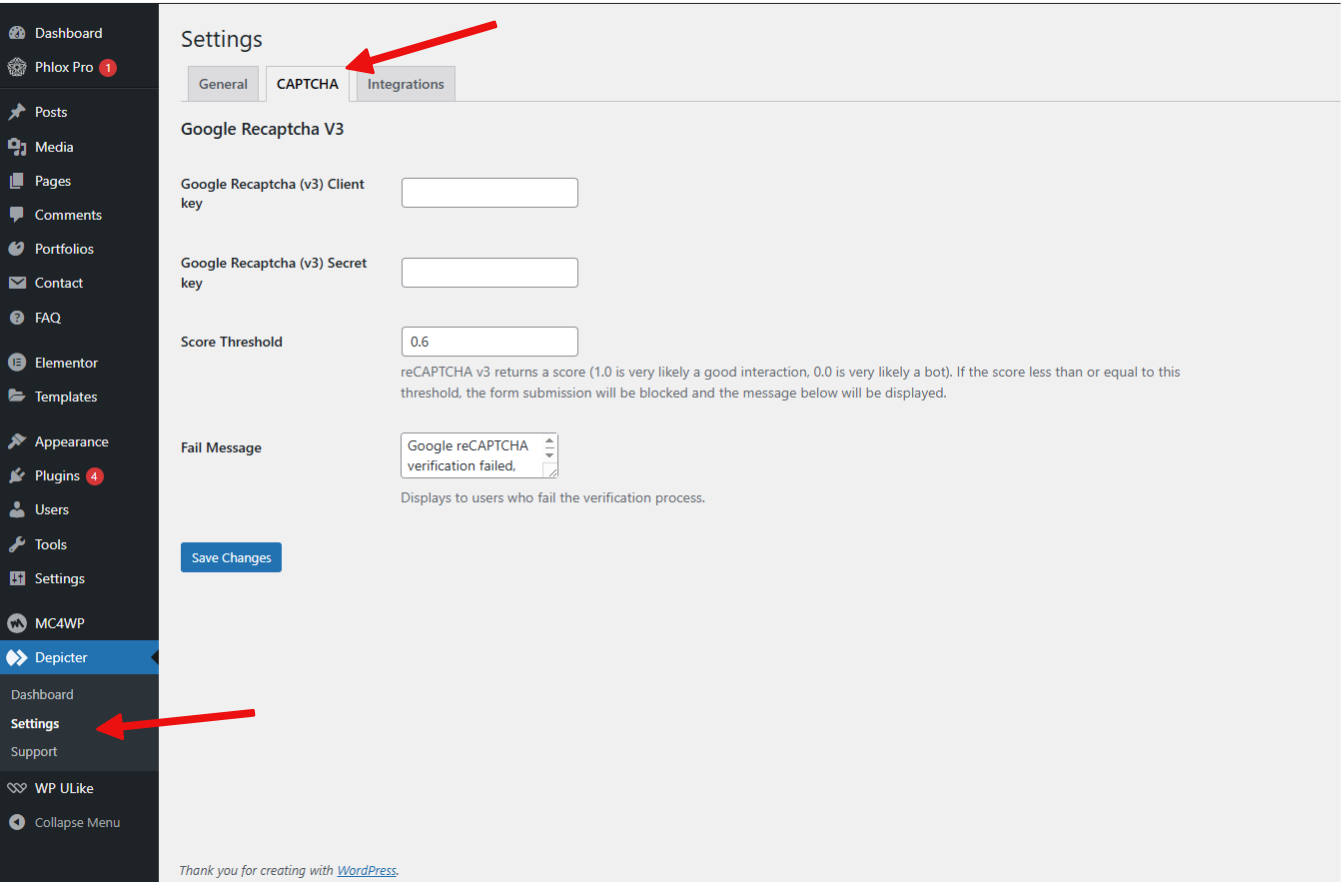
No one likes dealing with endless spam submissions, and protecting your forms from bots is essential for keeping your inbox clean. Depicter makes this simple by offering a built-in option to enable Google reCAPTCHA directly from the settings. With just a quick setup, you can prevent automated spam while still providing a smooth experience for real users.
Gutenberg is the default block-based editor for WordPress that lets you build content using blocks—text, images, buttons, and more—without coding.
While it’s powerful on its own, many users enhance its capabilities by installing third-party block plugins. These addons add new blocks and layouts, improve design flexibility, templates, animations, and site performance.
Whether you’re blogging, building marketing content, or designing full pages, these addons make the editor more expressive and efficient.
Depicter is a no-code, drag-and-drop tool that brings both marketing and visual design to Gutenberg users. It merges two core functions—marketing and visual impact tools—into a single plugin.
You can build customizable popups and slide-ins for lead capture or campaign launches, with built-in form elements, smart triggers, and sleek design. It also gives you notification bars that can display countdowns, CTAs, and announcements in a non-intrusive way.
On the design side, Depicter offers a powerful slider builder—choose from over 670 templates or start from scratch—to create sliders, hero sections, product showcases, or animated visuals. With support for both static and dynamic content, AI layout suggestions, and rich animation, you can make your site interactive and engaging, all without writing any code.
Ultimate Blocks is a plugin designed for the Gutenberg editor that offers content creators a rich collection of custom blocks. If you’re writing blog posts, product pages, or tutorials, these blocks—like tables of contents, review boxes, tabbed content, and countdown timers—make your content more engaging. The plugin is built to load only what you activate, so your site stays fast. It is also SEO-aware, with schema-enabled blocks to improve search engine visibility.
Key Features of Ultimate Blocks:
25+ specialized blocks such as tabs, reviews, timers
Schema-ready blocks for SEO like “HowTo” and “Review”
Modular setup lets you enable only what you need
Lightweight and optimized for speed
Interactive blocks like content filters and click-to-tweet
Free version available; Pro unlocks advanced blocks
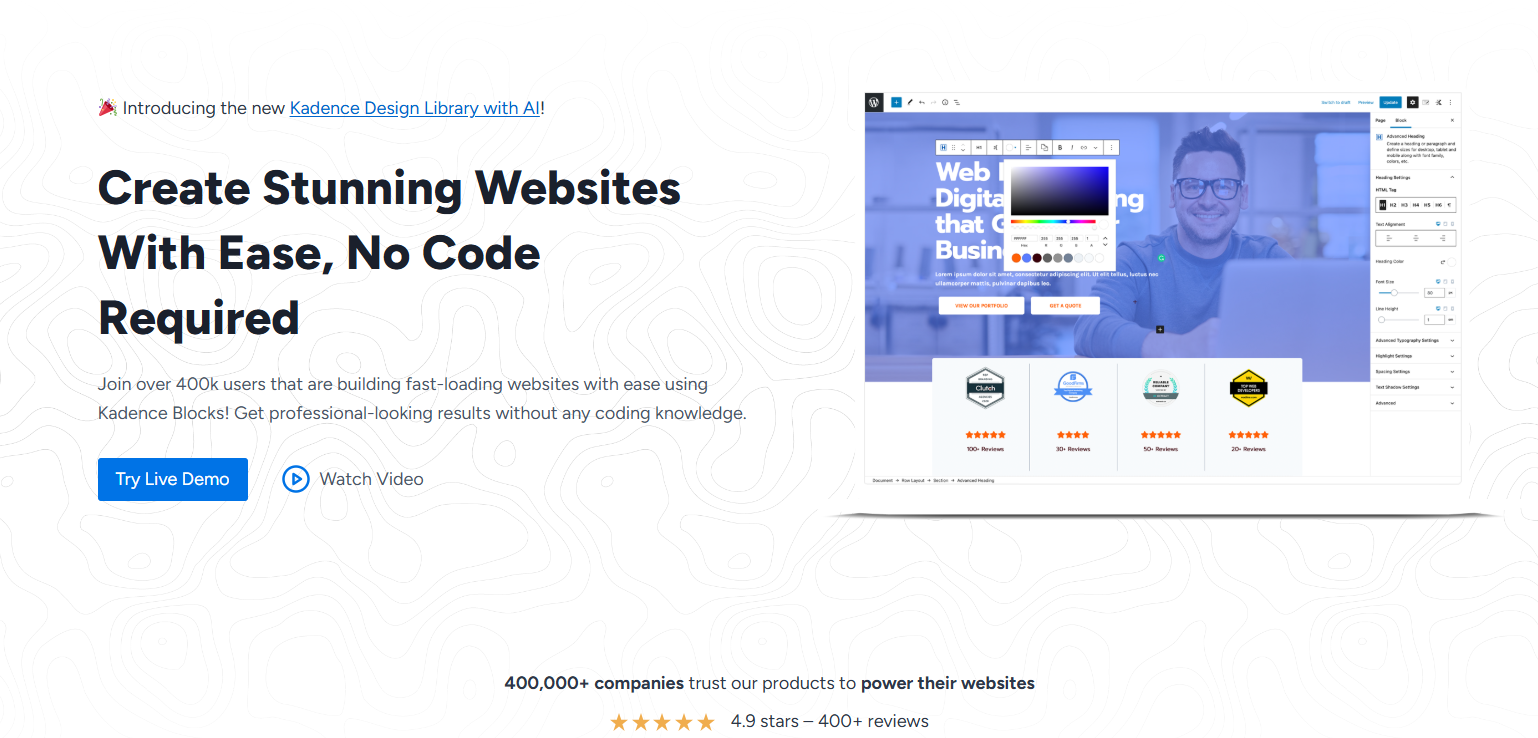
Kadence Blocks gives Gutenberg a page-builder feel. It comes with row layouts, advanced headings, icon boxes, spacers, tabs, and more. The plugin only loads the blocks you use, keeping your site lightweight. The free version covers most needs, while the Pro version adds extras like dynamic content, custom icons, scroll animations, and design libraries.
Key Features Kadence Blocks:
Works well with most WordPress themes
Smart loading: CSS and scripts only load for active blocks
Advanced row and layout controls with backgrounds and spacing
Responsive design and typography options
Pro features: dynamic content, scroll animations, custom fonts/icons
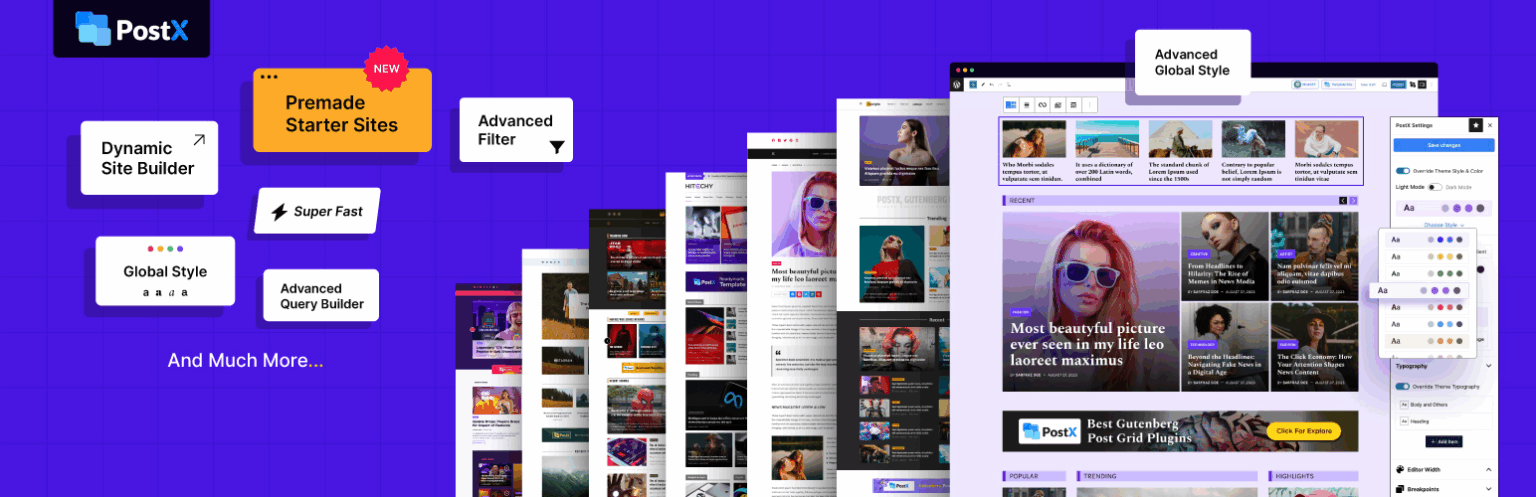
PostX is a Gutenberg-based plugin that helps bloggers, publishers, and online magazines build sites without coding. With blocks like grids, lists, and sliders, you can get ultimate control over the visual appearance of your website.
Its Starter Site templates let you launch a complete website in just three clicks. With real-time customization, a dynamic query builder, and pre-made design patterns, it’s one of the most complete Gutenberg layout solutions available. If you’re aiming to elevate your post-display without switching to a heavyweight builder, PostX is worth a look.
Key Features of PostX
50+ ready-made post grid and list blocks
Dynamic Query Builder for filtering by category, tag, author, or date
Starter packs and layout templates for quick setup
Responsive design controls and typography customization
Stackable turns Gutenberg into a powerful page design tool. It includes stylish blocks, ready-made layouts, advanced design controls, and smooth animations. Perfect for bloggers, agencies, and businesses, it’s designed to be both flexible and performance-friendly.
Key Features of Stackable
35+ flexible blocks for content and design
Large library of ready-made sections and templates
Spectra, previously known as Ultimate Addons for Gutenberg, is a popular addon that enhances Gutenberg with advanced design blocks and starter templates. It’s simple to use, comes with fast performance, and helps you create professional-looking pages without coding.
CoBlocks is a lightweight block plugin created by GoDaddy. It adds practical blocks like hero sections, forms, and responsive row layouts. The interface is clean and minimal, making it a good choice for beginners or anyone wanting simple layout control without extra complexity.
GenerateBlocks is built around performance and minimalism. Instead of dozens of blocks, it gives you only the essentials—container, grid, headline, button, and query loop—so you can design anything with complete control and no bloat.
Key Features of GenerateBlocks
Minimal set of powerful blocks
Extremely lightweight and performance-focused
Full design control with containers and grids
Works perfectly with the GeneratePress theme
Ideal for developers and advanced users who want clean code
Otter provides a balanced mix of blocks, templates, and design tools. It’s easy to use for building pages quickly, and includes modern features like Lottie animations, Google Maps, and pre-built layouts.
Elementor is one of the most popular page builders for WordPress. It allows users to design and customize websites visually without writing any code.
The drag-and-drop interface makes it beginner-friendly, while the advanced design options give more control to developers and designers.
It comes with a large set of widgets, responsive design tools, and the ability to create templates that can be reused across a site. Because of its flexibility, Elementor has become the foundation for many websites, from simple blogs to complex e-commerce stores.
Beyond its core features, there is a large ecosystem of third-party addons that extend its capabilities and provide more creative freedom.
Depicter is a no-code tool designed to help WordPress users create both visually stunning designs and effective marketing campaigns.
At its core, Depicter combines two main areas: popups & marketing tools, and design & visual impact. This means it is not just a slider builder, but a complete solution for collecting leads, promoting offers, and building engaging website sections.
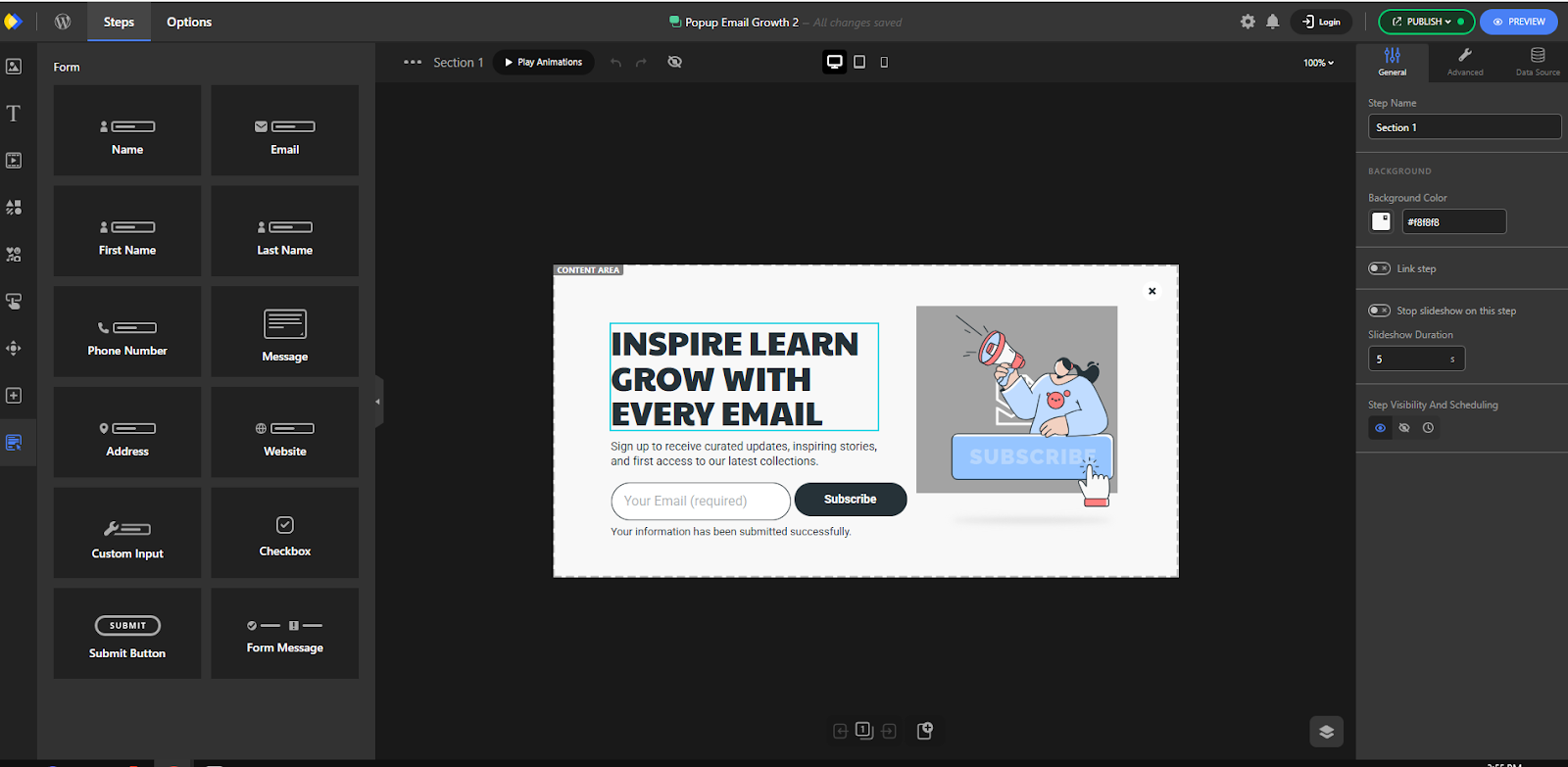
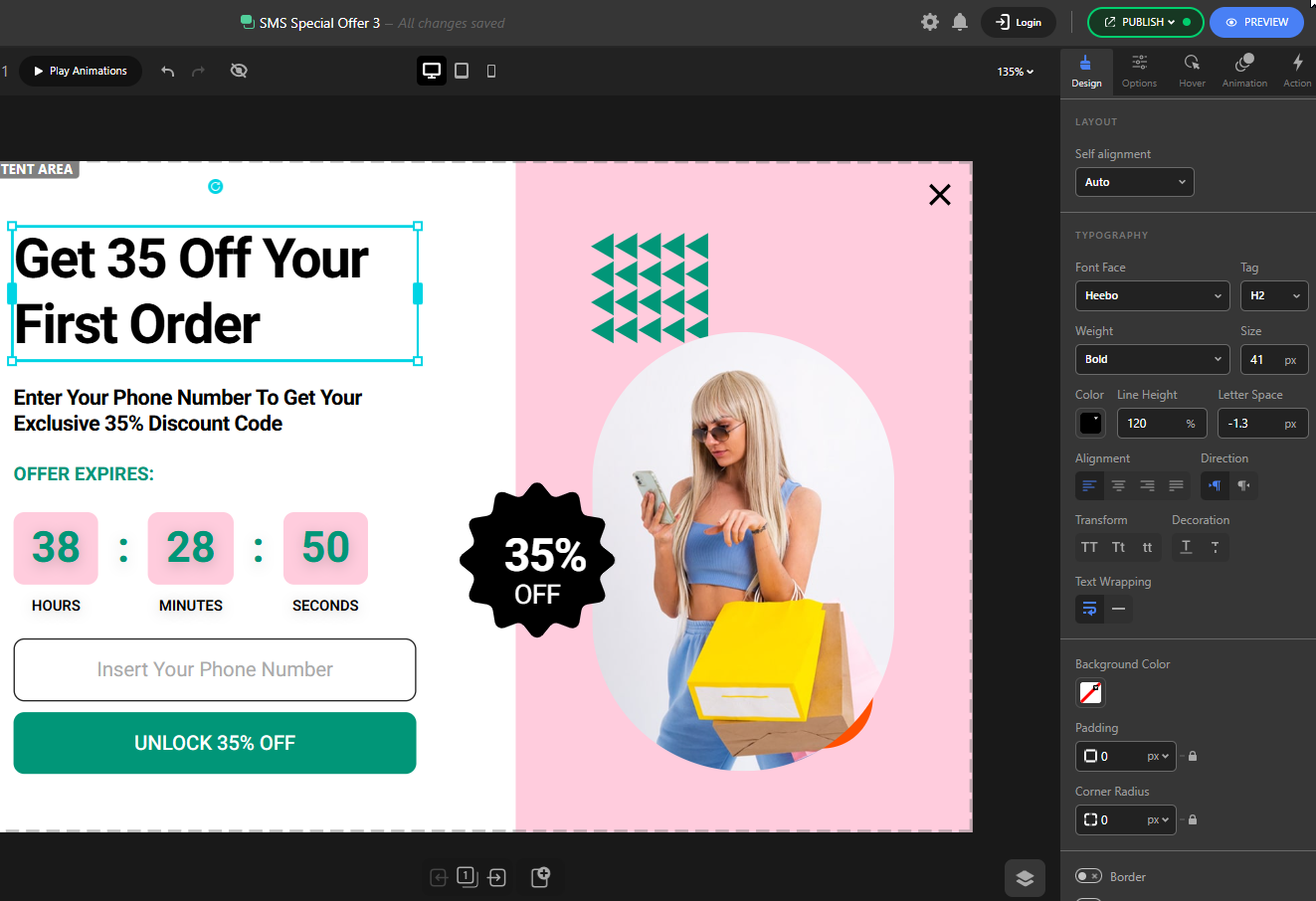
With its popup builder, you can design custom forms to capture emails, phone numbers, or other user data without needing third-party tools.
Its notification bar builder makes it easy to display time-sensitive promotions, countdowns, and announcements in a non-intrusive way.
On the design side, Depicter offers a powerful slider builder with over 670 templates, support for static and dynamic content, and advanced animation tools.
You can build sliders, hero sections, product showcases, and interactive visuals that bring your site to life.
What makes Depicter unique is how these marketing and design features work together. Whether you want to run a giveaway, launch a product, or create a dynamic one-page website, Depicter gives you the freedom to do it all with drag-and-drop simplicity and without writing code.
10 Key Features of Depicter:
No-code drag-and-drop editor
Popup builder with built-in forms for lead collection
Notification bars with countdowns and CTAs
Advanced slider builder with 670+ templates
Support for static and dynamic content
Rich animation and interaction tools
AI layout suggestions for faster design
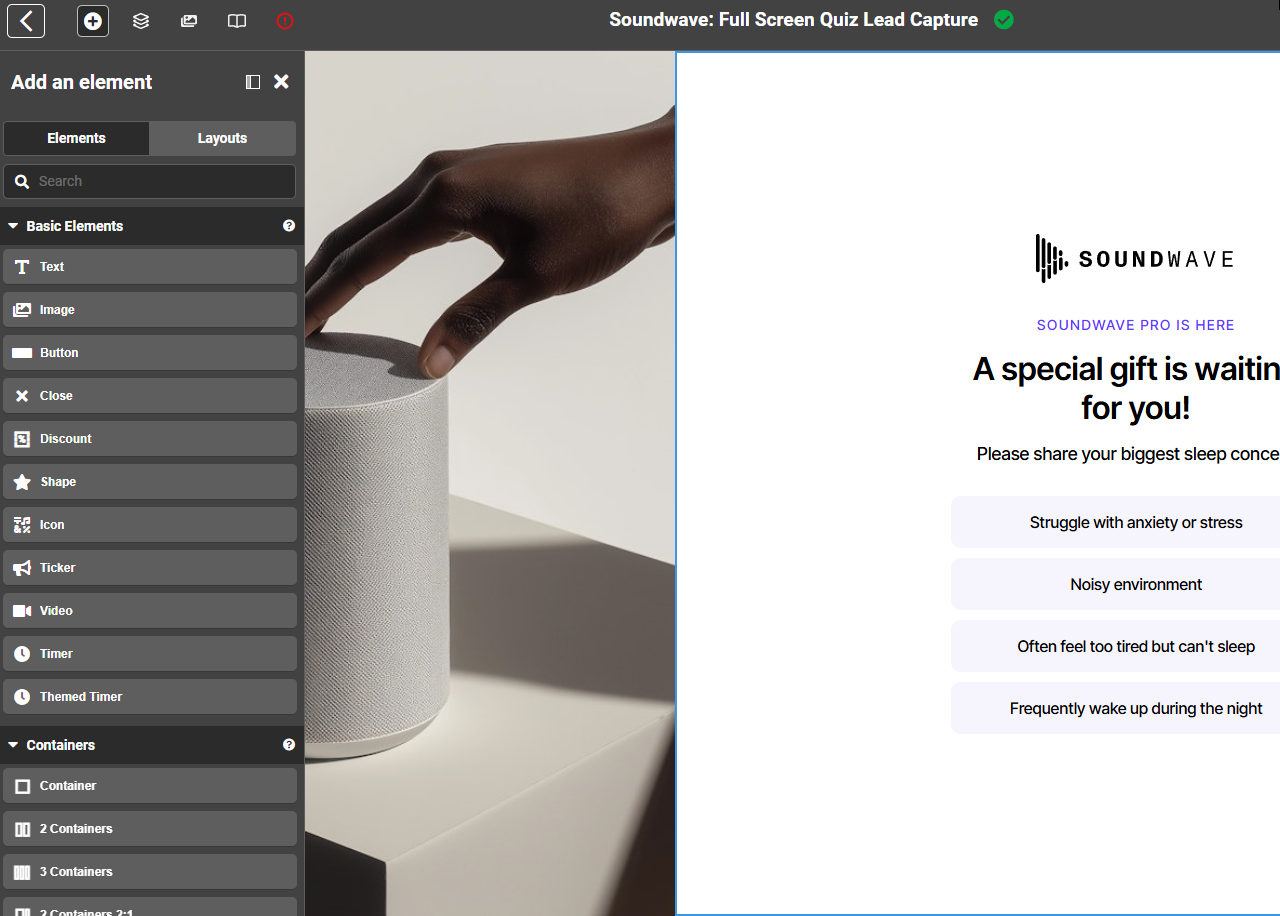
Survey and quiz elements for engagement
Fully responsive and mobile-friendly design
Seamless integration with Elementor and other WordPress tools
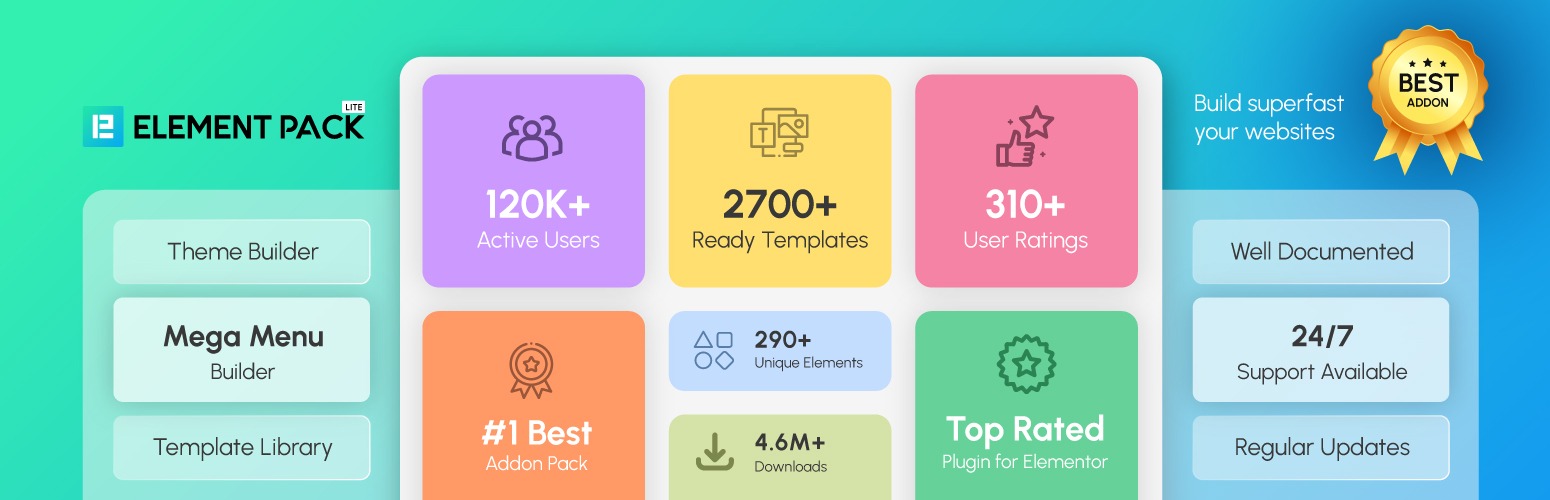
Elementor Pack is a powerful plugin that will help you create a beautiful and functional WordPress website using Elementor. With this plugin, you don’t have to write any code or hire a developer.
You can drag and drop ready-made widgets, templates, and sections to design your pages the way you want. Elementor Pack includes hundreds of widgets for different purposes, such as forms, sliders, galleries, tabs, and price lists.
You’ll also find pre-designed templates. These save you time when creating pages for your business, portfolio, or blog. Everything is customizable, so you can easily match the style and branding of your website.
The plugin works seamlessly with the most popular themes and other WordPress tools. It is regularly updated to give you better performance, security, and new design features.
Whether you’re a beginner or an experienced web designer, Elementor Pack can help you create professional websites quickly and with less effort.
Happy Addons is known for giving Elementor a creative boost. It offers a wide range of unique widgets and design features that help users go beyond the standard look and feel of Elementor. The addon also provides ready-made blocks that make building websites much faster since you can insert pre-designed sections and then customize them.
Designers appreciate its smooth performance, and developers like the flexibility it offers. Happy Addons is especially useful for creative websites like portfolios, agency pages, and small business sites that want to stand out visually.
Essential Addons is one of the most downloaded and trusted addon packs for Elementor. It offers a massive collection of widgets, covering almost every possible need. From content elements like tables, galleries, and posts, to marketing tools like call-to-action boxes and pricing tables, this addon has it all.
What makes it stand out is its lightweight coding, meaning that even though it adds so many features, it doesn’t slow down websites noticeably. Beginners like it for its simplicity, while advanced users value the depth of customization it provides.
Key Features:
70+ elements including post grids, forms, and galleries
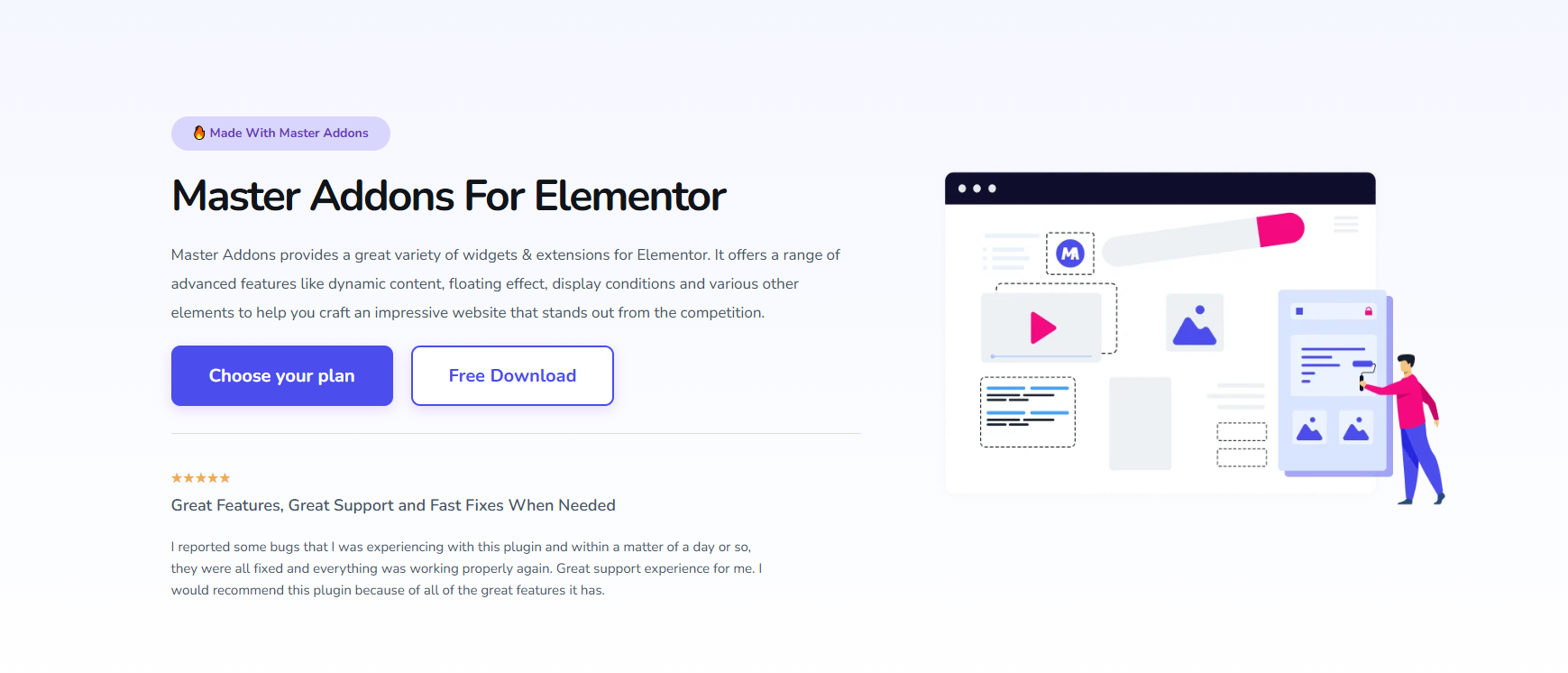
If you use Elementor, you need this. Master Addons supercharges your page builder with 60+ powerful widgets and extensions. Create anything from animated headlines and flip boxes to filterable galleries and custom headers/footers. With advanced features like custom CSS and display conditions, your creativity is the only limit.
Premium Addons brings a set of visually impressive widgets to Elementor. It focuses on giving users tools that create modern and interactive designs. Features like image comparison sliders, animated backgrounds, and hotspot images make websites more engaging.
This addon is often used by creative professionals who want their websites to stand out with interactive visuals. Despite the heavy design focus, the plugin is built to be lightweight, so it doesn’t negatively affect site performance.
Crocoblock is a complete suite of addons rather than a single plugin. It includes a wide variety of Jet plugins that cover everything from dynamic content to e-commerce functionality. JetEngine, one of its most popular tools, allows users to create custom post types and dynamic listings, making it a favorite among advanced WordPress developers.
Crocoblock also has a powerful popup builder and tools for building booking systems and custom layouts. This addon pack is ideal for projects that go beyond basic websites, such as directories, membership sites, and booking platforms.
Key Features:
JetEngine for dynamic content and custom post types
Popup builder with advanced targeting options
Tools for creating booking and appointment systems
The Plus Addons is one of the largest widget libraries available for Elementor. It provides a huge variety of creative modules, so designers don’t need to rely on multiple different addons. This makes it convenient and efficient for building complex websites.
The addon also includes unique sections and design presets, which save time when creating layouts. Many agencies use The Plus Addons because it helps them deliver projects faster without sacrificing design quality.
Ultimate Addons comes from the same team that built Astra Theme, which makes it a natural fit for Elementor users. This addon provides professional-grade widgets that are especially useful for businesses and marketers. It includes tools like call-to-action blocks, content toggles, and price lists. What sets it apart is its clean design and focus on usability. It doesn’t try to overwhelm users with too many options, instead offering well-designed elements that fit perfectly into most websites.
Key Features:
Professionally designed content widgets
Customizable marketing tools like CTAs and price lists
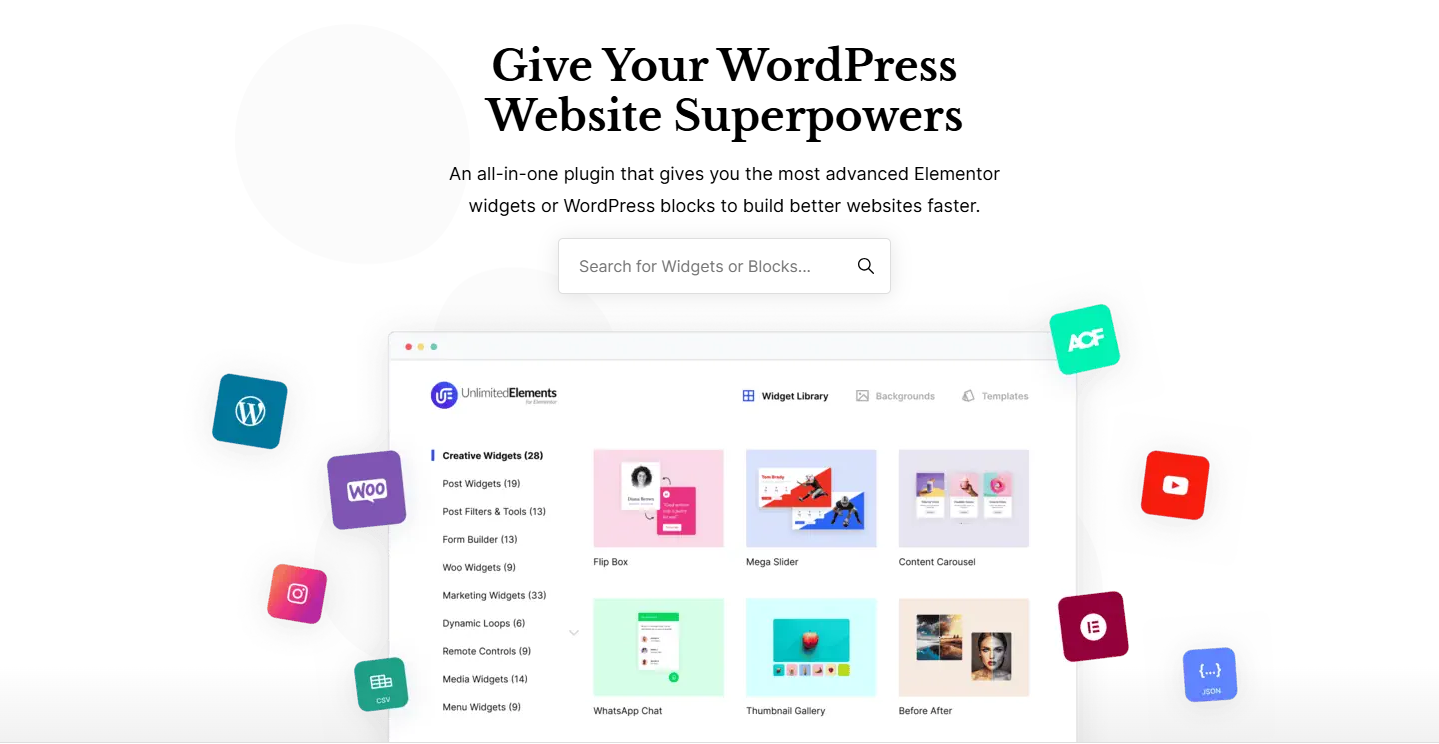
Unlimited Elements is exactly what its name suggests: a constantly growing library of widgets and design elements. Instead of downloading multiple addons, users get access to a single plugin that keeps adding new widgets regularly. One of its strengths is the widget creator tool, which allows advanced users to design their own widgets without needing to code from scratch. This makes it attractive for both casual users and developers.
PowerPack offers a balanced mix of creative and business-focused widgets. It’s often praised for its professional design and usability. Agencies and freelancers like it because it saves time while delivering polished results. The addon also provides unique content display tools like team showcases, filterable galleries, and creative accordions. Its focus is on clean design that works for corporate, portfolio, and agency websites.
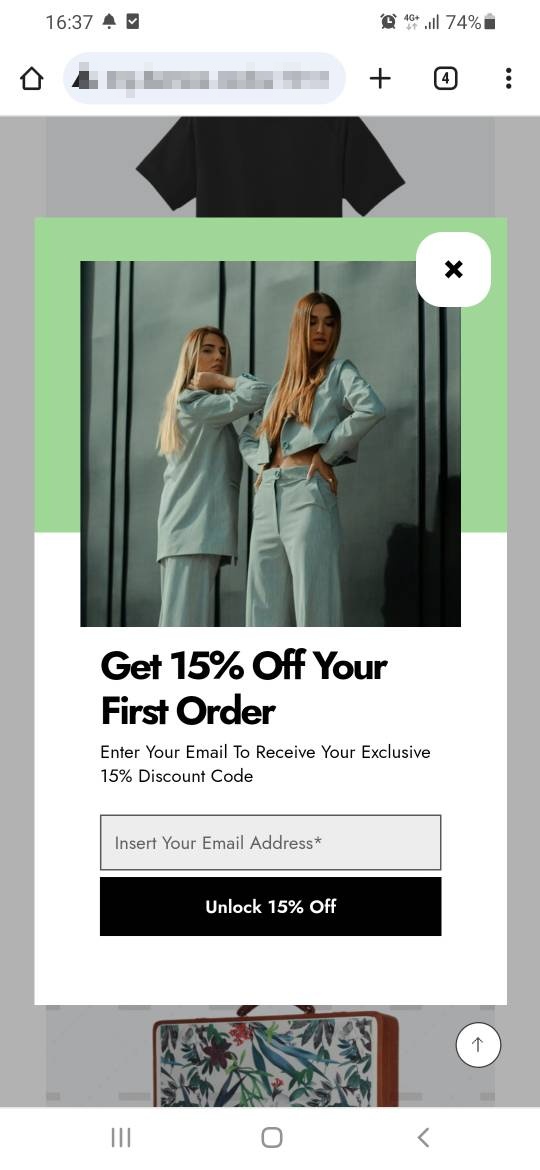
Mobile popups are small, attention-grabbing windows that appear on a user’s screen when they visit your website from a mobile device. They are designed to deliver a quick message, offer, or call-to-action without taking the visitor away from the page they are viewing.
With more than half of web traffic now coming from mobile devices, capturing and keeping the attention of mobile visitors has become essential. When used correctly, mobile popups can turn casual visitors into subscribers, leads, and customers — all while enhancing the user experience rather than interrupting it.
Why Use Mobile Popups?
Grow your subscriber list
A Mobile popup is one of the most effective ways to collect email addresses and phone numbers. By offering a discount, free resource, or exclusive content, you can encourage visitors to join your list and stay connected with your brand.
Recover abandoned carts
If you run an online store, mobile popups can help recover lost sales. An Exit-intent popup can detect when a shopper is about to leave and show a special offer to motivate them to complete the purchase.
Promote time-sensitive offers
Flash sales, product launches, and event promotions work best when visitors see them instantly. Mobile popups put these messages front and center, increasing the chances of engagement.
Personalize the visitor experience
By tailoring popups to different audiences — such as new visitors, returning customers, or people coming from a specific ad campaign — you can deliver more relevant and appealing messages that lead to higher conversions.
Best Practices for Mobile Popups
Designing popups for mobile devices requires more than simply shrinking your desktop version. Mobile screens have limited space, users interact differently, and search engines penalize intrusive experiences.
Follow these guidelines to ensure your mobile popups are both user-friendly and effective.
Keep messaging short and focused
Mobile users are not very patient, so get to the point quickly. Use concise copy that clearly communicates your value proposition at first glance—no scrolling required.
Optimize text and visuals for small screens
Headlines, body text, and images that look perfect on desktop may appear oversized or cramped on mobile. Resize text for readability, limit the number of images, and use visuals only when they reinforce your message.
Make CTAs easy to tap
Thumb-friendly design is crucial. Place your call-to-action buttons in the lower half of the screen, make them large enough to tap without errors, and leave enough spacing so users don’t accidentally press the wrong button.
Use smart triggers instead of instant interruptions
Avoid showing popups too soon. Trigger them after a user scrolls 50–70% of the page, on exit intent, or after meaningful engagement—this ensures the popup reaches interested visitors without breaking their flow.
Simplify forms and input fields
The fewer fields you ask for, the higher the chance of completion. Stick to essentials, such as an email address, to reduce friction and speed up the process.
Provide an obvious and easy way to close
Always give users control. Use a clearly visible “X,” a close button, or enable swipe-to-close gestures for intuitive dismissal—preventing frustration and keeping the experience smooth.
Create a Mobile Popup with Depicter
Before you begin, ensure that the Depicter plugin is installed on your WordPress site.
To add it, head to the Plugins section in your WordPress dashboard, search for “Depicter”, and hit Install—the process takes just a minute.
Need assistance? Check out our detailed step-by-step guide and video tutorial on how to install Depicter.
To save time, we’ll start with a pre-built template — a fast and easy way to have your popup set up and looking polished in minutes.
Depicter’s large template library is one of its biggest strengths, offering clean, modern, and professionally designed options.
You can choose from both Free Popup Templates and Mobile Popup Templates.
Use the left-hand menu to browse by category, or enter keywords into the search bar to quickly find a style that matches your needs.
There’s no need to design from scratch—simply select the template you like and click Import.
After importing, you’ll be taken to the Depicter editor.
Here, you have all the tools you need to customize and edit every part of your popup—from its functionality to its appearance—using the menus and organized panels.
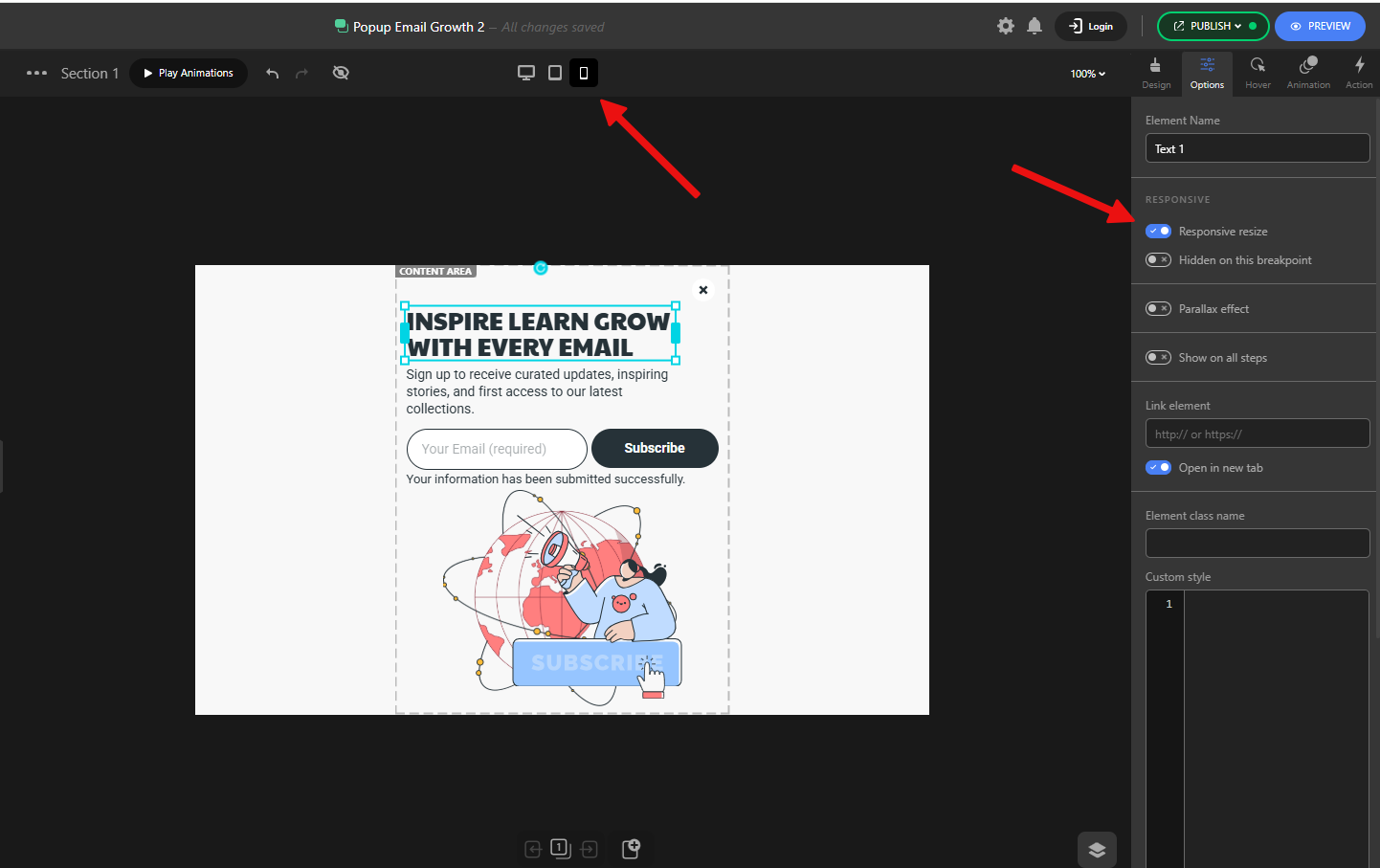
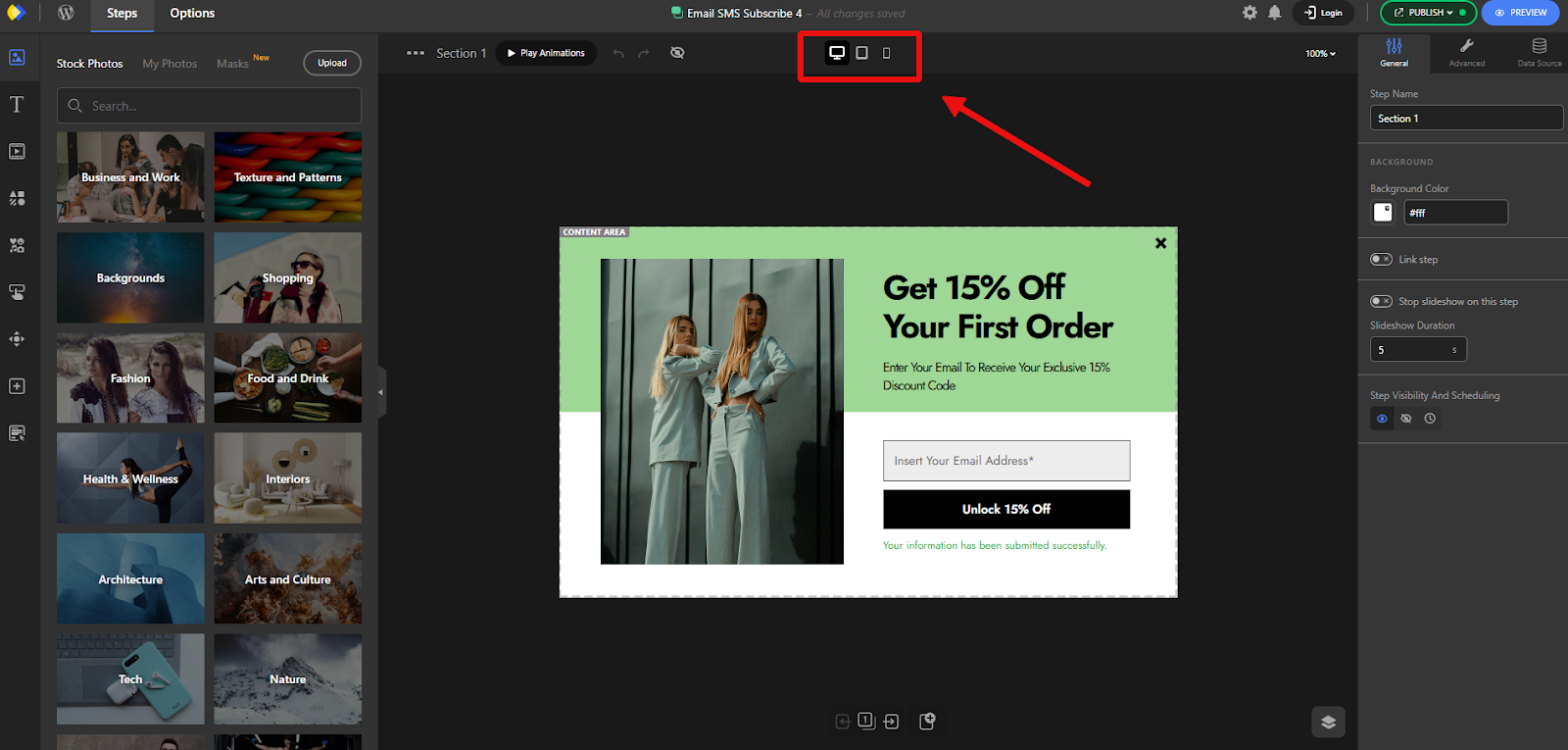
The most important option for us in this step is the Responsive Design buttons in the top toolbar. These let you preview and adjust how your popup looks in each display mode.
By clicking on the Mobile view, you’ll see the popup exactly as it appears on mobile devices.
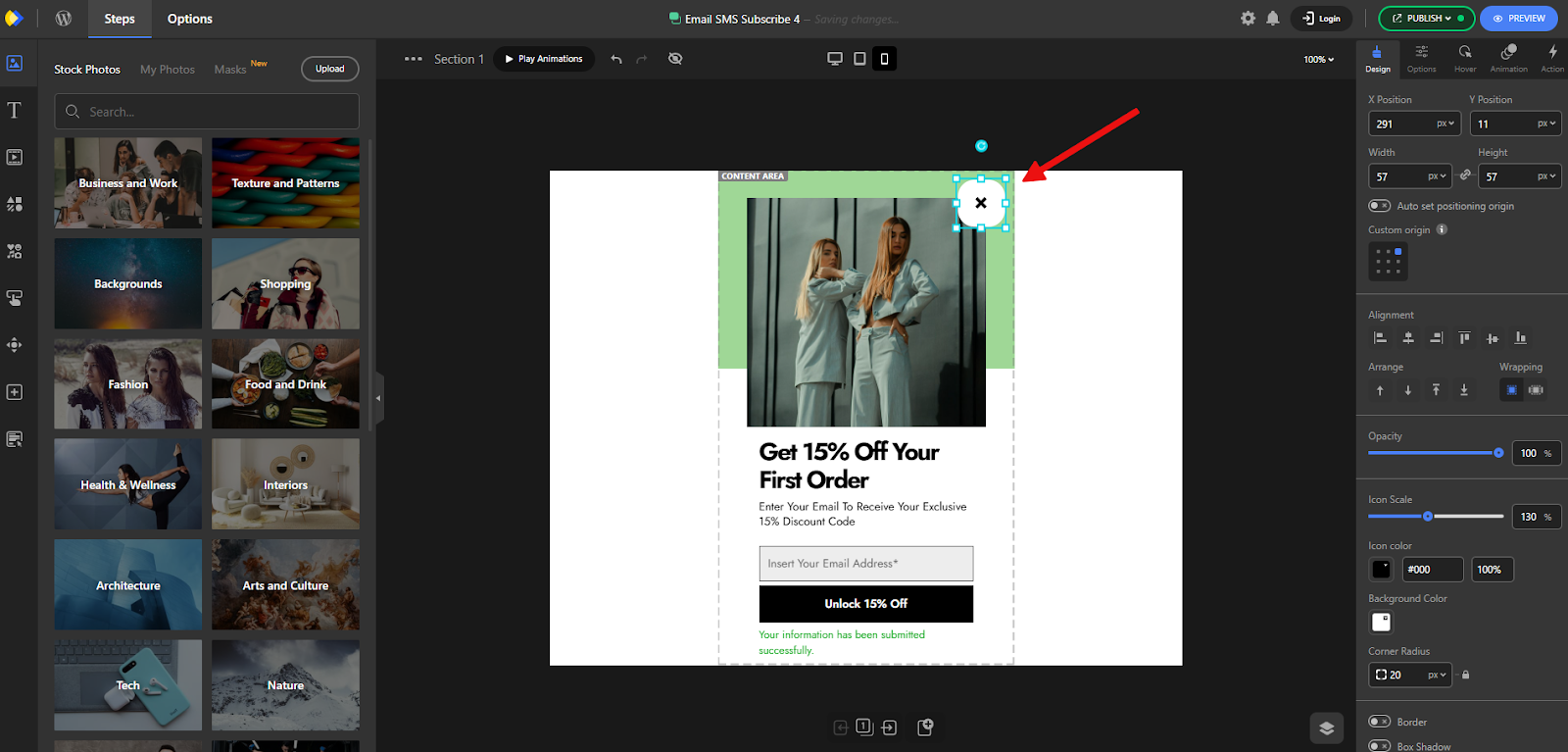
The great thing about Depicter templates is that they’re already optimized for all responsive modes. However, you can still make adjustments if needed.
Keep in mind that responsive customizations are independent from each other. This means changes to layout, sizes, colors, and other settings in Mobile mode will only affect the mobile view and won’t impact other modes.
For example, here we made the close button slightly larger and easier to tap—following some of the best practices mentioned above.
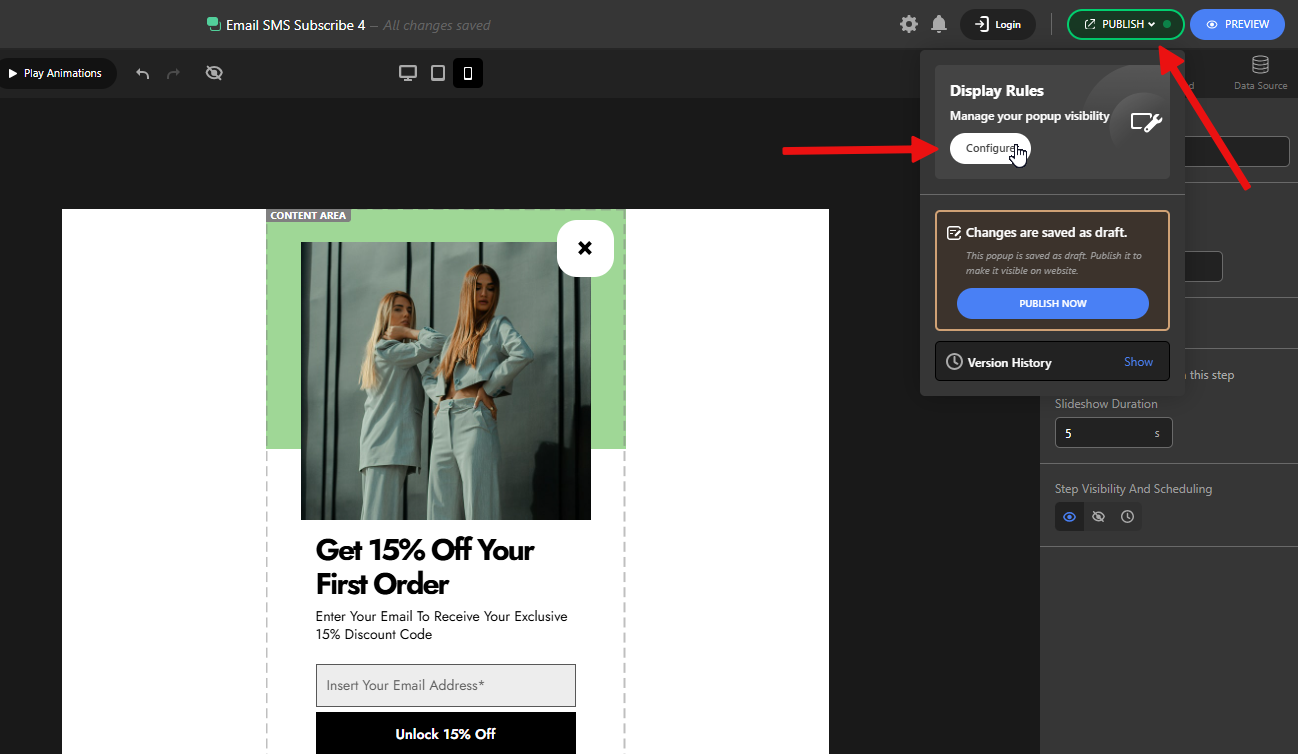
The next step is to set up the Display Rules, which basically decide when and where your popup will appear.
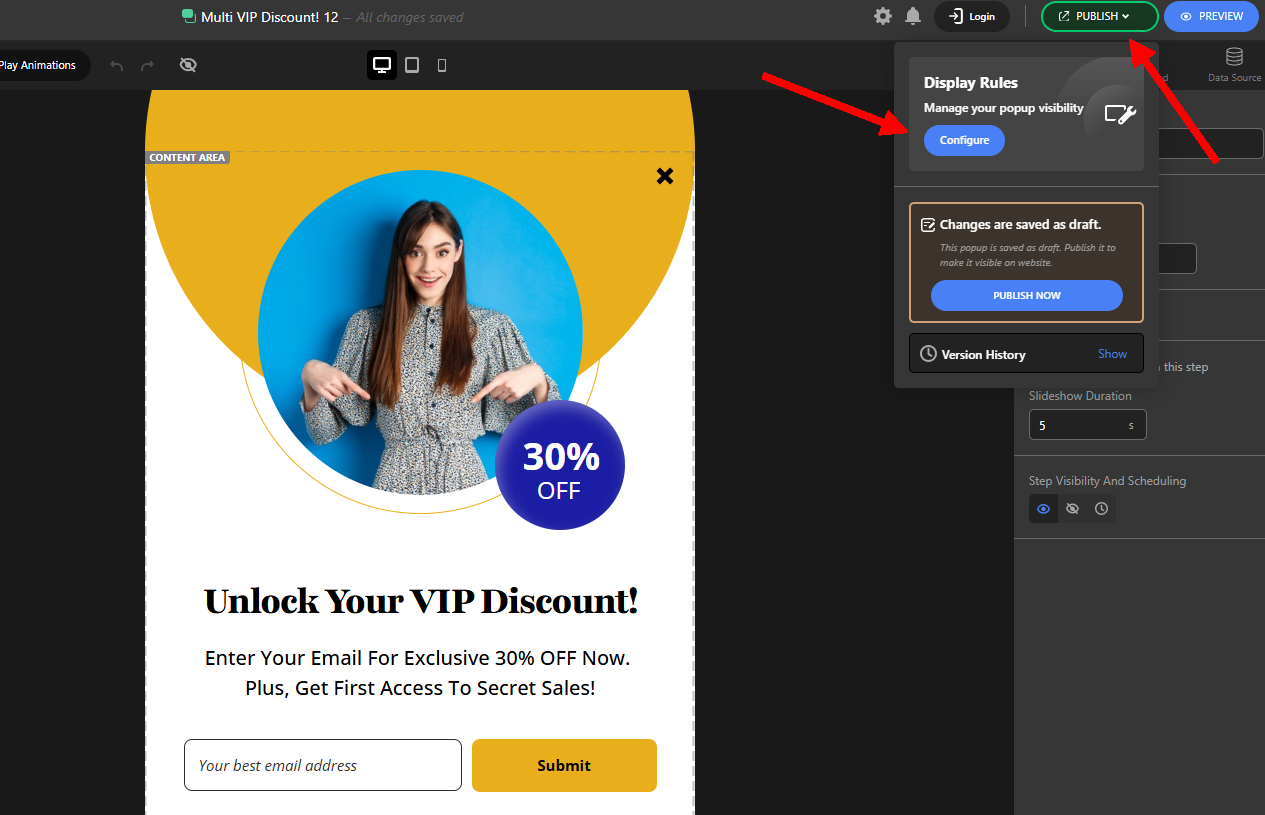
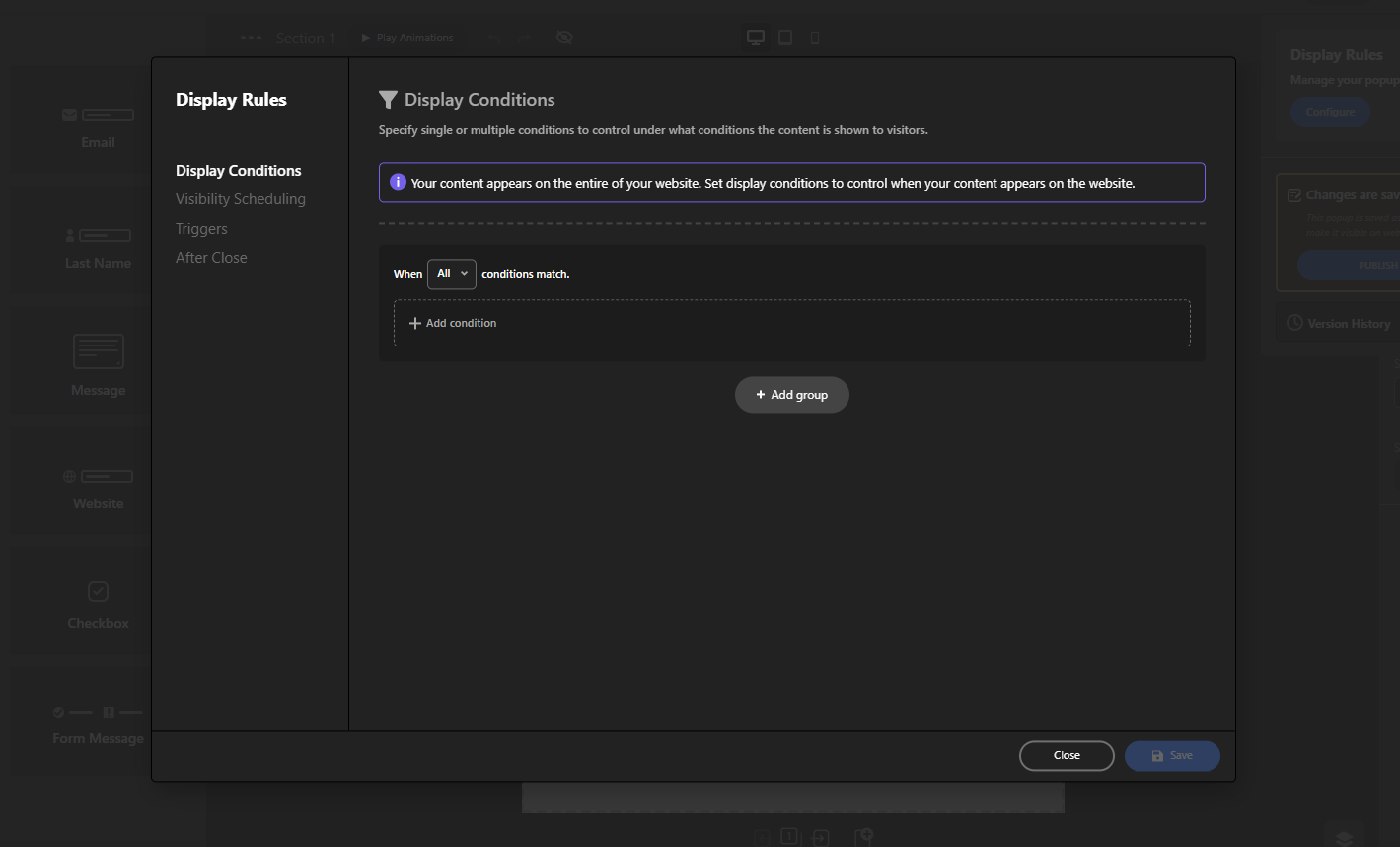
To do this, click Publish, then under Display Rules, click the Configure button to open the settings window.
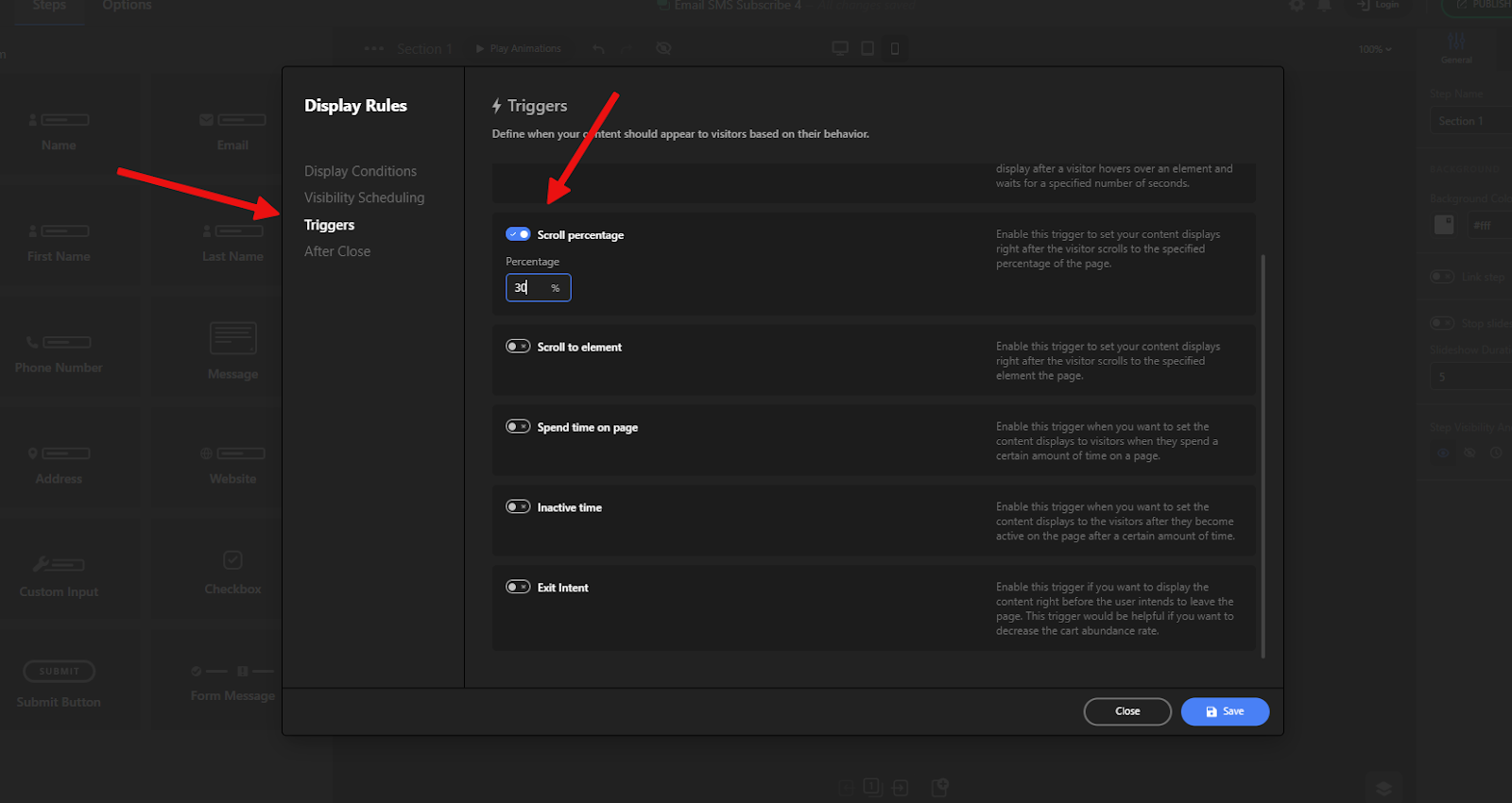
We won’t go into every detail here—our only change will be to enable the Scroll Percentage trigger and set it to 30%, following the guidelines we mentioned earlier.
That’s it! After saving and publishing, your popup will appear on mobile devices just like the final result shown here.
Conclusion
Mobile popups, when thoughtfully designed and strategically deployed, can be one of the most effective tools for engaging mobile visitors, growing your subscriber base, and boosting conversions. By keeping messages concise, optimizing for small screens, and using smart triggers, you can enhance — not hinder — the mobile browsing experience. Depicter Popup Buildermakes the process even easier, allowing you to create professional, responsive popups without starting from scratch. With the right approach, mobile popups can transform casual visits into lasting customer relationships.
FAQs
How soon should I show a popup to mobile users?
Avoid showing it instantly. Instead, use triggers such as scrolling 30–40% down the page, spending a certain amount of time on-site, or displaying it on exit intent. This ensures you reach engaged visitors without interrupting their experience.
Can I use the same popup for desktop and mobile?
It’s better to create a mobile-optimized version. Mobile screens have less space, so you’ll need shorter text, larger tap-friendly buttons, and simplified layouts. Tools like Depicter let you adjust each version separately.
What’s the best offer for a mobile popup?
Discount codes, free resources, exclusive content, and limited-time deals tend to perform best. Tailor your offer to your audience and keep the message clear and compelling.
How often should I show a popup to the same user?
Limit frequency to avoid frustration — for example, once per session or once every few days. Frequent interruptions can lead to higher bounce rates and hurt user trust.
In this guide, we’ll show you how to grow newsletter subscribers using proven, actionable strategies that work for both beginners and seasoned marketers.
Growing your newsletter subscriber list is one of the most effective ways to build a loyal audience and generate consistent engagement for your brand.
But first, let’s clarify what a newsletter actually is: it’s a recurring email that delivers valuable content, updates, or offers directly to your audience’s inbox, helping you stay top-of-mind and build lasting relationships.
While social media platforms can be useful for reaching new people, email marketing gives you a direct line to your audience, without the limitations of algorithms or third-party platforms.
Unlike casual website visitors, email subscribers have already shown interest in your content, products, or services. This means they’re far more likely to read your updates, engage with your offers, and eventually become paying customers.
Whether you’re starting from scratch or looking to scale your list, these tips, combined with the tools that Depicter Popup Builder provides, will help you attract more subscribers and keep them engaged for the long term.
Use High-Converting Popups
Popups are one of the fastest and most effective ways to turn visitors into subscribers. The key is using the right type of popup at the right time so you capture attention without being disruptive.
These appear when a visitor is about to leave your site, giving you one last chance to capture their interest. They work well for offering discounts, free resources, or exclusive content in exchange for an email address.
These popups appear after a visitor has scrolled a certain percentage down the page. They target people who are already engaged with your content, increasing the likelihood they’ll subscribe.
Triggered after a visitor has been on your site for a set period, these give people time to browse before asking for their email. This approach feels less pushy and can result in higher conversion rates.
Instead of showing a form right away, these popups use a button or link that, when clicked, reveals the signup form. This small “micro-commitment” increases engagement and can lead to more signups.
With Depicter, you can easily create and customize all of these popup types without coding — and match them perfectly to your brand’s style.
Offer a Valuable Lead Magnet
Visitors are much more likely to give you their email address if they’re getting something valuable in return. A lead magnet is that value, and it can make a huge difference in your signup rate.
Ebooks and Guides
A free downloadable guide on a relevant topic can position your brand as an expert and give subscribers something they can immediately use.
Discount Codes or Special Offers
If you’re in eCommerce, offering a discount in exchange for an email is one of the most effective tactics. It works especially well in welcome or exit-intent popups.
Mini Email Courses
Delivering a short email course over a few days is a smart way to build trust. It keeps new subscribers engaged and gives them ongoing value right after signing up.
Depicter makes it easy to promote and deliver lead magnets. You can design high-converting popups, automatically trigger downloads or redirect users after they sign up, and make every offer feel personalized.
Create Targeted Offers With Display Rules
Not every visitor is the same. So why show everyone the exact same popup? By creating targeted offers based on user behavior or conditions, you can show more relevant messages and significantly improve your signup rates.
In Depicter, targeting options are available under the Display Rules panel. To access them:
Open your popup project in the Depicter editor
Click on the Publish Button tab in the right-side panel
Under the Display Rules section click on the Configure button
This gives you full control over who sees what, when, and how, without writing a single line of code.
Here are some of the most useful targeting rules:
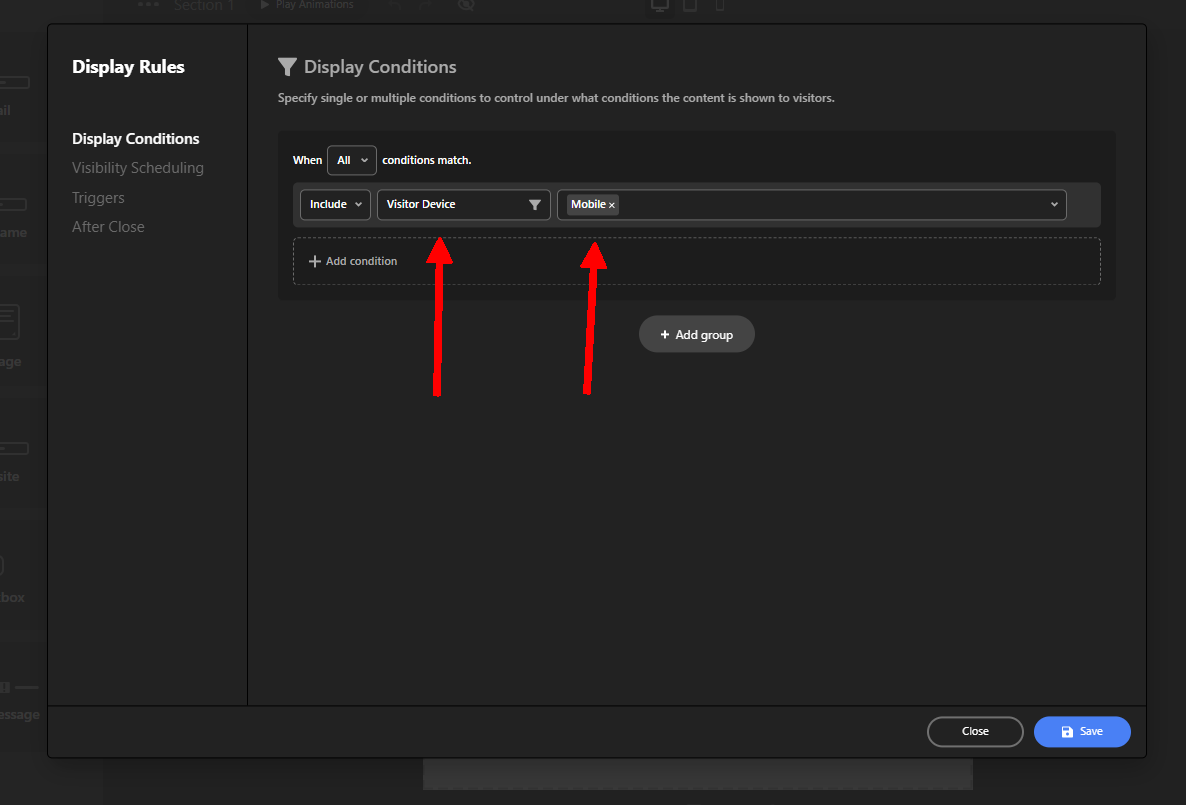
Device Type Targeting
You can choose to show different popups on mobile, tablet, or desktop devices. This ensures that your design and message fit perfectly on every screen and don’t disrupt the mobile experience.
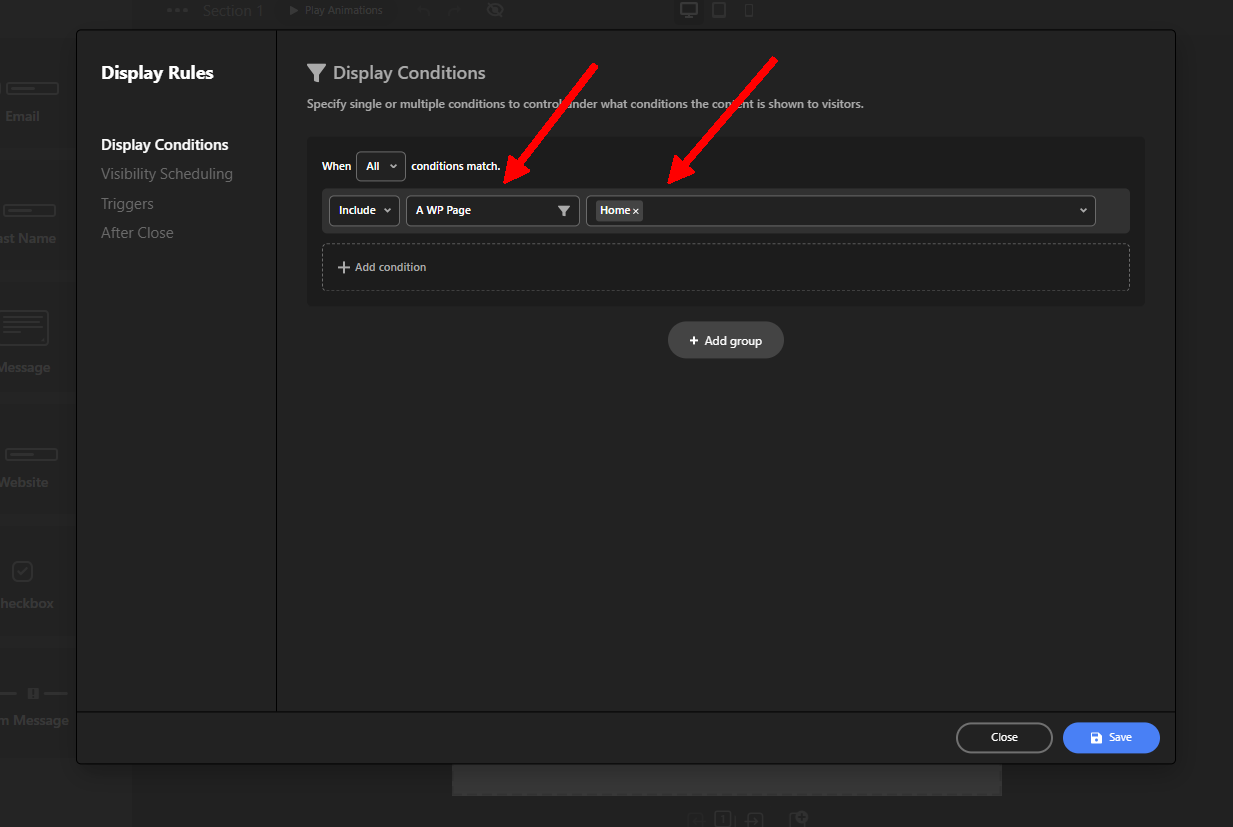
URL-Based Targeting
Display your popup only on specific pages or paths. This is great when you want to offer content that’s relevant to a specific product, blog post, or landing page.
Referral Source Targeting
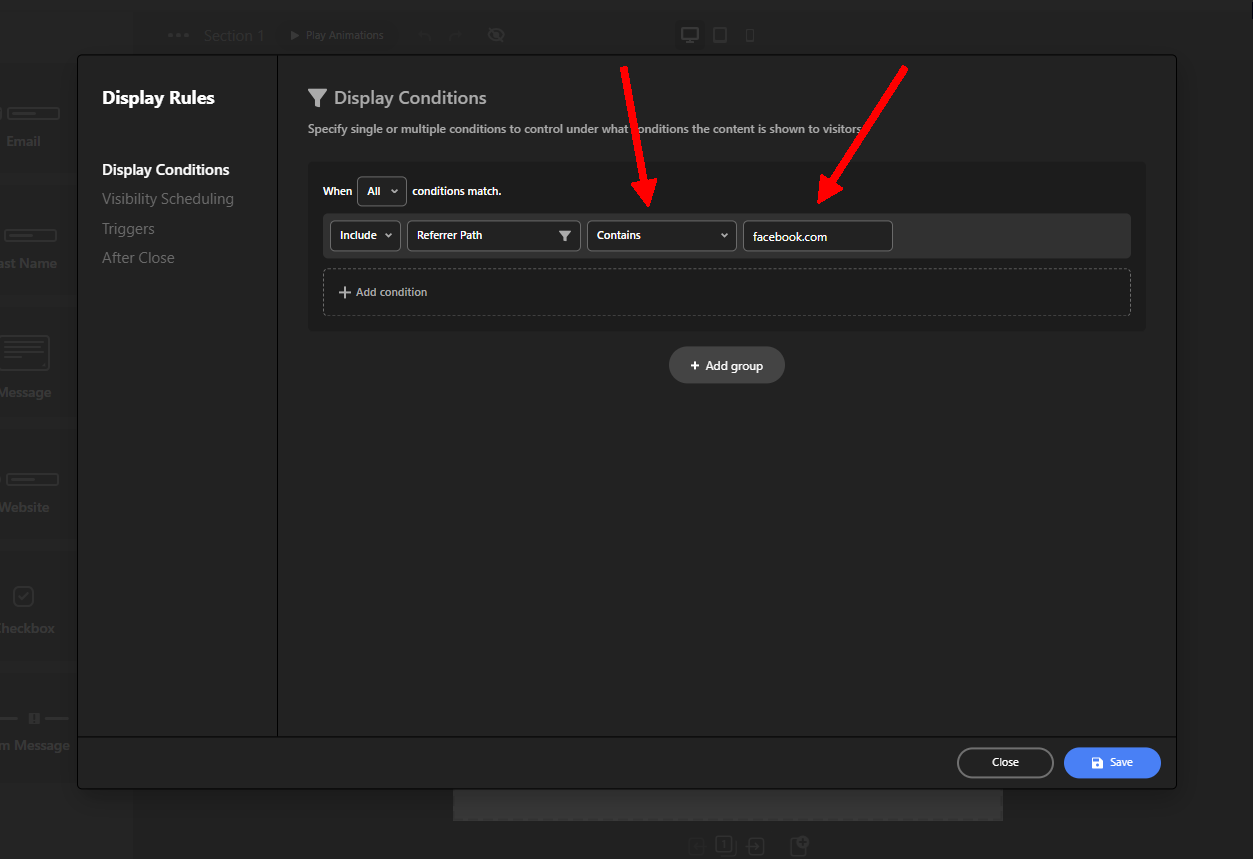
You can set a popup to appear only if the visitor comes from a certain source (like Facebook, Google Ads, or an affiliate link). This allows you to customize your message based on where the visitor came from.
Time or Date Scheduling
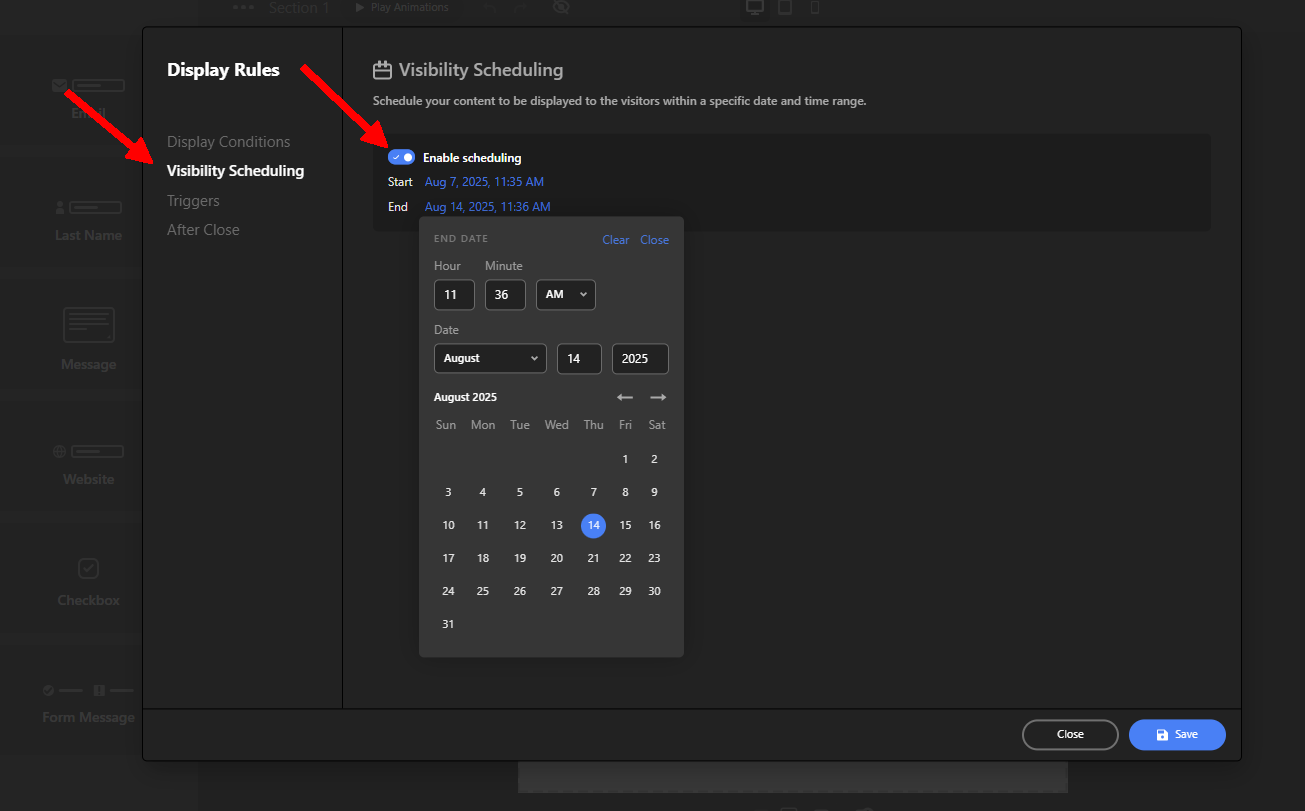
Schedule your popup to appear only during specific times of day, days of the week, or within a defined date range.
Logged-in vs. Guest Users
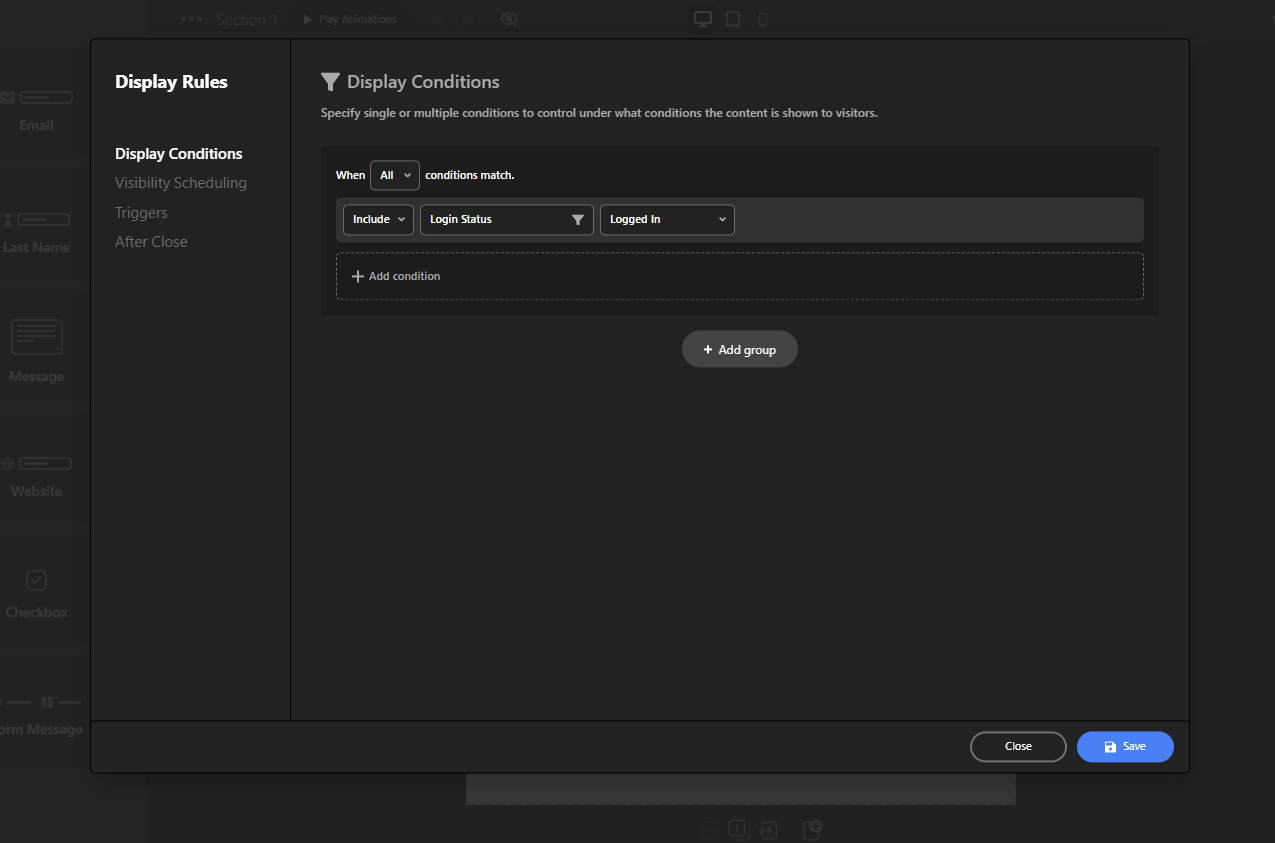
Target users based on whether they’re logged into your website or not. This is especially useful for membership sites, online stores, or any platform with registered users.
With Depicter’s Display Rules, you don’t have to settle for one-size-fits-all messaging. Instead, you can build smarter, more personalized experiences — and turn more visitors into subscribers, based on exactly who they are and what they need.
Bonus: Newsletter Content Ideas That Keep Subscribers Engaged
Getting someone to subscribe to your newsletter is just the first step — keeping them engaged is where the real value comes in. Consistent, relevant, and interesting content helps you build trust, drive traffic, and increase conversions over time.
Here are a few tried-and-true content types to include in your email newsletter strategy:
Tips & How-To Guides
Practical advice related to your audience’s interests keeps your emails useful. Whether it’s a short tip or a full guide, educational content builds trust and positions you as an expert.
Product Updates or Feature Highlights
Let subscribers know what’s new with your product or service. This keeps your community informed and makes sure they’re aware of features they might not be using yet.
Exclusive Offers or Discounts
Send limited-time deals or subscriber-only promo codes. People love feeling like insiders — and this type of email often leads to quick conversions.
Organized Content
Share a roundup of interesting blog posts, videos, or tools your audience would find valuable — even if they’re not yours. This shows you understand their interests and adds value without being overly promotional.
Behind-the-Scenes Updates
Let your audience in on what’s happening inside your brand — upcoming projects, team moments, lessons learned. It adds personality and builds deeper connections.
Community Highlights
Feature user stories, testimonials, or showcase how customers are using your product. This adds social proof and shows appreciation for your audience.
Event or Webinar Invitations
If you’re hosting (or joining) an event, invite your subscribers. It’s a great way to move the relationship from passive reading to active participation.
Ask for Feedback or Input
Use your newsletter to ask readers what they want next — whether it’s a new feature, content idea, or product improvement. This makes them feel heard and involved.
Sample Newsletter Email
Subject: Quick Win: 3 Ways to Improve Your Homepage Engagement
Body:
Hi [First Name],
Want more visitors to stick around on your homepage? Here are 3 quick strategies you can try today:
Add a strong headline — Make sure it’s clear who you help and what problem you solve.
Use a visual popup — Highlight a lead magnet or limited-time offer using Depicter to draw attention.
Simplify your layout — Remove distractions and guide users toward one clear action.
Want more website tips like this? Stay tuned — we’ve got a full guide coming next week.
To your success, The [Your Brand] Team
Conclusion
Growing your newsletter subscriber list doesn’t have to be complicated, but it does require the right tools and strategies. By using targeted popups, valuable lead magnets, personalized display rules, and engaging newsletter content, you can turn casual visitors into loyal subscribers and long-term customers. The Depicter Popup Builder makes the whole process easier, more effective, and fully customizable — no coding required.
Start small, test consistently, and focus on providing value at every step. Your list will grow faster than you think.
FAQs
What is a newsletter and why is it important?
A newsletter is a recurring email sent to your subscribers that includes updates, promotions, or valuable content. It’s important because it helps build trust, drive traffic, and create long-term engagement with your audience — without relying on social media algorithms.
How do I start growing my newsletter subscribers?
Start by offering a clear incentive (like a discount or free guide), use a high-converting popup (like exit-intent or scroll-triggered), and make sure the signup process is simple. Depicter makes it easy to do all of this visually and without code.
What makes a good lead magnet?
A good lead magnet solves a specific problem or delivers quick value — examples include ebooks, checklists, discount codes, or free mini-courses. It should feel relevant and desirable to your target audience.
How can I personalize my popups?
Using Depicter’s Display Rules, you can show different messages based on device type, referral source, logged-in status, page URL, and more. This helps make each visitor’s experience more relevant and effective.
How often should I send newsletters?
There’s no one-size-fits-all answer, but once a week is a good starting point. Focus on consistency and value — quality matters more than frequency.
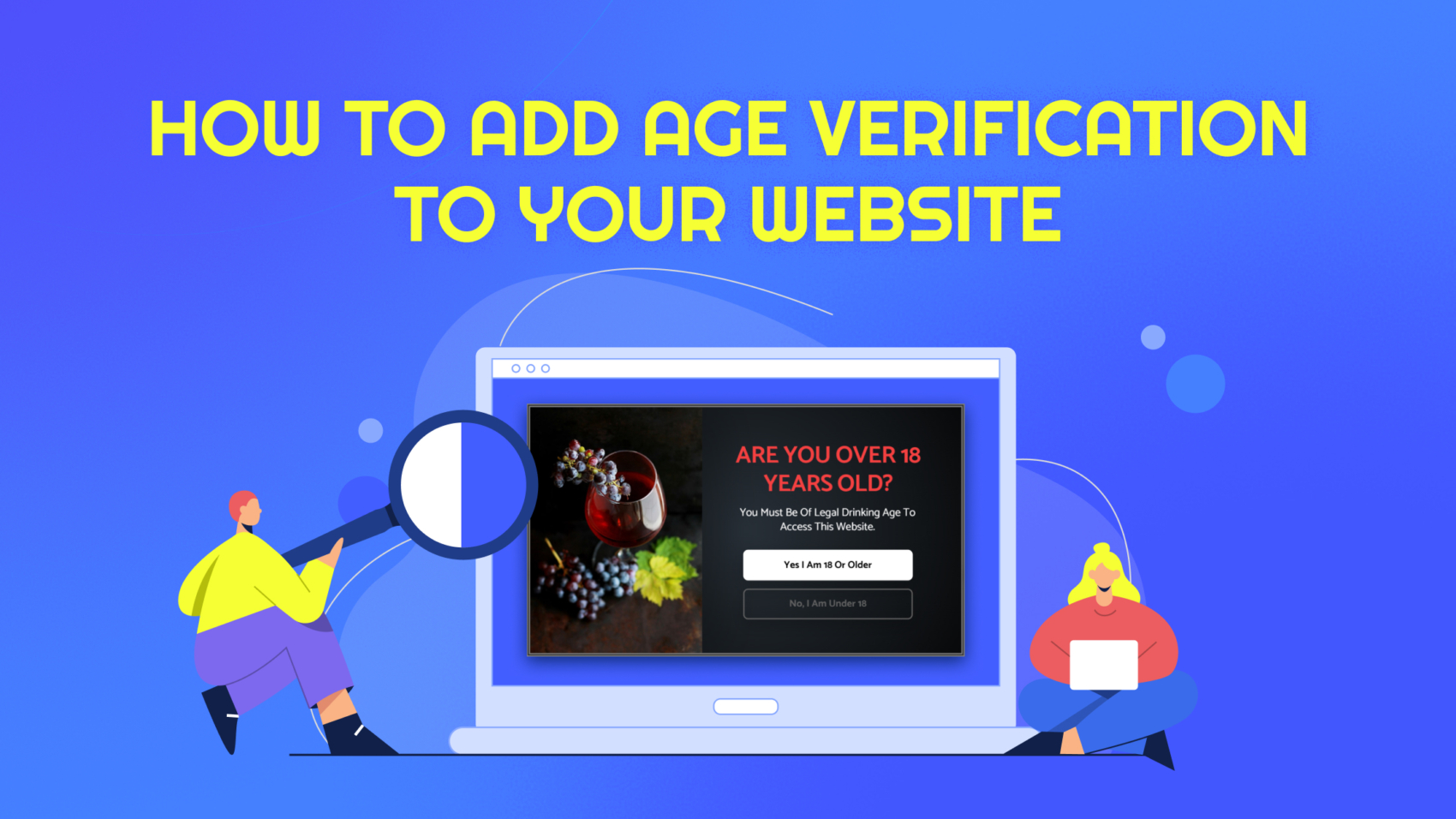
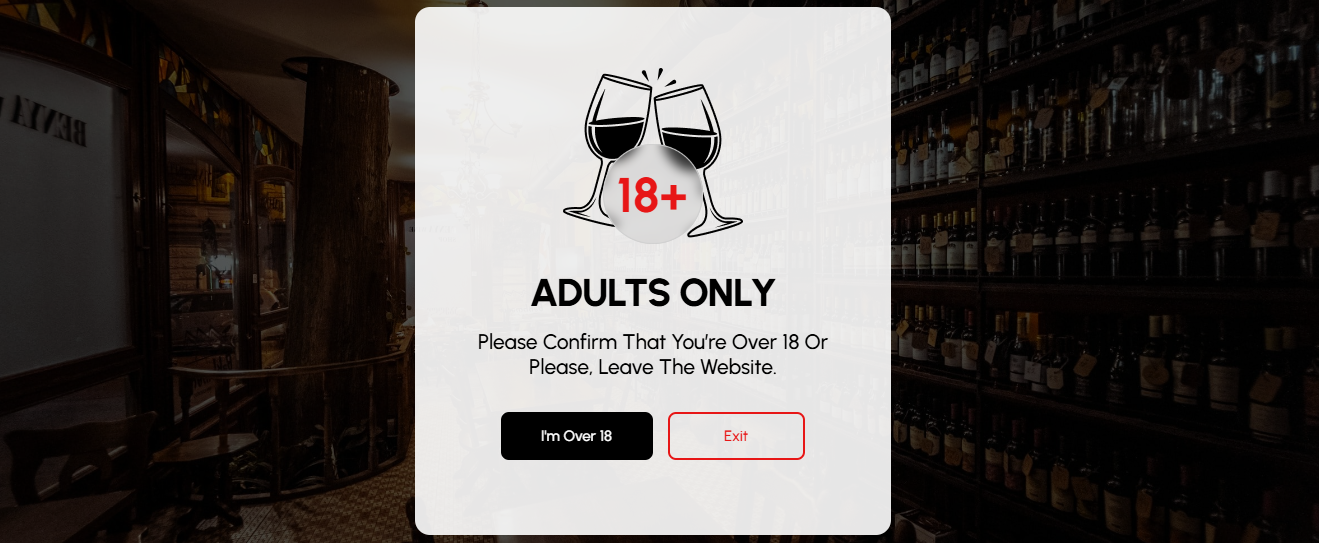
If your website features content or products meant for adults — like alcohol, tobacco, or anything age-restricted — adding an age verification popup is a smart move. It’s a simple layer of protection that helps you stay compliant, build trust with your audience, and show you take responsible access seriously.
In this guide, you’ll learn how to add age verification to your website using Depicter, a powerful and easy-to-use popup builder. We’ll walk you through the entire process step by step — no coding required.
If you’re looking for a free solution, a professional-looking age verification widget, or something you can fully customize, Depicter has you covered.
🎥 Video Tutorial: How to Add Age Verification to Your Website
Learn step-by-step how to create an age verification popup for your WordPress website. This tutorial shows you how to set it up quickly, ensuring your content is accessible only to the right audience.
//
What Is an Age Verification Popup?
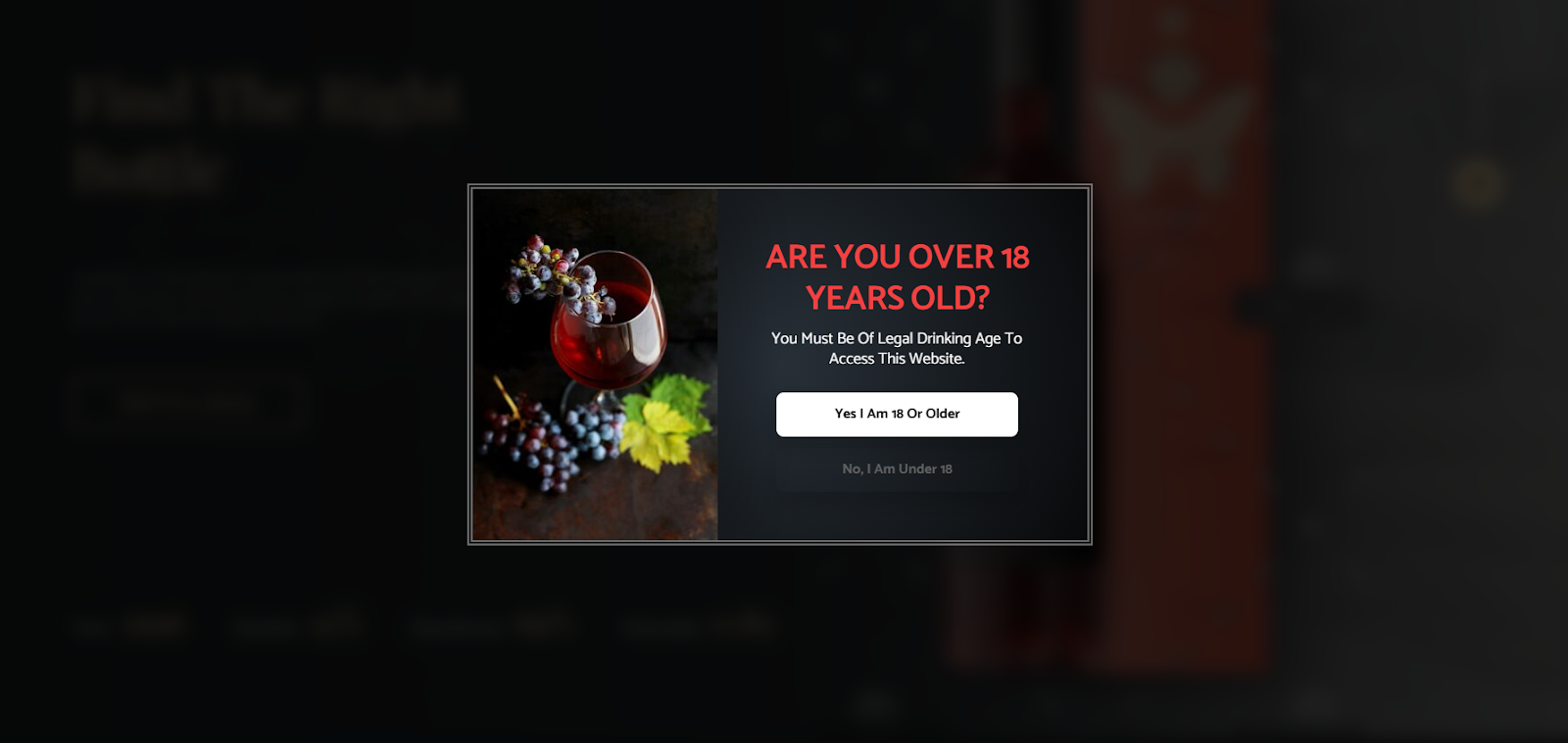
An age verification popup is a screen that appears when someone visits your site for the first time. Its purpose is to make sure the visitor is old enough to view the content or buy the products offered on your site.
These popups usually ask users to confirm their age — either by entering their birthdate or simply clicking a “Yes” button. It’s fast, simple, and helps protect minors from seeing content they shouldn’t.
Even if laws in your area don’t strictly require it, adding website age verification is still a good practice — it shows that you care about your users and your responsibilities as a site owner.
Why Use Depicter for Age Verification?
DepicterFree Popup Builder makes it incredibly easy to create a fully custom age verification popup that matches your site’s branding — no code needed. With its drag-and-drop visual builder, you can control every part of the popup: layout, fonts, colors, animations, and more.
One of Depicter’s biggest advantages is its huge library of templates — over 670 ready-to-use Popup Templates, including several perfect for age verification for websites. This means you can start with a professional template and tweak it however you like.
You also get full control over where, when, and how the popup appears — such as showing it only once per session or across all pages.
Creating an Age Verification Popup with Depicter
Install the Depicter Plugin
Before getting started, make sure the Depicter plugin is installed on your site.
To install it, go to the Plugins section in your WordPress dashboard, search for “Depicter”, and click Install — it only takes a minute.
Need a hand? Take a look at our step-by-step guide and video tutorial on how to install Depicter.
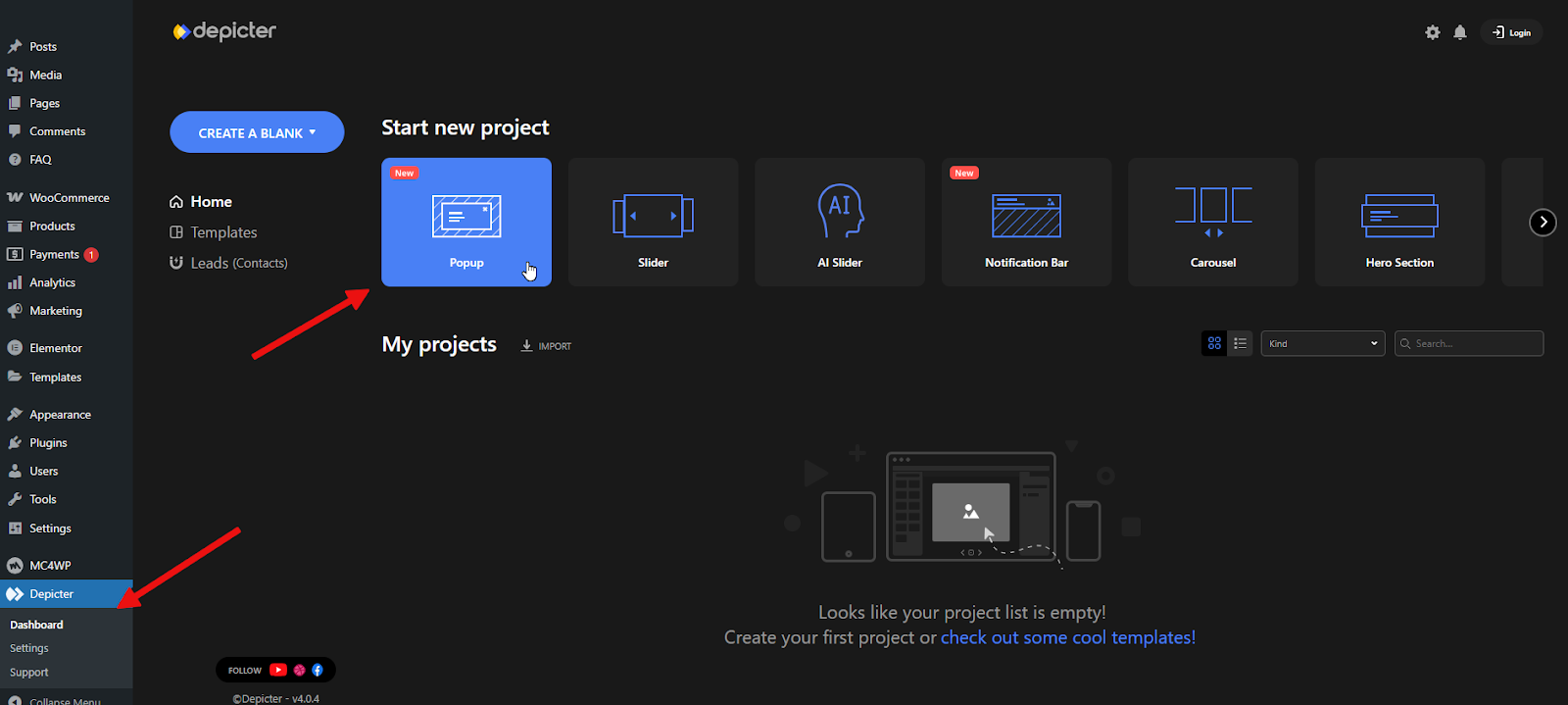
Open the Popup Builder
Once you’re in the Depicter dashboard, navigate to the Popup section to get started.
To speed things up, we’ll use a ready-made template — it’s a quick way to get everything set up and looking great in no time.
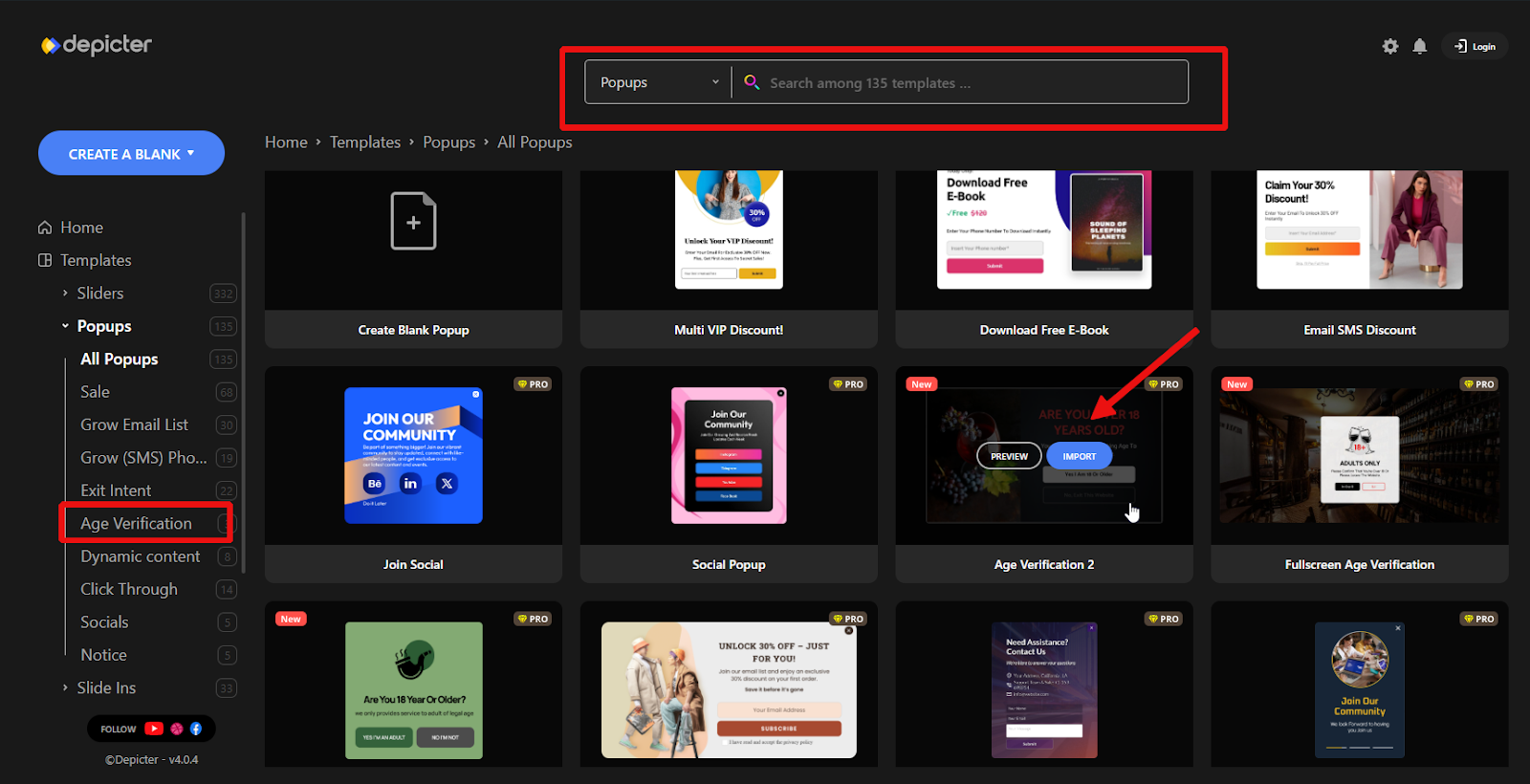
One of the best things about Depicter is its extensive template library, which makes building your popup super easy.
The templates are clean, modern, and professionally designed. You’ll find both Free Popup Templates and Age Verification Templates to choose from.
Use the menu on the left to browse by category, or type keywords into the search bar to quickly find something that fits your style or purpose.
No need to start from scratch — just pick a template you like and click Import.
Customize the Popup Design
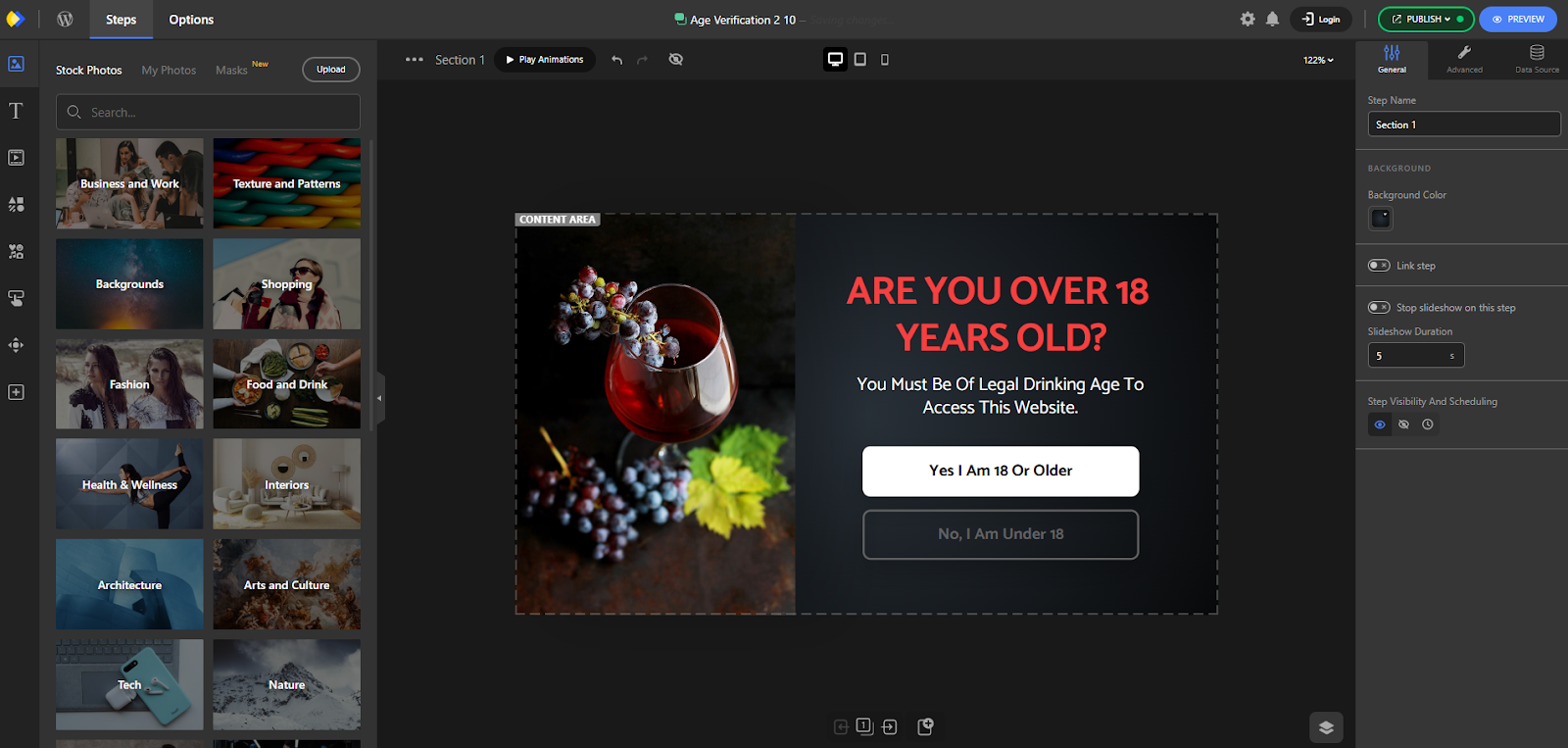
In just a few seconds, the template will load and you’ll be taken directly to the Depicter Popup Builder.
This is where you can customize everything to your liking. Simply click on any part of the popup, and its settings will show up in the panel on the right — ready for you to tweak and adjust as needed.
Add Logic to the Buttons
The next step is to set up the logic for the buttons based on how age verification should work.
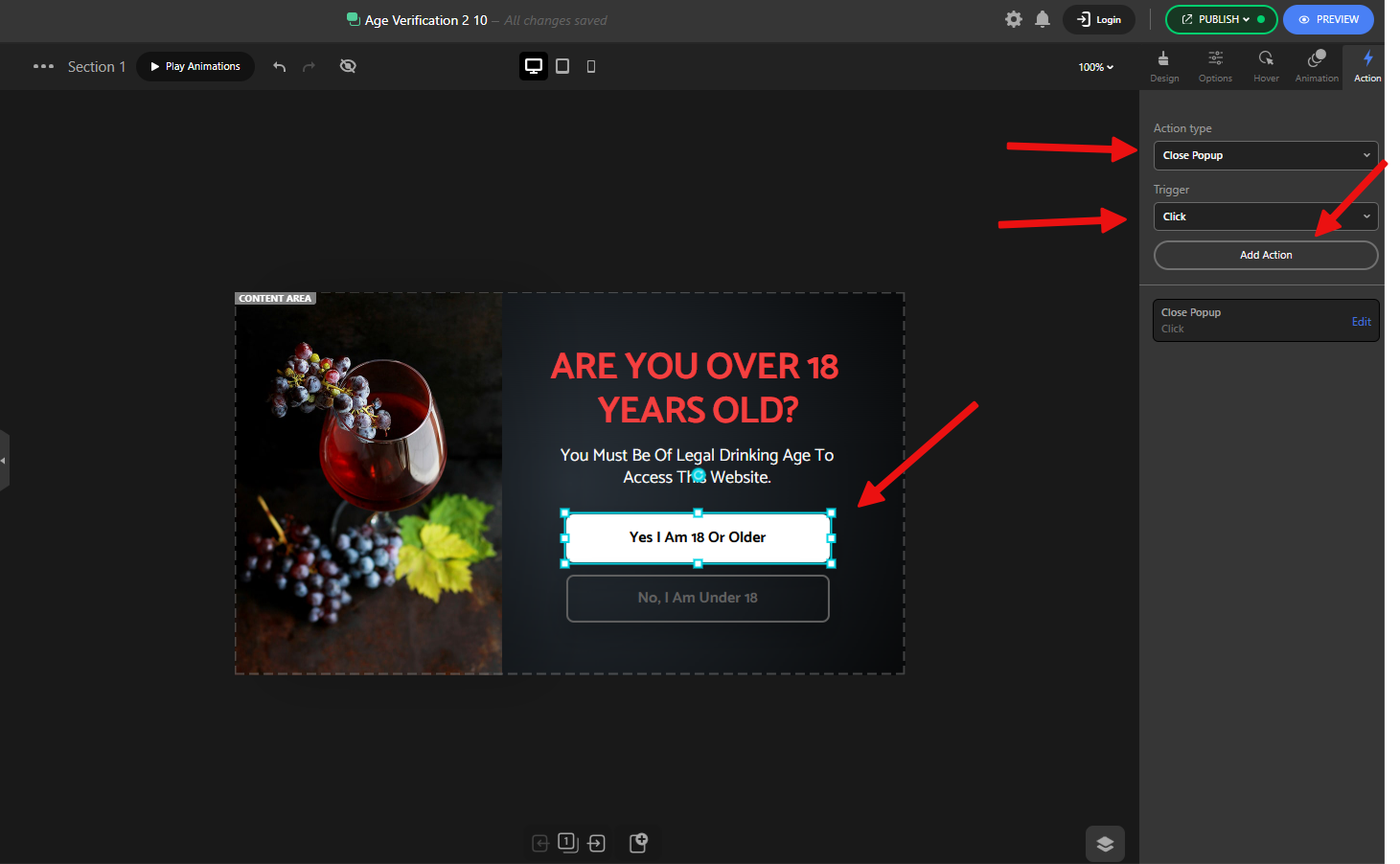
When a user clicks the “Yes” button, the popup should close. To do this, select the button, go to the Action tab, and add a new action. Set the Action Type to “Close Popup”, and the Trigger to “Click”.
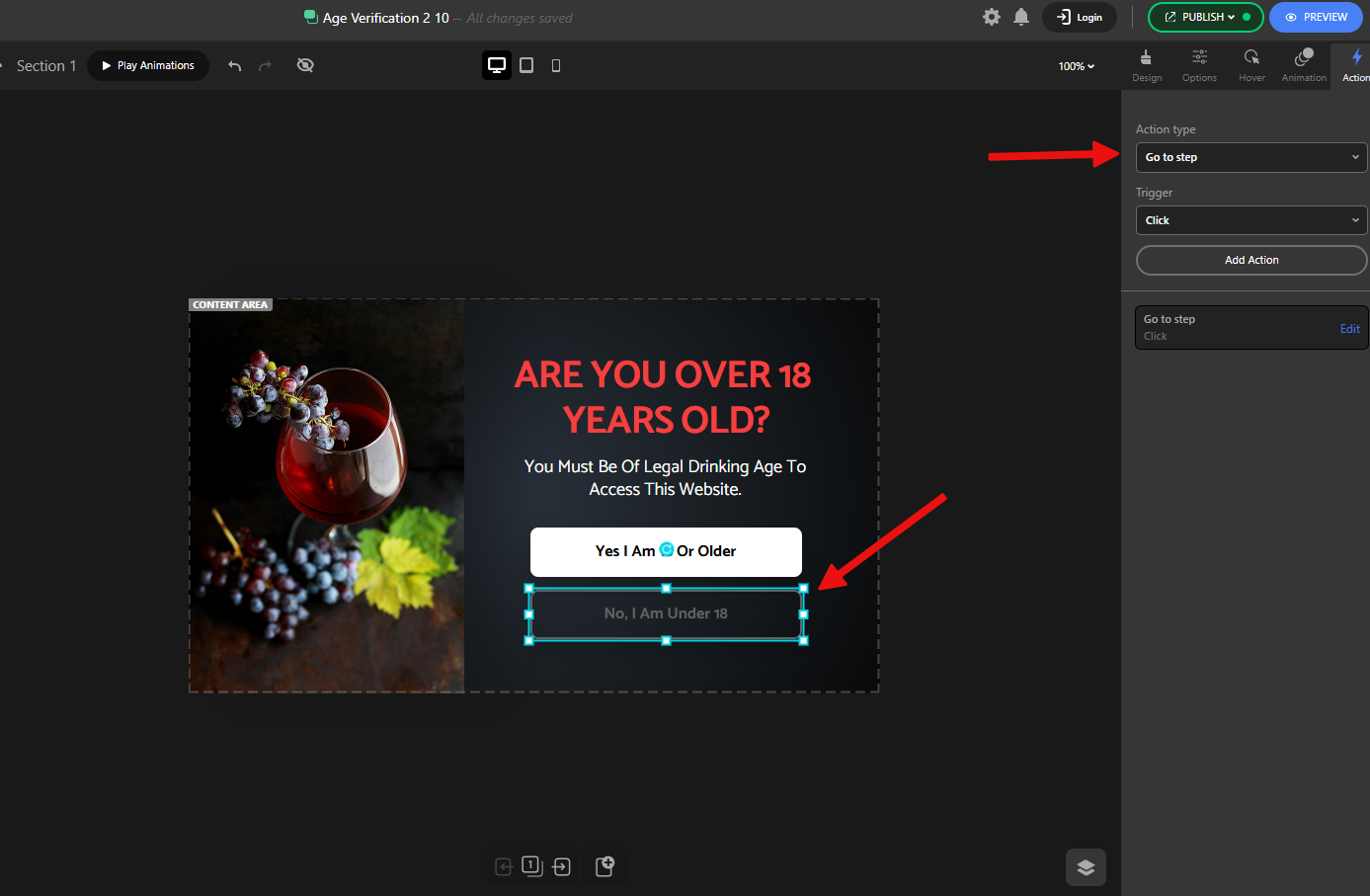
For the “No” button, the logic is a bit different. When the user clicks it, we want to show a second screen that says the content is not suitable for them.
So this time, add an action with the Action Type set to “Go to Step”, choose the step you’ve already prepared, and again set the Trigger to “Click”.
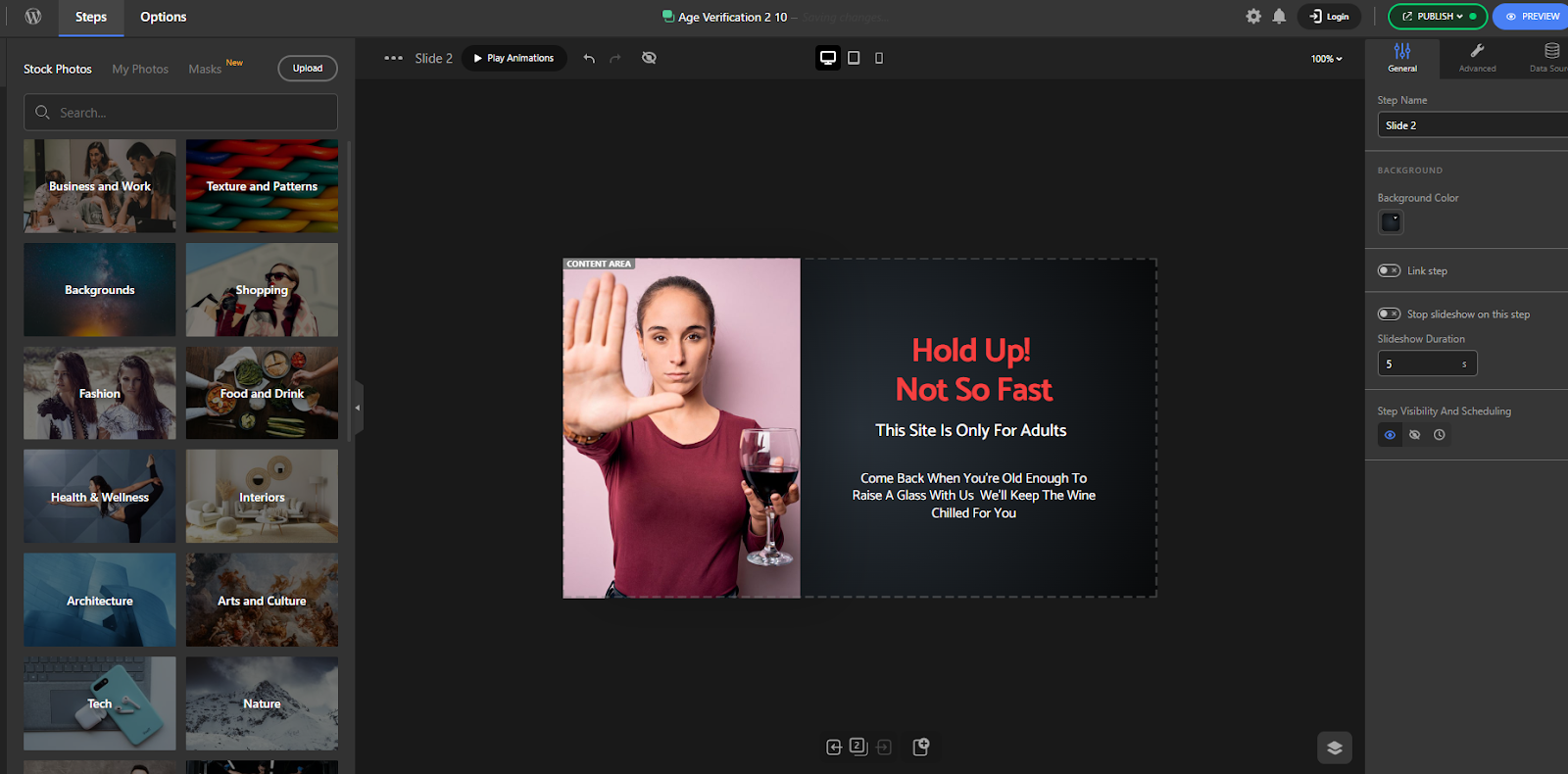
Fortunately, the template we imported already includes this second step — as you can see.
Configure Display Rules
The setup is almost complete — now we just need to configure the Display Rules.
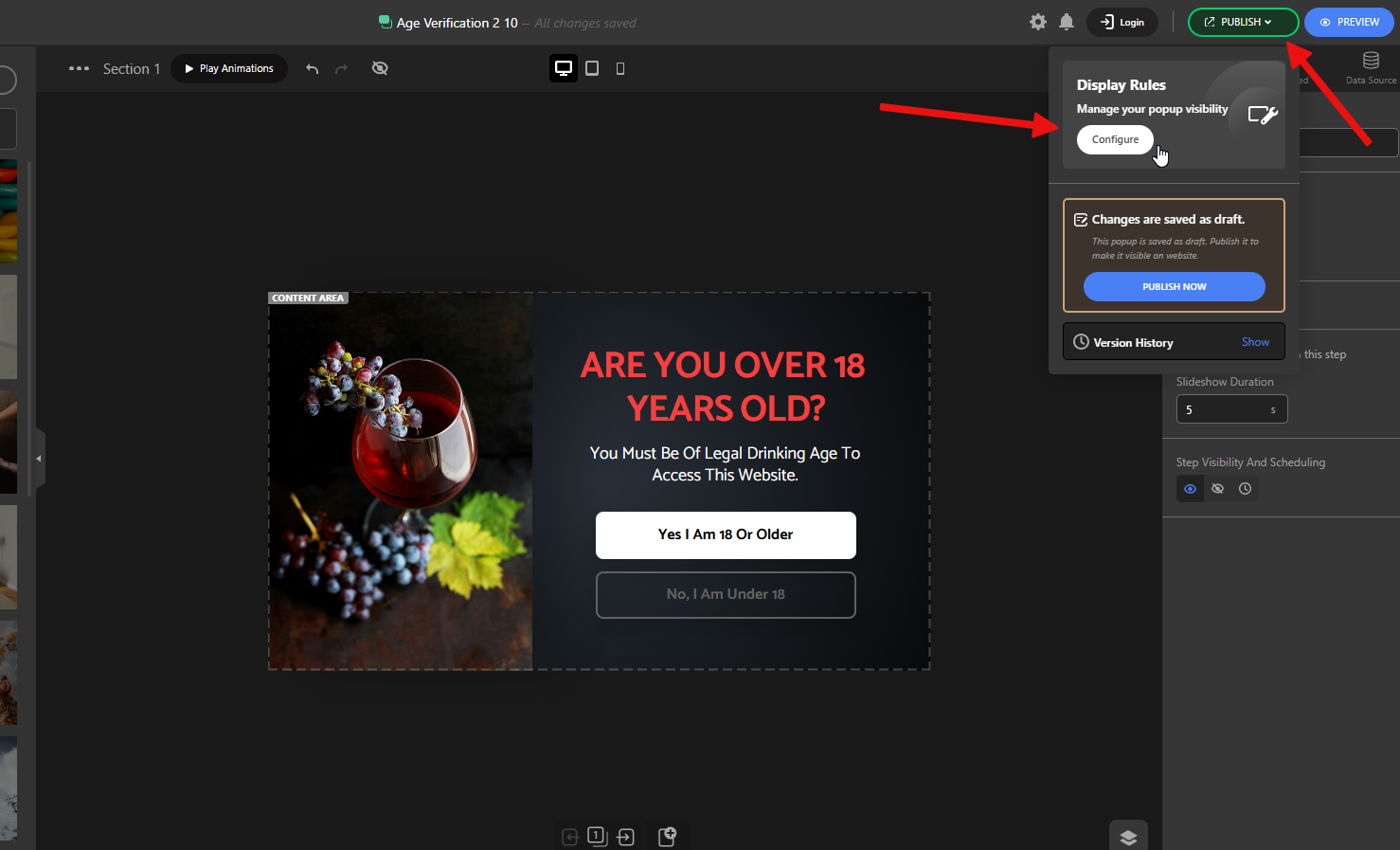
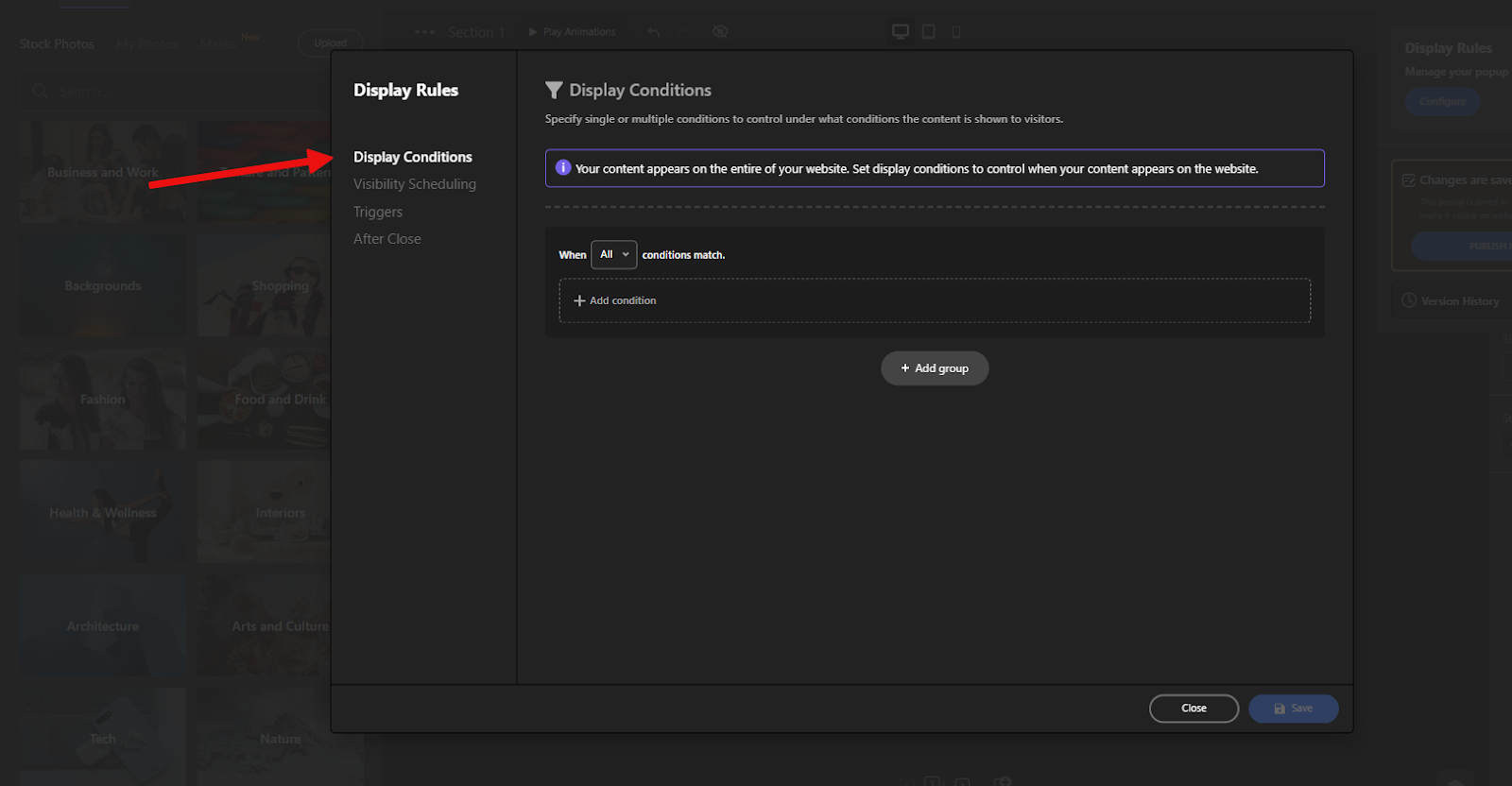
To do this, click the Publish button, then select Configure under Display Rules to open the settings window.
Age verification popups are a bit different from other types of popups — their display rules are usually more general.
For example, we don’t want it to show only on a specific page or be triggered by a specific user action.
In most cases, age verification popups appear on all pages and immediately after the page loads.
So, in the Display Conditions section, we don’t select any specific conditions — this makes it appear site-wide.
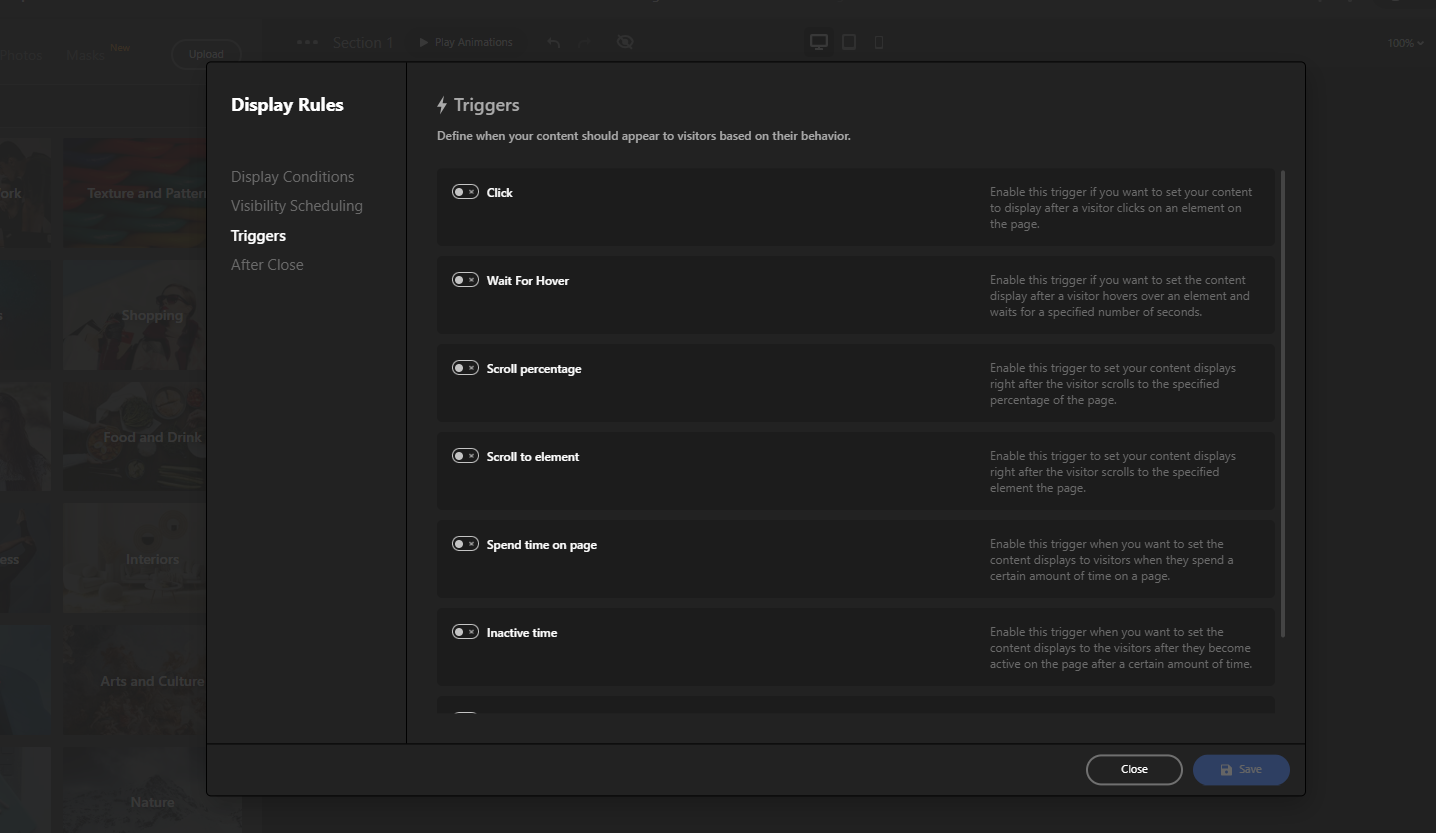
In the Triggers section, we also leave everything unchecked so the popup shows right after the page loads.
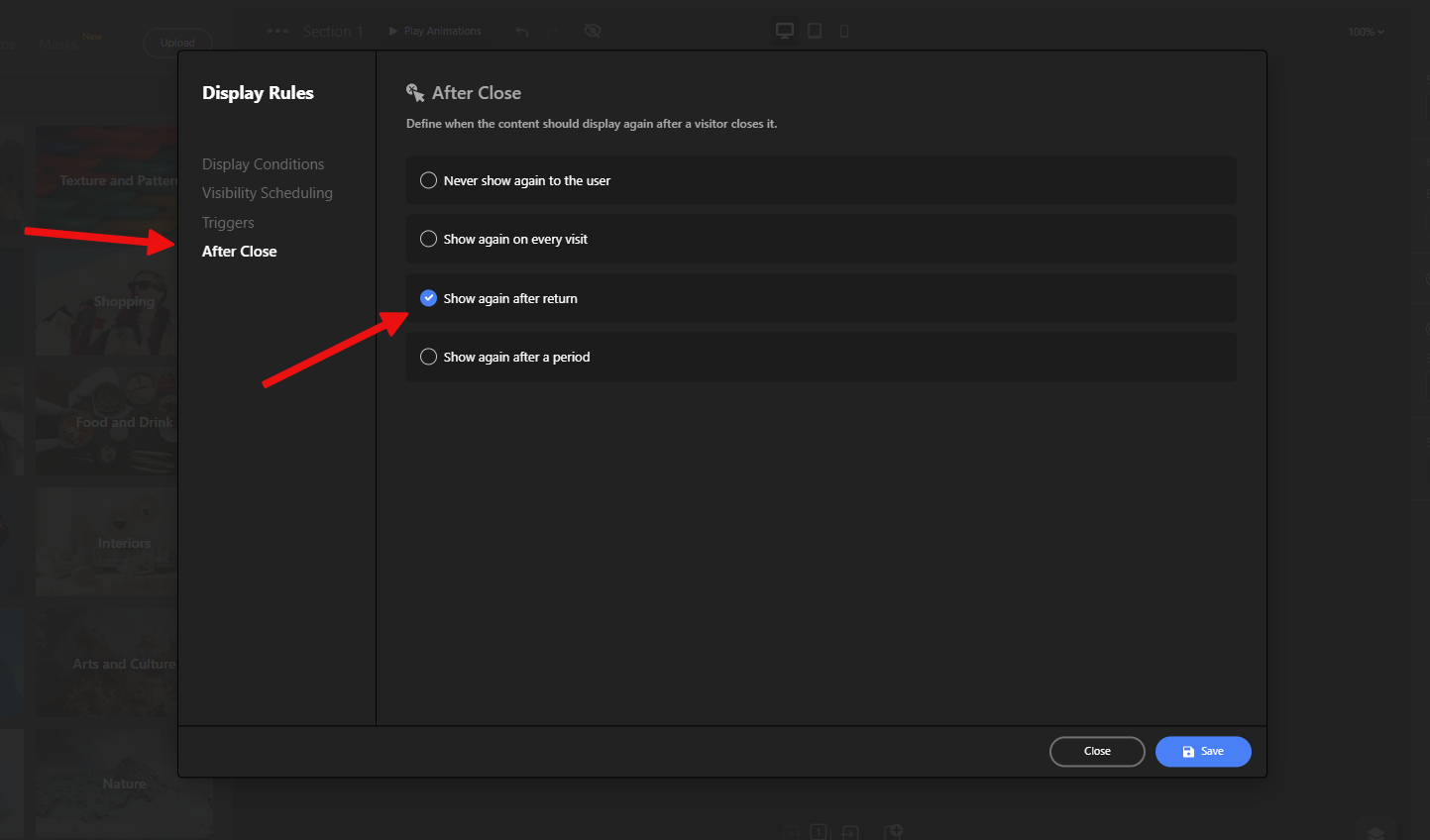
Under the After Close settings, choose “Show again after return” — this means the popup will only show once per session, but if the user leaves the site and comes back later, it will appear again.
That’s it! Save your changes, publish the popup, and your age verification will now be active on your website.
Conclusion
Adding an age verification popup to your website isn’t just about staying compliant — it’s about showing that your business cares about responsible access and user safety.
With Depicter Free Popup Builder, the entire process is simple, flexible, and fully customizable. You can create a clean, professional-looking popup in just a few minutes, without touching a single line of code.
Whether you’re setting up a free age verification for website visitors or building something more advanced, Depicter gives you the tools to do it right — and fast.
Try it out, and give your site that extra layer of protection and credibility it deserves.
FAQs
Do I need age verification on my website?
If your site sells age-restricted products or features adult content, yes. Even if not legally required, it’s a good practice to use an age verification widget for responsible content access.
Can I control where and when the popup appears?
Absolutely. Depicter gives you full control over display conditions and triggers, so you can set the popup to appear site-wide, on specific pages, after delays, or based on user actions.
Will the popup slow down my website?
No. Depicter is optimized for performance and designed to load efficiently. Using a lightweight age verification widget like this won’t noticeably affect your site’s speed.
Can I make the popup show only once?
Yes. In the display settings, you can choose to show the popup once per session, or only after specific triggers like page load or user scroll. You’re in full control of when and how it appears.
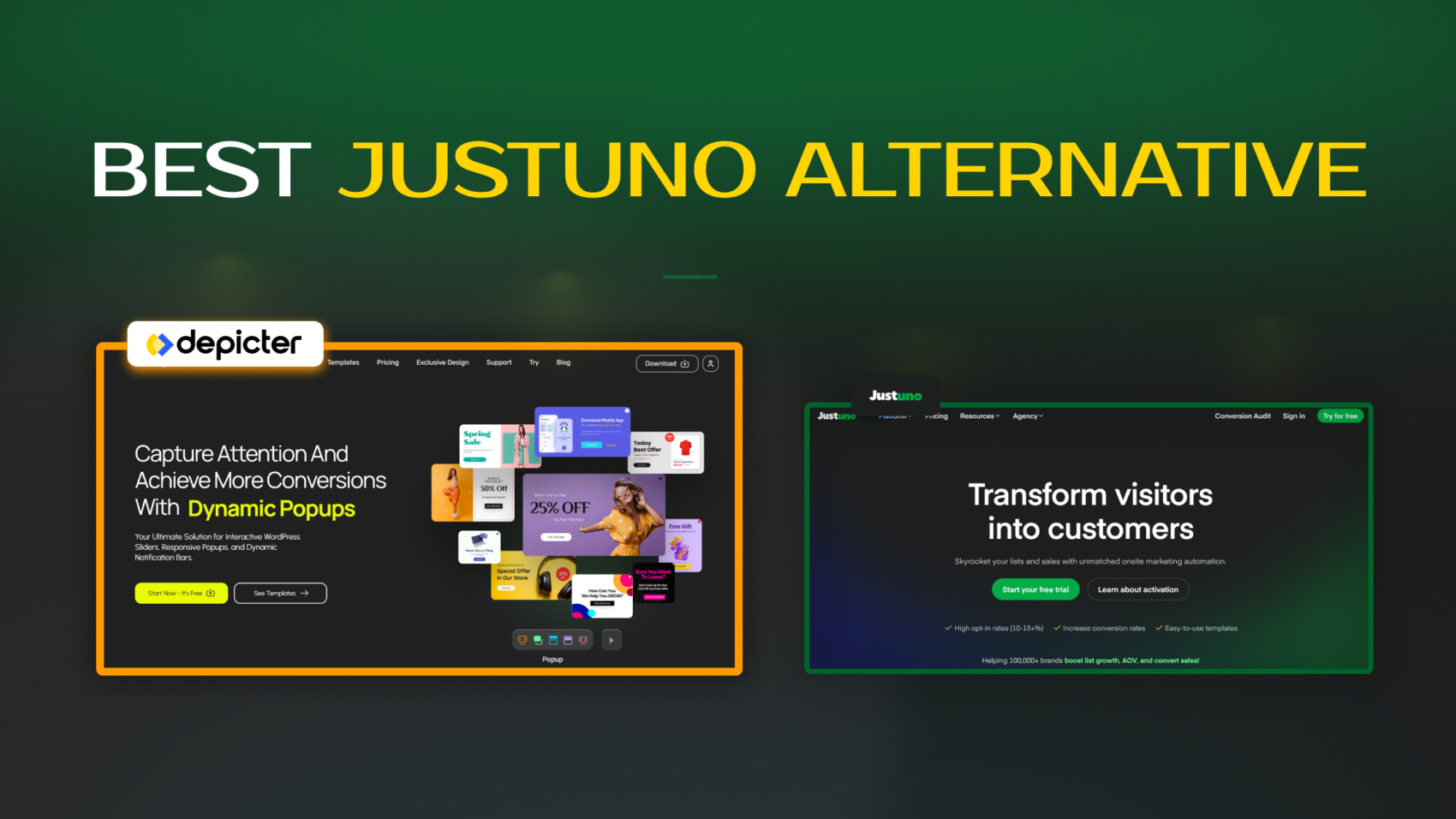
If you have ever experienced feelings of being overwhelmed while attempting to create a simple popup in Justuno, you are not alone. Its interface, inflexible layout system, and restricted design options can render even minor customizations an unpleasant task, leading you to look for a better Justuno alternative.
Although Justuno provides a range of features, the user experience frequently appears unnecessarily complex, particularly for marketers and designers who prioritize creativity and adaptability.
Consequently, many individuals are now seeking better Justuno alternatives that are more user-friendly, robust, and cost-effective. This is precisely where Depicter comes into play—a contemporary, visual-first Popup Builder designed for flexibility and user-friendliness.
User Interface and Experience
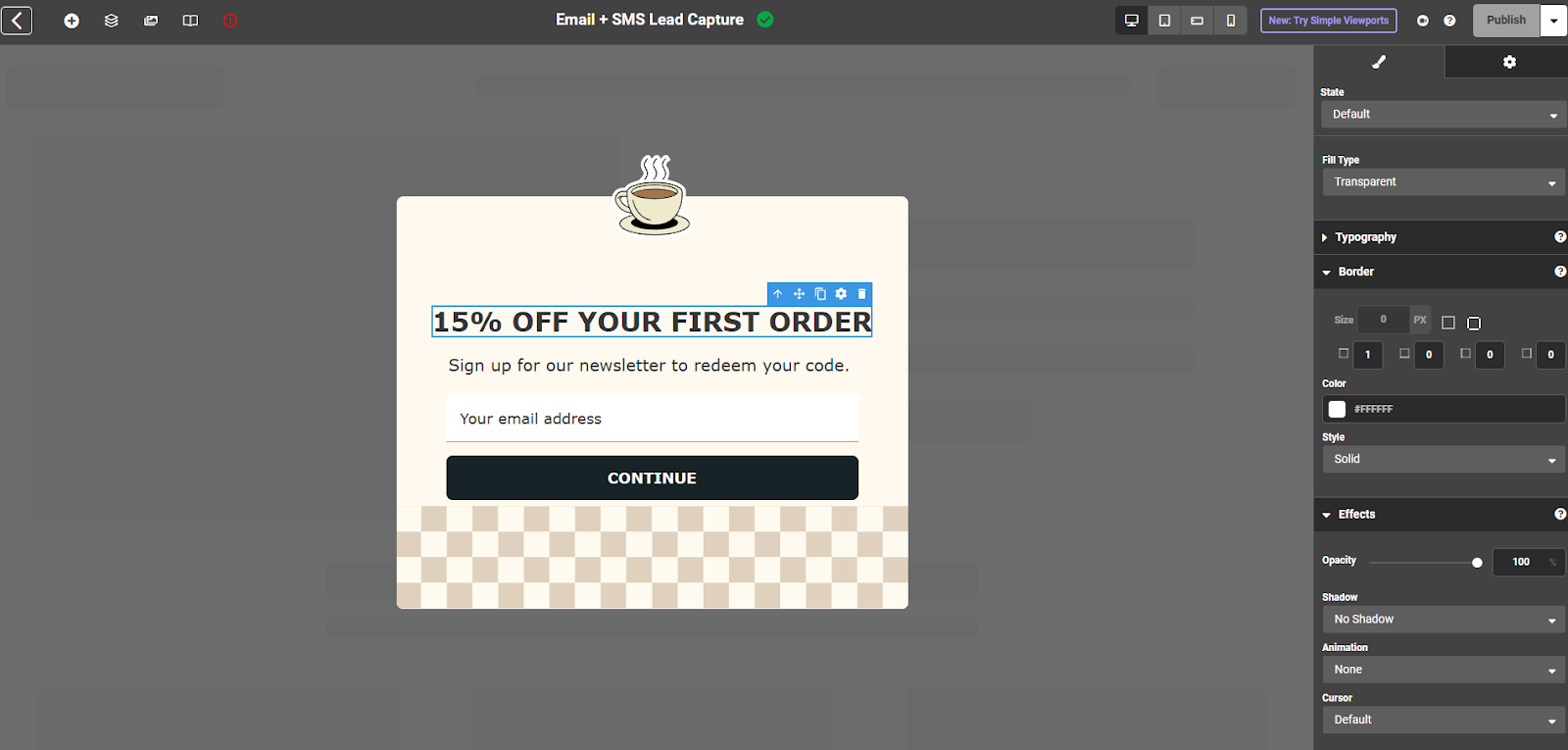
Justuno is equipped with numerous features; however, navigating through them can resemble wandering in a labyrinth. With a multitude of configuration options, nested menus, and settings that are deeply hidden, even seasoned users might find it challenging to locate what they require. For instance, establishing targeting rules or display conditions frequently necessitates traversing multiple layers of menus that are difficult to monitor.
Consider the scenario of attempting to modify an exit-intent popup, only to discover that you have clicked through six layers and are uncertain how to return to the main interface. This experience can be both frustrating and time-consuming.
Editor Limitations
Justuno’s editor relies heavily on a rigid row-and-column grid. While this system might work fine for basic layouts, it quickly becomes a limitation when you’re trying to get creative. Want to move a text block slightly to the left or overlay an image on a button? Tough luck—you’re stuck within the strict boundaries of the grid.
There’s no support for freeform element placement. You can only drag components into predefined slots. This makes small layout tweaks unnecessarily difficult, and creativity gets boxed in by the system.
Small changes shouldn’t feel like major design hurdles, but with Justuno, they often do.
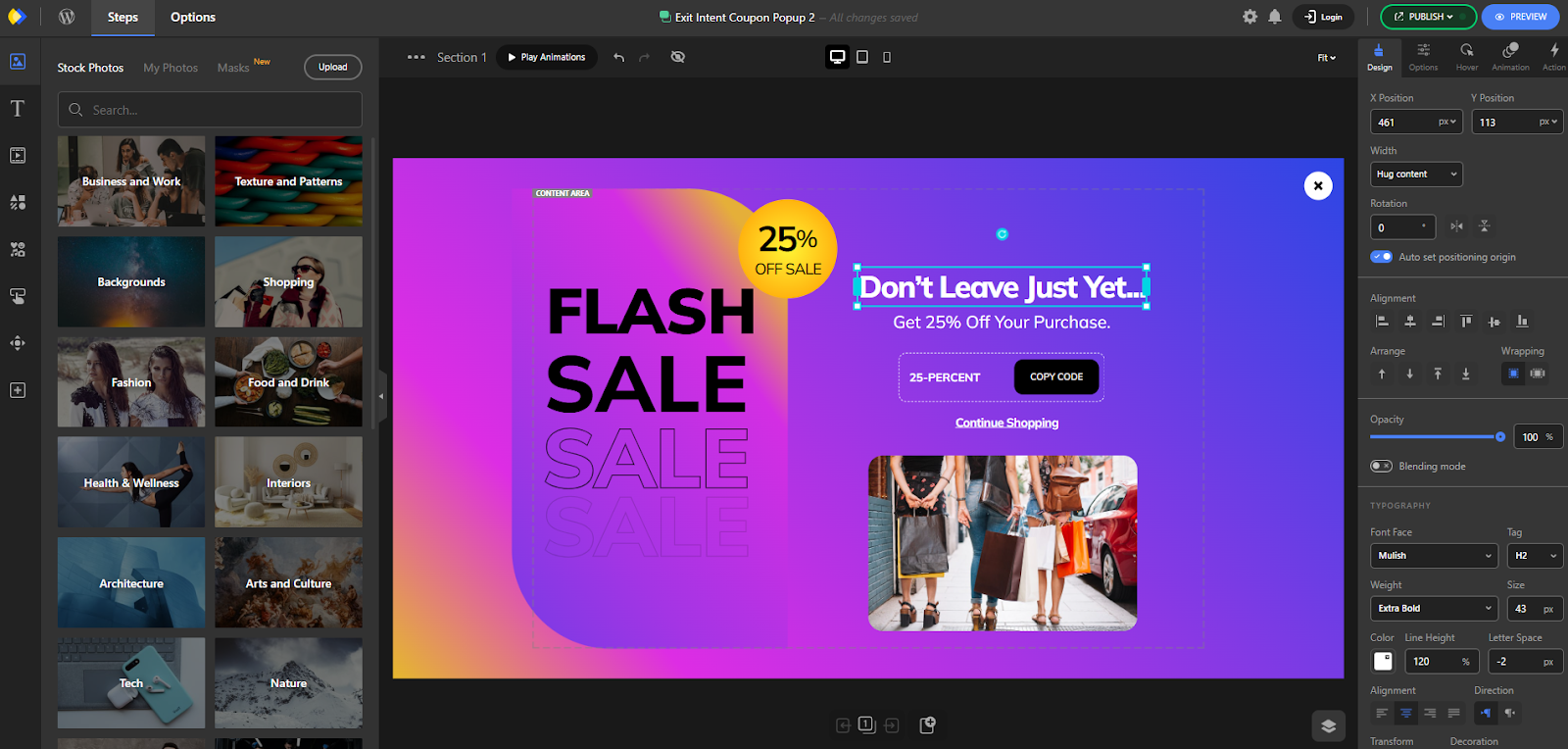
Depicter changes the game with a visual editor that’s both flexible and intuitive. Unlike rigid tools that lock you into columns and rows, Depicter’s Free Popup Builder gives you full creative freedom.
You can place elements anywhere on the canvas, rotate or resize them freely, align with smart guides, and even group multiple elements—all without restriction. It feels more like using a modern design tool than a popup builder. That’s one more reason to choose Depicter as the best Justuno alternative.
Every part of the platform, from the dashboard to the editing interface, is optimized for a seamless design experience. Whether you’re building from scratch or using templates, Depicter makes designing fast, smooth, and actually enjoyable.
Styling Tools
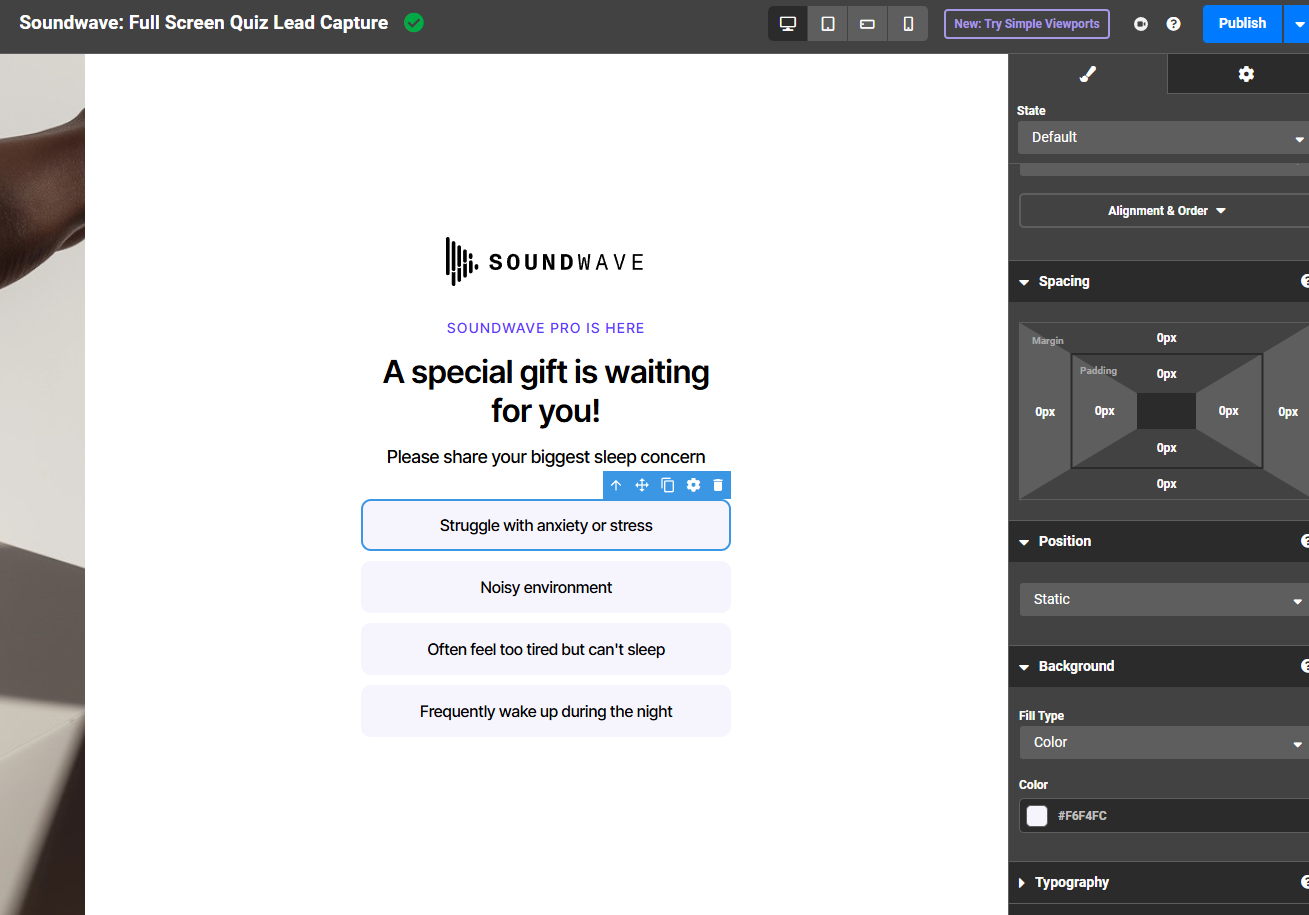
One of Justuno’s weak spots is its basic design and styling options. Customizing fonts, colors, or spacing is possible, but not much more.
You’re also restricted to the grid layout, so you can’t overlap elements or build more dynamic, modern-looking popups. On top of that, animation options are minimal. Just a couple of transitions with no support for advanced visual effects like parallax or Ken Burns.
In contrast, Depicter offers styling tools that rival professional design software. Each element comes with a dedicated style panel offering everything from basic adjustments to advanced effects like animations, responsive behavior, hover states, and custom interactions.
You can animate individual elements, control how the popup appears on-screen, and even apply visual effects that boost engagement. Copying styles between elements is also super easy, making the workflow more efficient and enjoyable.
Elements Library
Designers need variety to create standout experiences, especially in popup design, where grabbing attention quickly is key. Unfortunately, Justuno’s elements are quite limited—mostly basic blocks like text, images, and form fields.
While the UI is clean, the lack of element diversity can hold you back if you’re aiming for more custom, creative popups.
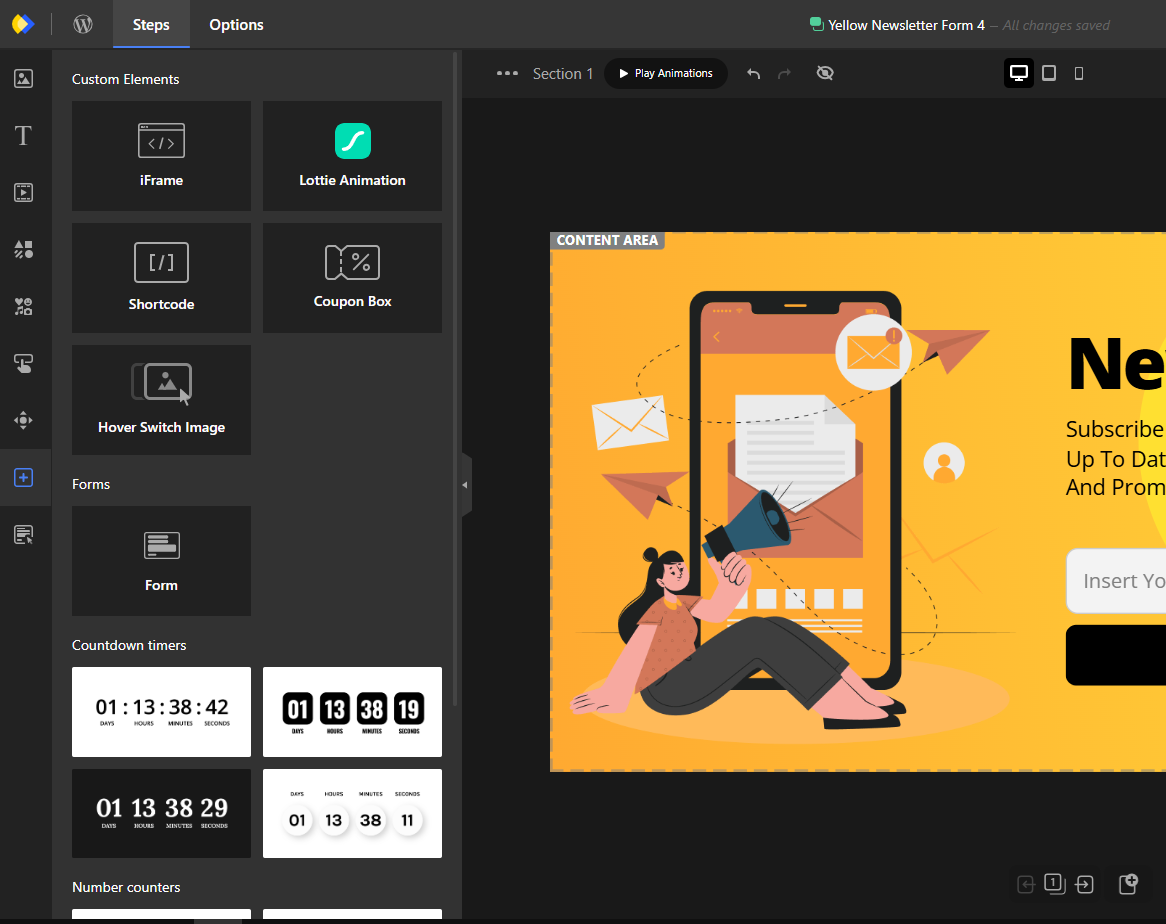
Depicter, on the other hand, goes far beyond the basics. Alongside standard components like text, buttons, and forms, it includes unique elements such as:
Lottie animations
Progress bars
Before/after sliders
Scroll indicators
Shortcode integration
Timers, coupon boxes, play/pause buttons, and more
These elements unlock new creative possibilities and let you build interactive, attention-grabbing experiences. For instance, the shortcode feature lets you embed content from other plugins directly into your popup, giving you unmatched flexibility.
Templates
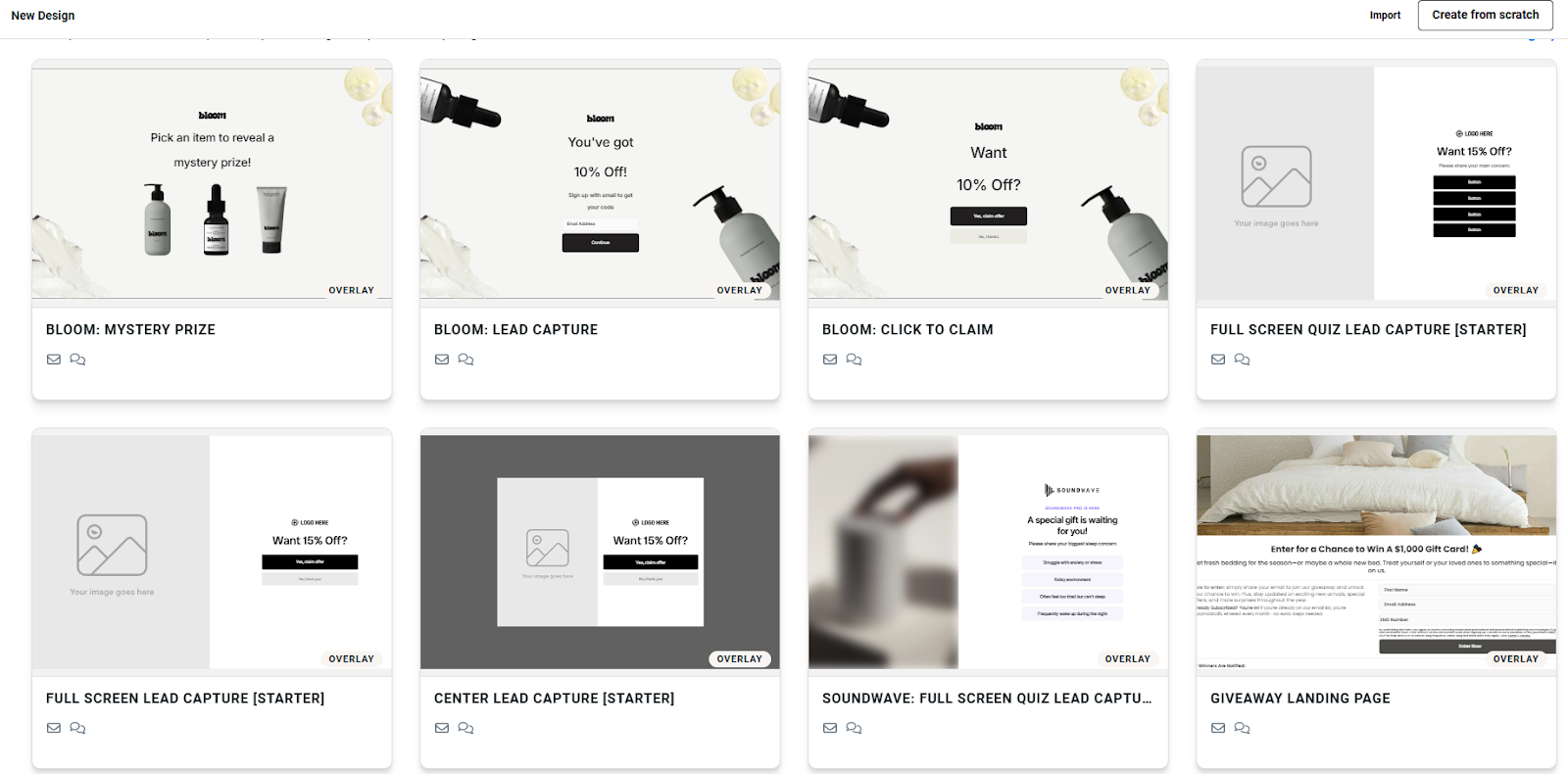
Justuno provides over 300+popup templates. That may seem like a lot, but once you start browsing, you’ll notice many are fairly basic and repetitive. They cover core use cases like email capture or product announcements, but don’t offer much variety or visual flair.
If popups are a key part of your marketing strategy, this limited template library may not be enough—especially if you’re looking to run multiple campaigns with different styles and goals.
Depicter offers a growing collection of 670+ professional templates, including a large number of Free Popup Templates. These templates span a wide range of industries, styles, and campaign goals—from e-commerce sales to seasonal promotions, exit popups, and more. So it’s not just the best Justuno alternative, it’s much better.
And the best part? Depicter adds 10+ new templates every week, so your design options are always fresh, current, and diverse. Whether you’re aiming for something bold, elegant, or highly interactive, you’ll find templates that fit—and inspire.
Pricing
For individuals, startups, or small teams working with limited budgets, pricing is often a major factor when choosing a popup builder. Depicter pricing stands out by offering a much more affordable solution, with its premium plan starting at just $39.
On the other hand, Justuno can be a tough choice for budget-conscious users, with its most basic paid plan starting at $421. That’s a significant price jump from the beginning and can be a deal-breaker for those who want professional-grade features without the heavy upfront cost.
What makes Depicter even more impressive is that it offers robust features despite the lower price. You still get access to powerful visual editing tools, support for dynamic content, responsive design options, and a growing library of ready-to-use templates and design elements, making it a high-value option across the board.
Conclusion
If you’ve ever felt restricted by Justuno’s rigid layout system, basic styling options, and high price point, you’re not alone. While it offers a range of features, the overall user experience can be overly complex, especially for users who prioritize creative control and simplicity.
That’s where Depicter comes in as a powerful Free Popup Builder and the best Justuno alternative. With its intuitive drag-and-drop editor, modern styling tools, and an ever-growing collection of templates, it empowers you to build professional, engaging popups without the steep learning curve—or the steep price. Whether you’re a startup, freelancer, or scaling business, Depicter offers the flexibility and value today’s marketers truly need.
FAQs
What makes Depicter the best Justuno alternative?
Depicter offers a more intuitive interface, full drag-and-drop design freedom, a wider selection of design elements, and over 670 templates. It also comes at a much lower price compared to Justuno.
Is Depicter more affordable than Justuno?
Yes. Justuno’s entry-level plan starts at $421, while Depicter’s premium plan starts at only $39, making it a much more budget-friendly option.
Does Depicter support advanced animations and interactions?
Yes. Depicter includes features like entrance and exit animations, hover effects, responsive design controls, Lottie animations, and more for creating interactive experiences.
Can I try Depicter for free?
Yes. Depicter offers a free version with access to its visual editor, core features, and a selection of templates so you can get started at no cost.