
Removing the background from an image is a common task in web design, ecommerce, and digital marketing. Whether you want to highlight a product, place a person inside a hero section, or create a cleaner visual for a promotional campaign, removing the background can make an image much more useful.
In the past, removing an image background often meant opening Photoshop or another image editing tool, manually selecting the subject, cleaning up the edges, and exporting the result as a transparent PNG. Today, AI background remover tools can automate much of this process and make it possible to remove image backgrounds in just a few clicks.
Why Remove the Background From an Image?
Removing an image background is not only about making an image look cleaner. It gives you more flexibility when creating visual content and allows you to use the same image in different designs and layouts.
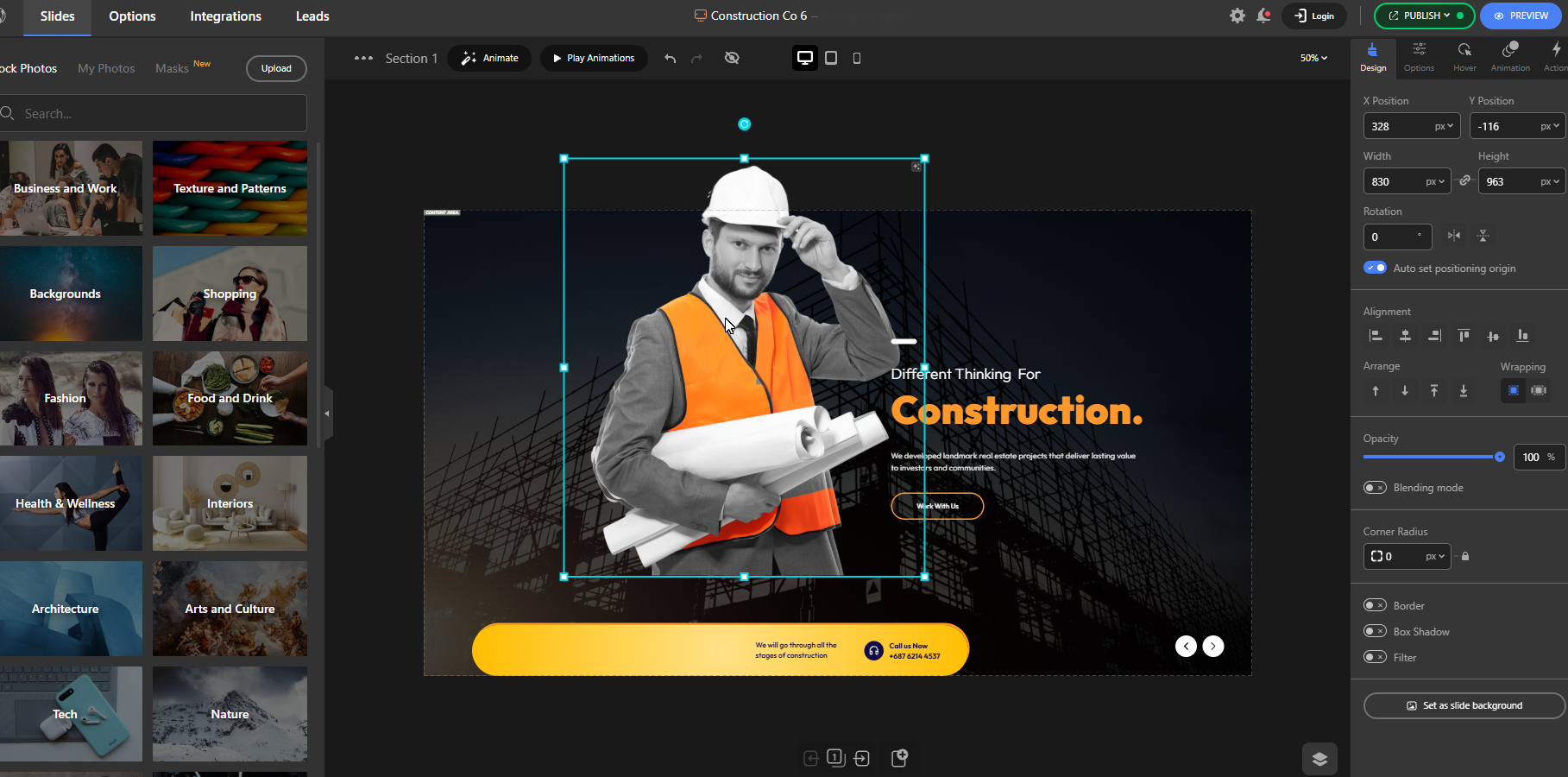
Create Cleaner and More Professional Visuals
A busy or distracting background can take attention away from the main subject of an image. Removing it allows you to focus on the element that matters and create a cleaner visual.
This can be especially useful when designing website banners, promotional graphics, landing pages, and other marketing materials where every visual element needs to support the main message.
Make the Main Subject Stand Out
When you remove the background from a photo, the main subject becomes the visual focus. This can help products, people, or other objects stand out more clearly within your design.
You can then place the subject over a custom background, add other design elements around it, or position it exactly where you need it.
Create Transparent Images
One of the main reasons to remove image backgrounds is to create an image with a transparent background. Instead of being limited to the original background of a photo, you can place the subject on almost any design.
For example, you can put a product image over a colored section, place a person on top of a gradient, or use an isolated object inside a website layout.
Improve Product and Website Images
Background removal can be particularly useful for ecommerce and website design. Product images can be isolated from their original backgrounds and placed into product sections, banners, sliders, and promotional designs.
This gives you more control over how images fit into your website and helps create a more consistent visual style across different pages.
What Is an AI Background Remover?
An AI background remover is a tool that uses artificial intelligence to automatically identify the main subject in an image and separate it from the background. Instead of manually selecting the subject, the AI analyzes the image, detects the object or person you want to keep, and removes the surrounding background. The result is usually an image with a transparent background that you can use directly in your design. This makes it much faster to remove an image background compared with traditional manual editing.
What Options Do You Have for Removing an Image Background?
There are several ways to remove an image background, and the best option depends on your workflow, the complexity of the image, and how much control you need over the final result.
The traditional approach is to use a photo editing application such as Photoshop. You can manually select the subject using tools such as the Object Selection, Quick Selection, or Pen Tool, refine the edges, remove the background, and then export the result as a transparent image.
This approach gives you a high level of control, but it can also take time, especially when working with complicated images. Hair, shadows, transparent objects, uneven edges, and backgrounds with similar colors can require additional editing and cleanup.
Another option is to use an online background remover. These tools allow you to upload an image, automatically remove the background, and download the result. This can be convenient when you only need to edit an image occasionally. However, it also adds another step to your design workflow.
For example, if you are already creating a website hero section and realize that one of your images needs a transparent background, you may need to leave your design tool, find an external image background remover, upload the image, wait for the result, download it, and then upload the edited image back into your project.
AI makes this process much simpler by automating the most time-consuming part of background removal. And when the AI background remover is built directly into your design tool, you can remove the background without leaving your design workflow.
How to Remove Image Backgrounds With AI in Depicter
Depicter includes an AI background remover directly inside its editor, so you can remove an image background while working on your design.
You don’t need to open another image editing application or use a separate online tool. Once your image is inside the editor, the background can be removed with a single click.
Add an Image to the Depicter Editor
Start by adding the image you want to use to your Depicter design.
You can use the feature with images you are already working with in your project, whether you are creating a slider, hero section, popup, or another visual element.
Click the Remove Background Icon
Once the image is added to the editor, look for the Remove Background icon on the image.
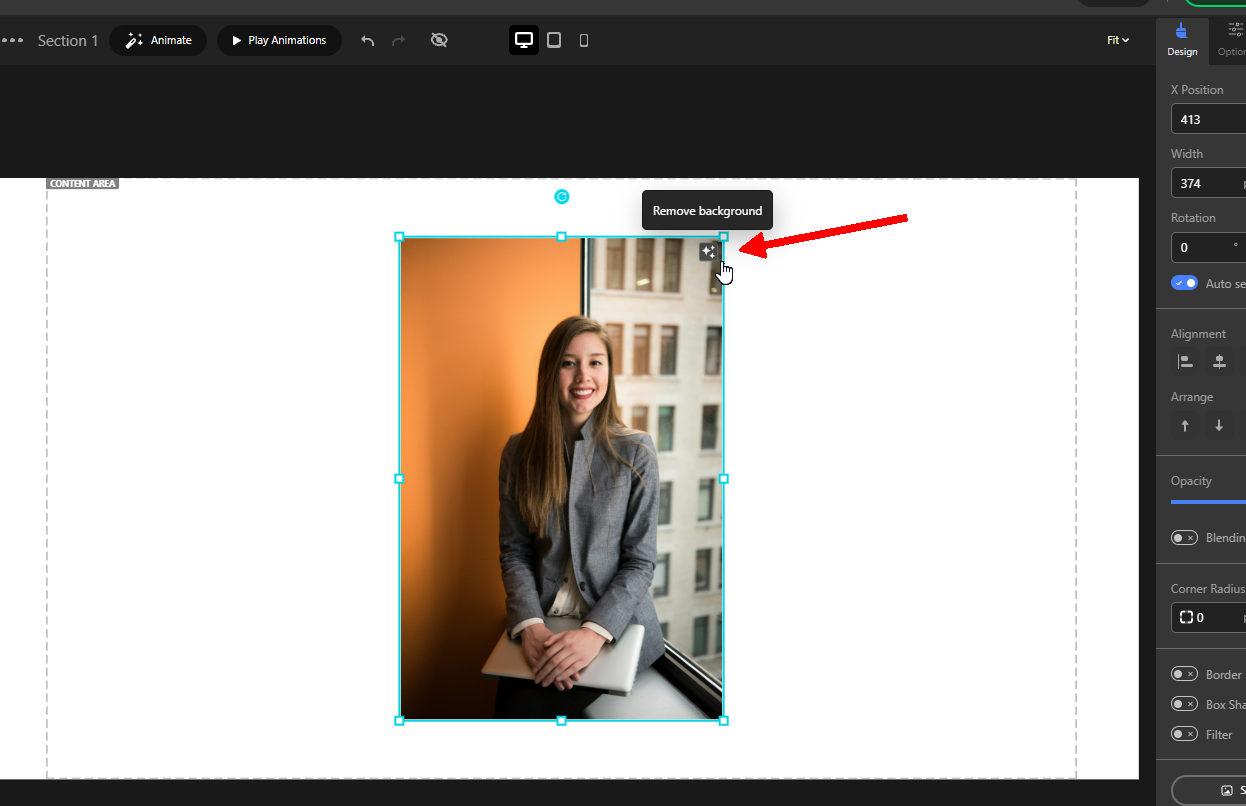
Click the icon to start the background removal process.
Let AI Automatically Remove the Background
Depicter uses AI to automatically detect the main subject of the image and remove the surrounding background.
You don’t need to manually select the subject or adjust complicated editing settings. The process is handled automatically, allowing you to get a transparent version of the image with a single click.
Continue Designing With the Transparent Image
Once the background has been removed, you can continue working with the image directly inside your design.
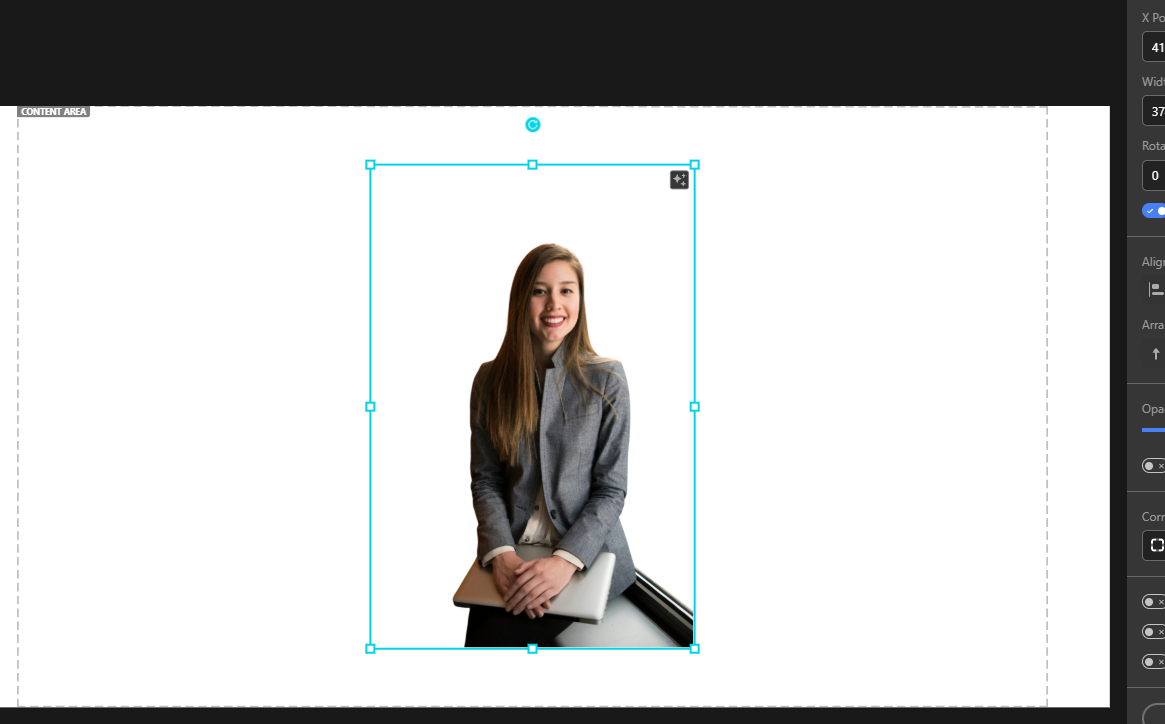
You can position the subject, resize it, combine it with other elements, or place it over a different background without having to export and re-upload the image.
This is especially useful when you’re building a visual design and want to experiment with different layouts without constantly switching between your design tool and an external image editor.
AI Background Remover Use Cases
An AI background remover can be useful in many different types of visual projects. Here are some examples of how background-removed images can be used in website designs.
Product Photography
Product images are one of the most common use cases for background removal.
By isolating a product from its original background, you can place it inside product banners, promotional sections, ecommerce layouts, and other designs.
Depicter also includes templates that use isolated product images to create visually focused layouts.
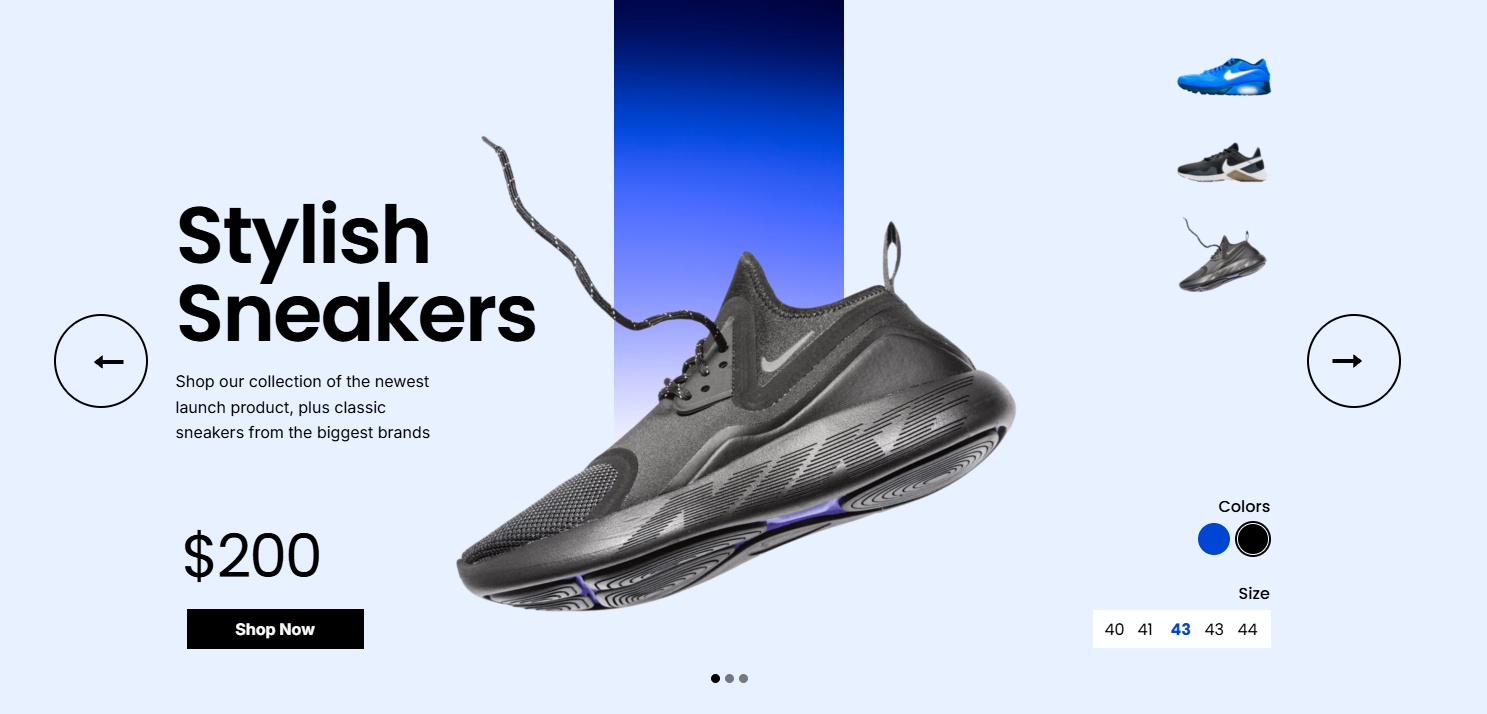
These types of designs can be created more easily when you can quickly remove the background from product photos.
People and Portraits
Removing the background from portraits allows you to place people into custom website layouts without being limited by the original photo background.
You can use isolated portraits in hero sections, promotional banners, landing pages, sliders, and other marketing designs.

Objects and Graphics
Background removal isn’t limited to product photos and portraits. It can also be useful for individual objects, illustrations, and other visual elements.
An isolated object can be combined with text, shapes, gradients, and other elements to create more flexible compositions.
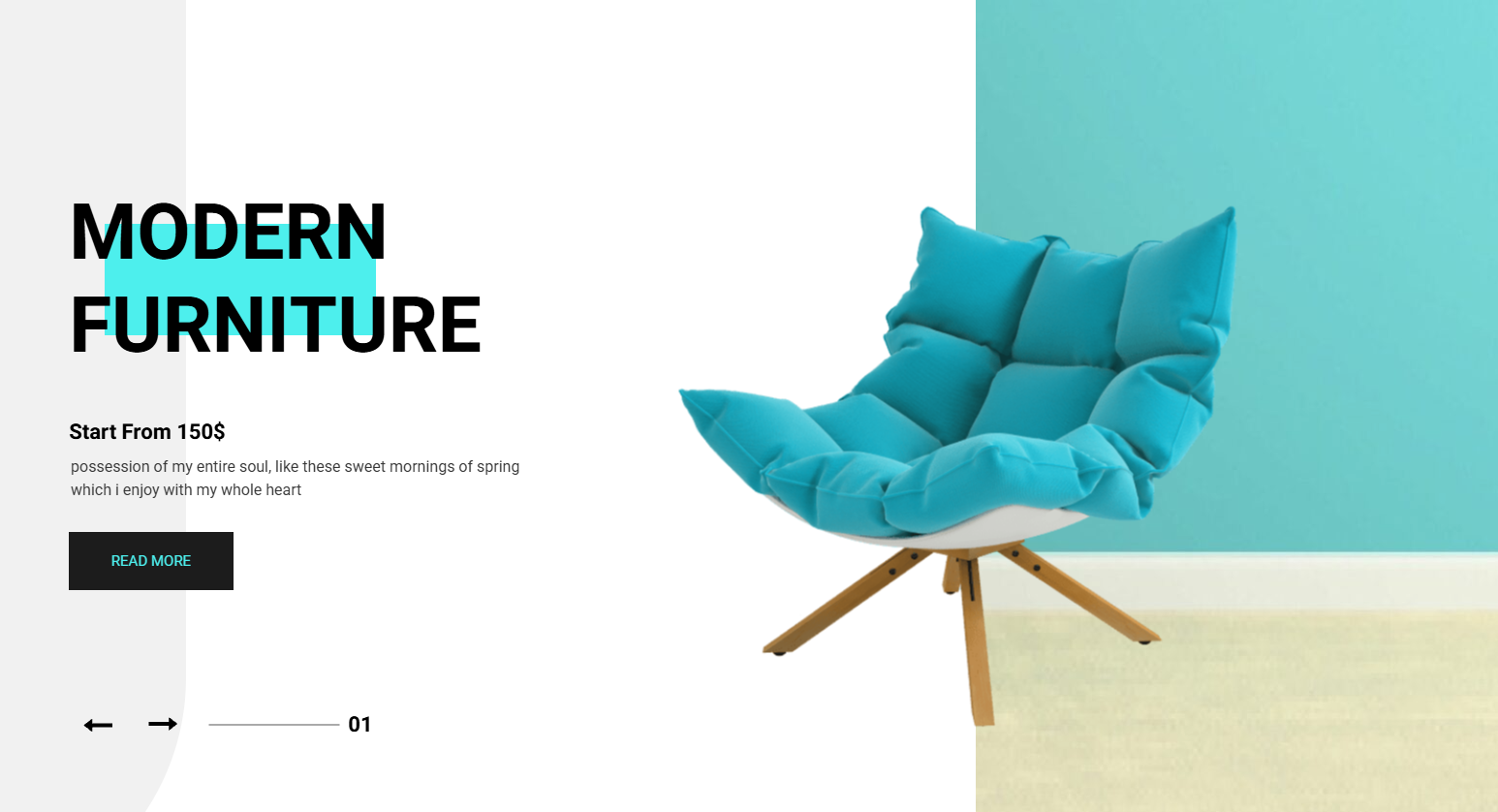
Instead of designing around the original image background, you can treat the object as an individual element within your layout.
Website Design
Transparent images can give you much more flexibility when designing website sections.
You can place an isolated image on top of a colored background, use it as part of a hero section, position it next to text, or create layered visual compositions.
This makes background removal particularly useful for designers who want more control over the composition of their website visuals.
Marketing Campaigns
Marketing campaigns often require visuals in different formats and layouts. The same product, person, or object may need to appear in a popup, banner, slider, landing page, or promotional section.
Having the subject separated from its original background makes it easier to reuse the image across different designs.

With Depicter’s AI background remover, you can prepare these visuals directly while creating your campaign instead of switching to another image editing tool.
Conclusion
Removing an image background used to require dedicated image editing software, manual selections, and sometimes a considerable amount of cleanup. AI has made the process much faster by automatically identifying the subject and removing the background for you.
Whether you’re working with product photos, portraits, objects, or website graphics, a transparent image can give you much more flexibility when creating a design.
With Depicter’s built-in AI background remover, you can remove image backgrounds directly inside the editor with a single click and continue designing with the result immediately. This keeps the entire process inside your existing workflow and eliminates the need to move between your design and an external background removal tool.
FAQs
What is an AI background remover?
An AI background remover is a tool that uses artificial intelligence to detect the main subject of an image and automatically remove its background, usually leaving the subject with a transparent background.
How can I remove the background from an image?
You can remove an image background manually using photo editing software, use an online background remover, or use an AI-powered tool that automatically detects and removes the background.
Can I remove the background from a photo with AI?
Yes. AI background remover tools can automatically detect subjects in many types of photos, including product images, portraits, and images containing individual objects.
How do I make an image background transparent?
You can remove the existing background using an AI background remover and export or use the resulting image with transparency. In Depicter, you can remove the background directly from an image inside the editor.
Can I remove an image background directly in WordPress?
Yes. Depicter includes an AI background remover inside its WordPress editor, allowing you to remove the background from an image without using a separate image editing tool.
Leave Comment