
When you’re creating a website slider, hero section, or other visual design, it’s common to work with multiple elements at the same time. You might have several images, text blocks, buttons, shapes, and other design elements layered on top of each other.
As a design becomes more complex, selecting and managing these elements directly on the canvas can become difficult. An element may be hidden behind another one, difficult to click, or simply hard to find among everything else on the screen.
That’s why a good design tool should include features that make your workflow easier, especially when you’re looking for the Best WordPress Slider Editor. The right features shouldn’t just help you create a design; they should also make it easier to manage and edit everything as your project grows. One of the features that can make a real difference here is a Layers Panel.
Instead of relying only on the canvas to find and manage elements, a Layers Panel lets you see the structure of your design in one place and quickly access the layer you need.
Why Is Layer Management Important?
Good layer management becomes increasingly important as your designs grow. A simple design with only a few elements is usually easy to manage, but complex sliders and hero sections can contain dozens of elements that overlap or interact with each other.
Keep Your Designs Organized
A well-organized design is easier to edit and maintain. When you have a clear view of the elements in your project, you can quickly understand what each part of the design contains.
This is especially useful when you’re working on an existing project or returning to a design that you haven’t edited for some time.
Find Elements Faster
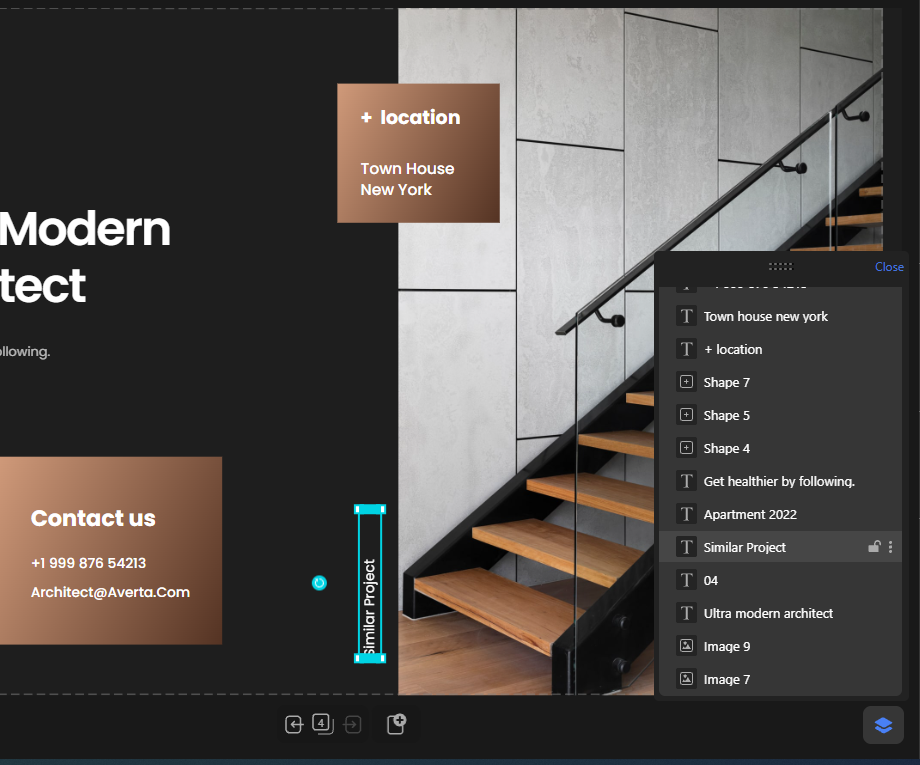
Sometimes the element you’re looking for isn’t easy to select from the canvas. It might be behind another image, covered by a larger element, or positioned in a way that makes clicking it difficult.
A Layers Panel gives you another way to find that element. Instead of trying to click through multiple objects, you can locate it directly from the list of layers.
Manage Overlapping Elements
Overlapping elements are an important part of modern web design. For example, you might place text over an image, a button over a background shape, or multiple visual elements on top of each other.
When several elements occupy the same area, controlling their order becomes much easier when you can manage them as layers.
Make Editing Complex Designs Easier
The more elements you add to a design, the more difficult it can become to manage everything directly from the canvas.
Layer management gives you a more structured way to work. Instead of treating the design as one large visual composition, you can work with individual elements and quickly move between them.
What Is a Layers Panel?
A Layers Panel is a structured view of the elements that make up a design. Instead of seeing only the visual result on the canvas, you can see the individual elements that exist within the project and access them from one place.
This makes it easier to understand the structure of a design, select specific elements, and manage elements that are hidden or overlapping. If you’ve used the Navigator in Elementor, the concept is very similar: it provides a separate view that helps you navigate and manage the elements in your design without relying entirely on the canvas.
In Depicter, the Layers Panel is located in the bottom-right corner of the editor. Simply click it to open the panel and view the layers in your design.
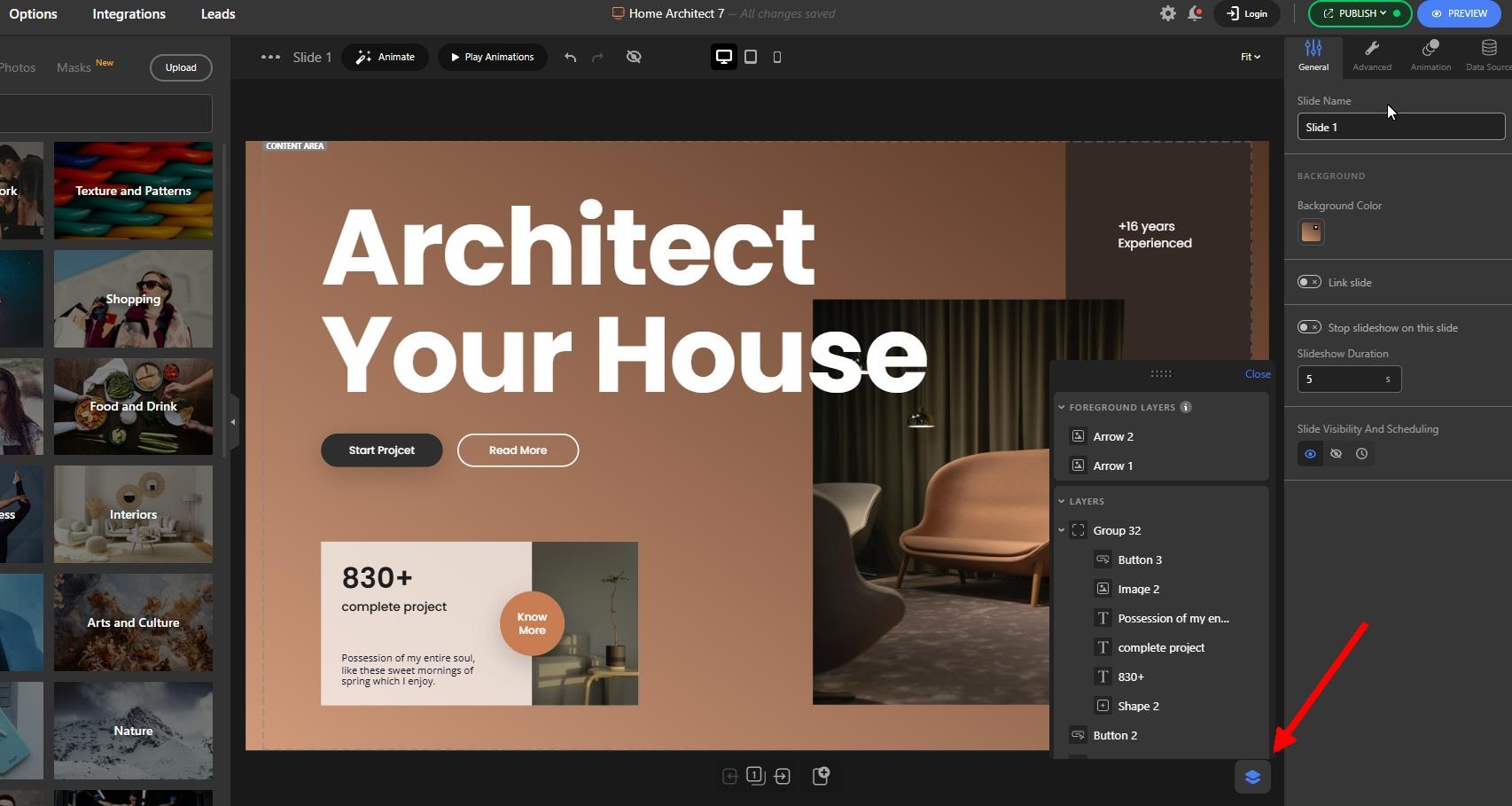
Once opened, the panel can also be moved anywhere around the canvas, allowing you to position it wherever it’s most convenient for your workflow. This makes it easy to keep the Layers Panel accessible without letting it get in the way while you’re designing.
What Can You Do With the Depicter’s Layers Panel?
Depicter’s Layers Panel gives you more than just a list of the elements in your design. It provides a practical way to find, organize, and manage your layers directly from the editor.
Manage Foreground and Slide Layers
The Layers Panel separates your elements into two main groups: Foreground Layers and regular Layers.
Foreground Layers contain elements that stay across all slides in your project. For example, if you have navigation arrows or other elements that should remain visible throughout the slider, you can find and manage them separately from the elements that belong to individual slides.
Regular Layers contain the elements specific to the slide you’re currently working on, giving you a clearer view of the structure of each slide.
Find Elements by Hovering Over Layers
One particularly useful feature is the visual connection between the Layers Panel and the editor.
When you hover over a layer in the panel, the corresponding element is highlighted directly in the editor. This makes it much easier to identify an element, especially when several elements overlap or when you’re working with a complex design.
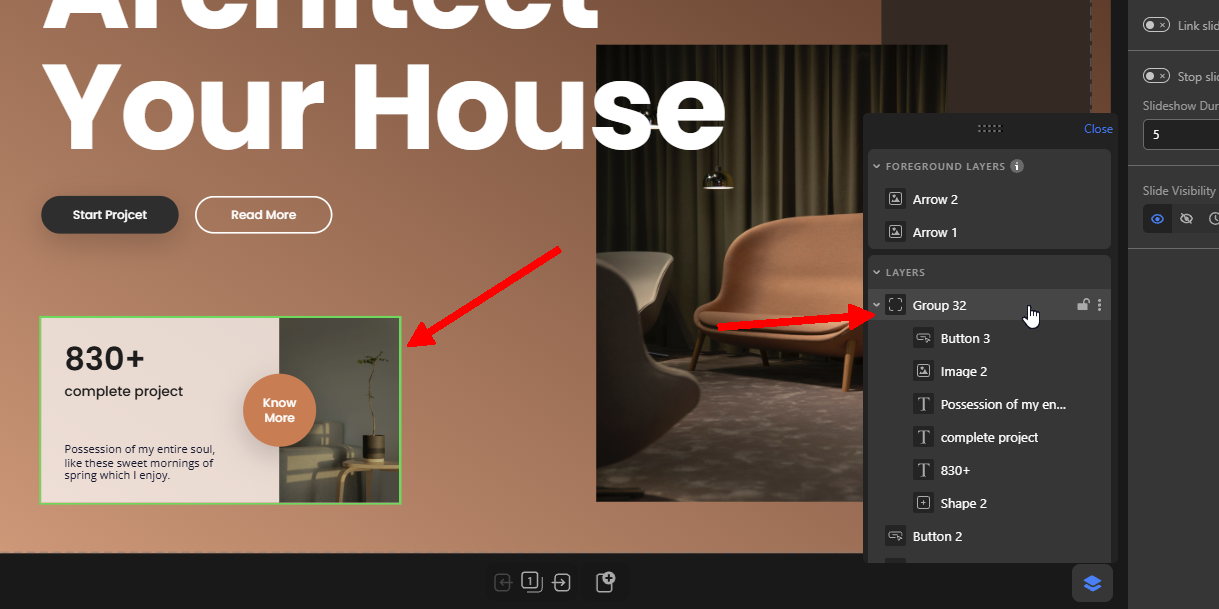
Instead of guessing which layer corresponds to which element, you can simply hover over it and immediately see where it is on the canvas.
Reorder Your Layers
The order of your layers affects how elements are stacked in your design. You can reorder layers to control which elements appear in front of or behind others.
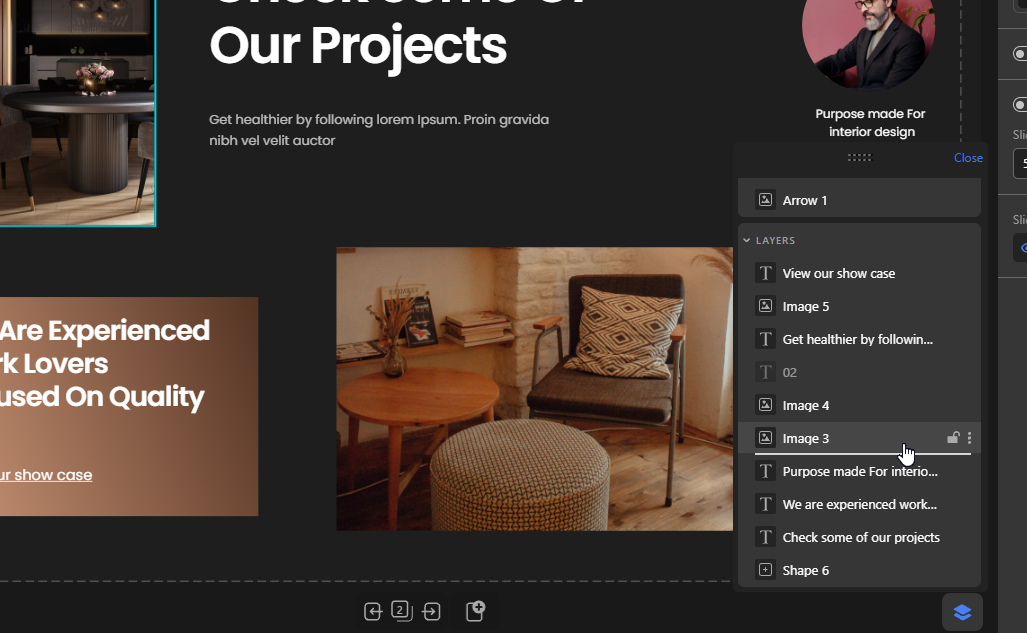
This is particularly useful when working with overlapping images, text, buttons, shapes, and other elements.
Rename Layers
Giving layers meaningful names can make complex designs much easier to navigate.
Instead of trying to remember what each element represents, you can rename layers based on their purpose, making them easier to identify later.
Lock Layers
You can lock layers when you don’t want to accidentally move or edit them while working on other parts of your design.
This can be especially useful for background elements, decorative graphics, or other parts of the design that are already positioned correctly.
Group Layers
Grouping allows you to organize related elements together and manage them as a group.
This can help keep complex designs more structured, especially when multiple elements work together as part of the same visual component.
Use the Layer Context Menu
The Layers Panel also gives you access to the same useful actions available through Depicter’s context menu.
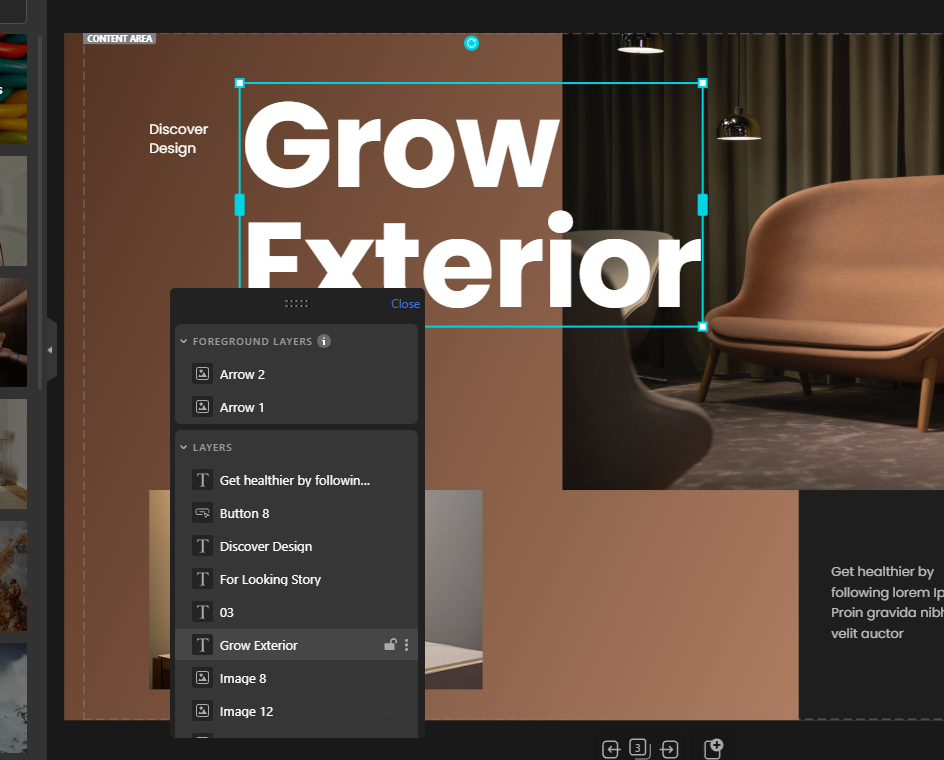
Depending on what you’re working on, you can use these actions to quickly copy, duplicate, delete, copy styles, and paste styles.
Having these actions available while managing your layers means you can perform common editing tasks without constantly switching between different parts of the editor.
Together, these features turn the Layers Panel into more than a simple navigation tool. It gives you a centralized way to find, organize, protect, and edit the elements that make up your Depicter designs.
Conclusion
As your website designs become more complex, managing multiple images, text blocks, buttons, shapes, and other elements directly from the canvas can become challenging. A Layers Panel gives you a more organized way to navigate and manage these elements without having to search for each one manually.
Depicter’s Layers Panel is designed to make this process easier. You can separate foreground layers from regular slide layers, quickly find elements by hovering over their layers, reorder, rename, lock, and group layers, and access useful actions such as copy, duplicate, delete, copy styles, and paste styles directly from the context menu.
Whether you’re creating a simple slider or a complex visual design with many overlapping elements, the Layers Panel gives you more control over your project and helps keep your workflow organized. It lets you spend less time looking for elements and more time focusing on your design.
FAQs
What is a Layers Panel?
A Layers Panel is a structured view of the elements in a design. It allows you to see, find, select, and manage individual elements without relying entirely on the canvas.
What is the difference between a Layers Panel and a Navigator?
A Layers Panel and a Navigator serve a very similar purpose. Both provide a structured view of the elements in a design and make it easier to navigate and manage them. Elementor uses the term Navigator, while Depicter provides this functionality through its Layers Panel.
What can I do with the Depicter Layers Panel?
You can use the Layers Panel to view and manage your layers, separate foreground layers from regular slide layers, find elements, reorder, rename, lock, and group layers, and access actions such as copy, duplicate, delete, copy styles, and paste styles.
What are Foreground Layers in Depicter?
Foreground Layers are elements that remain visible across all slides in a project. For example, navigation arrows or other elements that need to stay consistent across the slider can be managed as foreground layers.
Can I find an element on the canvas using the Layers Panel?
Yes. When you hover over a layer in the Layers Panel, the corresponding element is highlighted in the editor. This makes it easier to identify elements that are overlapping, hidden, or difficult to select directly from the canvas.
Can I reorder layers in Depicter?
Yes. You can reorder layers in the Layers Panel to control how elements are stacked and which elements appear in front of or behind others.
Can I rename, lock, and group layers in Depicter?
Yes. Depicter’s Layers Panel lets you rename layers, lock them to prevent accidental changes, and group related elements to keep complex designs organized.
Where is the Layers Panel in Depicter?
The Layers Panel is located in the bottom-right corner of the Depicter editor. You can click it to open the panel and move the panel around the canvas to place it wherever it is most convenient for your workflow.
Leave Comment